Multi Inbox
Multi Inbox lets you send up to 500 cold emails a day instead of 50 by spreading your outreach across several dedicated inboxes. Each inbox stays under a safe limit, so deliverability stays high and your main business domain stays out of cold outreach.
You can check your plan or upgrade in Billing.
How it works
Section titled “How it works”Without Multi Inbox, Talin sends up to 50 emails a day from your connected email, across all your campaigns. With Multi Inbox, that limit applies to each inbox instead, so 10 inboxes give you up to 500 emails a day.
In every inbox:
- emails are sent a few minutes apart, never in bulk
- your campaign’s sending hours apply
- replies land in Talin Inbox, so you don’t switch accounts
What you’ll need
Section titled “What you’ll need”The usual setup is 5 new domains with 2 inboxes each, for 10 inboxes in total. New domains keep cold outreach away from the domain you use for normal business email.
Each inbox needs its domain set up for email and needs to be warmed up before it sends at full volume. You can have this done for you, or do it yourself.
What it costs
Section titled “What it costs”Here’s roughly what 5 domains and 10 inboxes cost, using list prices from October 2026. Prices change, so check each provider’s site before you buy.
| Zapmail | Google Workspace, set up yourself | Microsoft 365, set up yourself | |
|---|---|---|---|
| Inboxes | $39 a month for 10, on the Starter plan | $7 per inbox a month, so $70 a month for 10 | $7 per inbox a month, so $70 a month for 10 |
| Domains | about $13 each for a .com | about $15 to $20 each per year | about $15 to $20 each per year |
| DNS setup | done for you | you add the records | you add the records |
| Warm-up | pre-warmed inboxes available | 2 weeks, plus a warm-up tool if you use one | 2 weeks, plus a warm-up tool if you use one |
| Your time | ordering, then connecting to Talin | 3 to 4 hours, then 2 weeks before you can send | 3 to 4 hours, then 2 weeks before you can send |
Google and Microsoft prices are for annual billing. Paying monthly costs about 20 percent more. See current prices on Zapmail, Google Workspace and Microsoft 365.
Set up your inboxes with Zapmail
Section titled “Set up your inboxes with Zapmail”We recommend Zapmail for most teams. It’s the fastest way to get started, and you don’t need to set up DNS records or warm up inboxes yourself.
Zapmail:
- sells new domains, or lets you use domains you already own
- creates Google Workspace or Microsoft 365 inboxes on each domain
- sets up the DNS records for you
- offers pre-warmed inboxes, so you can start sending sooner
To set up:
- Sign up at Zapmail.
- Buy 5 domains, or add your own.
- Create 2 inboxes on each domain, for example firstname@trycompany.com and recruiting@trycompany.com.
- When Zapmail shows your inboxes as ready, connect them to Talin.
For help with your Zapmail account, contact Zapmail support.
Connect your inboxes to Talin
Section titled “Connect your inboxes to Talin”- Go to Settings, then Connected Accounts.
- Select Connect Email and authorize the inbox.
- Repeat for each inbox.
- Set a daily sending limit for each inbox.
Talin doesn’t raise the limits for you. Start low and add about 10 emails a day per inbox each week, up to 50 emails a day per inbox.
Choose inboxes for each campaign
Section titled “Choose inboxes for each campaign”Connected inboxes are available to all your campaigns. Choose which ones each campaign sends from:
- Open the campaign.
- Select the Settings gear at the top.
- Under Email inboxes, select Manage.
- Turn inboxes on or off for this campaign.
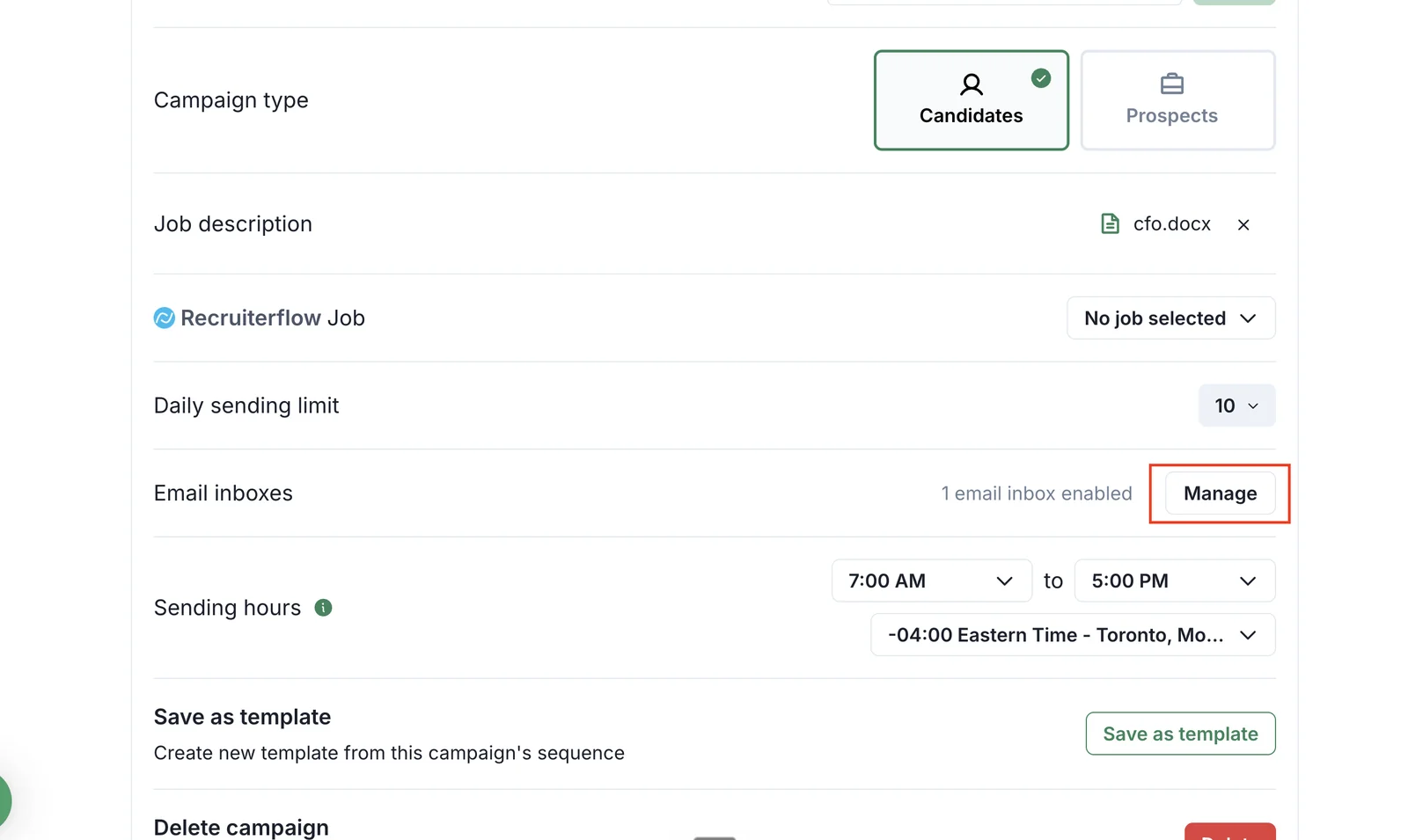
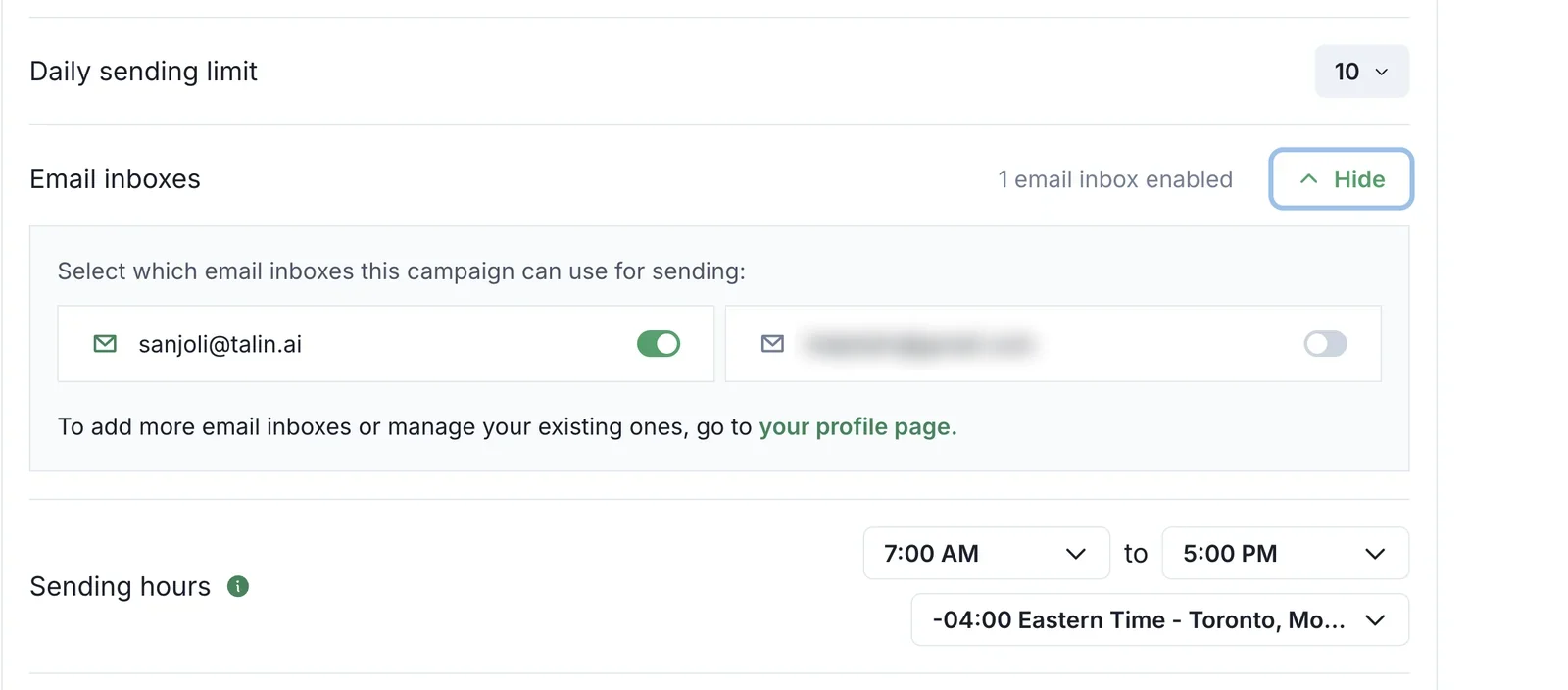
Talin rotates sending across the inboxes you turn on. Giving each role, vertical or region its own inboxes keeps replies organized and helps each domain build a good reputation.
Keep your inboxes out of spam
Section titled “Keep your inboxes out of spam”Use your new domains only for cold outreach, and keep your main domain for normal business email and customer replies.
Do:
- personalize first lines (AI Personalize can help)
- keep emails short, conversational and in plain text
- use 1 link at most
- send during business hours
- use verified email lists
Don’t:
- use all caps, lots of punctuation or words like free, guarantee or winner
- add attachments
- send identical emails from every inbox
Set up your inboxes yourself
Section titled “Set up your inboxes yourself”If you’d rather not use Zapmail, you can set everything up yourself. Plan for 3 to 4 hours of setup, then 2 weeks of warm-up before you connect the inboxes to Talin. The steps below use Google Workspace.
Step 1: Buy 5 new domains
Buy them from Squarespace Domains, Namecheap or GoDaddy. They cost about $15 to $20 each per year.
Choose names that read close to your brand. If your main domain is company.com, try companytalent.com, company.co, hellocompany.com, trycompany.com or getcompany.com. Avoid hyphens, numbers and unusual endings.
Step 2: Create inboxes in Google Workspace
- Go to Google Workspace and choose the Business Starter plan.
- Add your first new domain.
- Create 2 inboxes on it, for example firstname@trycompany.com and recruiting@trycompany.com.
- Repeat for all 5 domains.
Step 3: Add DNS records
These records decide whether your emails land in the inbox or in spam.
-
In Google Workspace, go to Admin Console, then Account, then Domains, then Manage Domains to get your values.
-
Add these records in your domain provider’s DNS settings:
Record Type Name Value SPF TXT @v=spf1 include:_spf.google.com ~allDKIM TXT google._domainkeyprovided by Google DMARC TXT _dmarcv=DMARC1; p=none; rua=mailto:you@company.com -
Repeat for all 5 domains.
-
Wait 24 to 48 hours, then send an email from each inbox to check-auth@verifier.port25.com and check for PASS on SPF, DKIM and DMARC.
Once everything passes and the inboxes are warmed up, you can change DMARC to p=quarantine for extra protection.
Step 4: Warm up your inboxes
Send about 10 emails a day from each inbox for at least 2 weeks before you connect it to Talin. You can use a warm-up tool such as Mailwarm, or email people you know and ask them to reply.
Don’t skip warm-up. It’s the most common reason new inboxes land in spam.
When warm-up is done, connect your inboxes to Talin.
Still need help?
Our team is here when the docs don't cover it.