Templates
Templates let you save your best-performing sequences and reuse them across campaigns. Both your team’s saved templates and Talin’s pre-built templates are available in the campaign builder.
What a template copies
Section titled “What a template copies”A template holds a campaign’s sequence: the steps, channels and message copy. Starting from a template, or saving a campaign as one, copies the sequence only. It doesn’t copy contacts, sending limits or sending hours, so check those in each new campaign.
Use a template
Section titled “Use a template”Templates are available on step 2 of campaign creation, Build your sequence. You can build your sequence in three ways:
- AI Sequence Builder: Talin drafts the full sequence for you
- Choose template: fill in all sequence steps and messaging from a saved template
- Start from scratch: add each channel and message step yourself
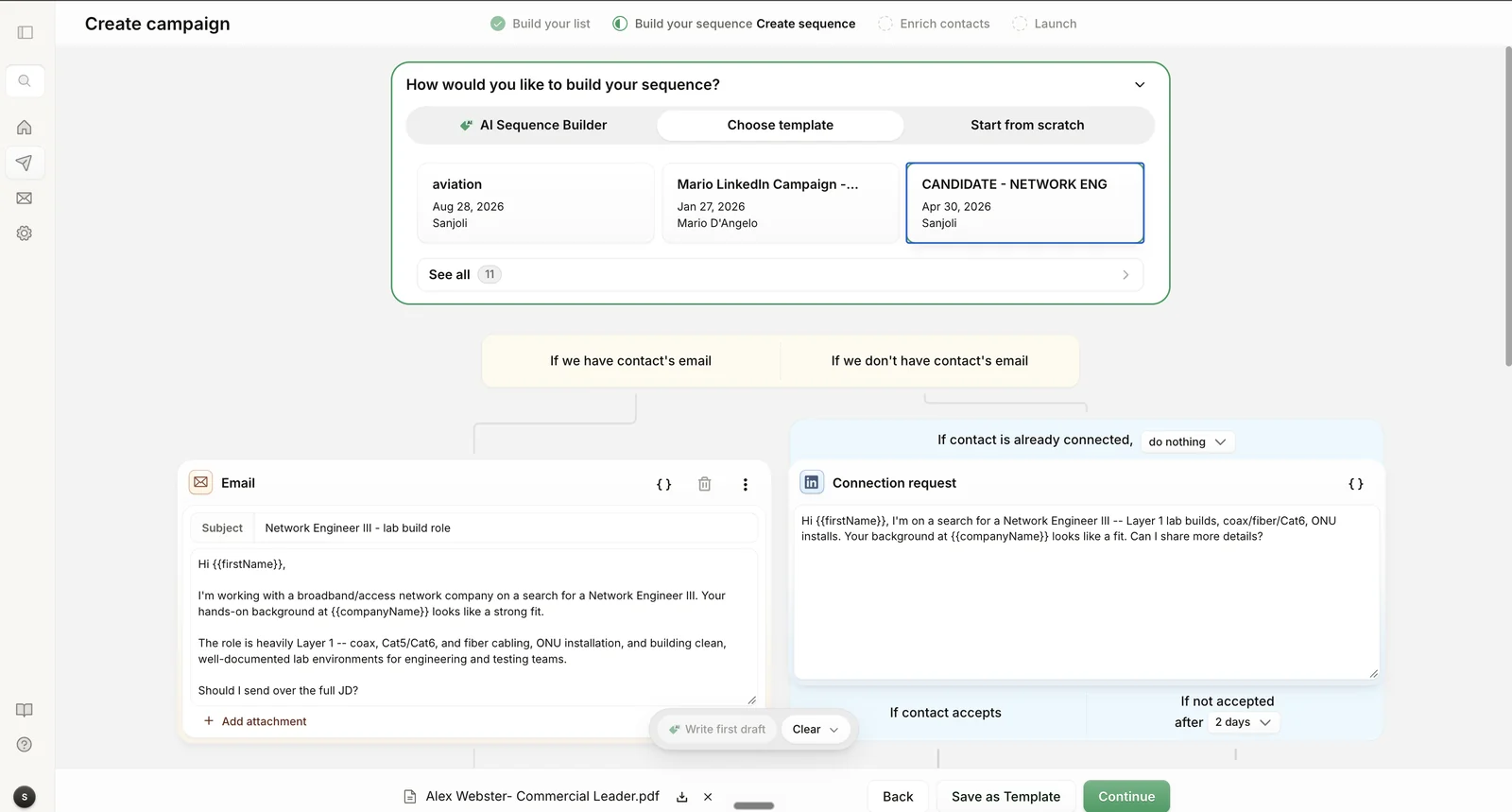
When you select Choose template, your most recent templates appear as cards. Select See all to open the Choose a template panel, which lists Your templates first and Talin templates below. You can search the panel by template name or author.
- When you pick a Talin template, Talin fills in a ready-made sequence pattern, such as Connection Request + Email or Email-First with Social Fallback.
- When you pick one of your own or your teammates’ templates, Talin only loads the messaging that was saved, so you’ll need to update the copy yourself before launching.
Types of templates
Section titled “Types of templates”Talin templates
Section titled “Talin templates”Talin templates are pre-built sequences from Talin. Each one shows:
- the template name, such as Connection Request + Email
- a short description of when to use it
- Created by Talin
You’ll also find seasonal and holiday templates here, refreshed from time to time for timely outreach.
Your templates
Section titled “Your templates”Your templates are templates created by you or your teammates. Each one shows:
- the template name
- the date it was created
- the team member who created it
When you pick one, Talin loads the original sequence structure and a preview of the messaging from when the template was saved. This messaging isn’t personalized automatically, so review and update the copy to fit the role, candidate or campaign you’re working on.
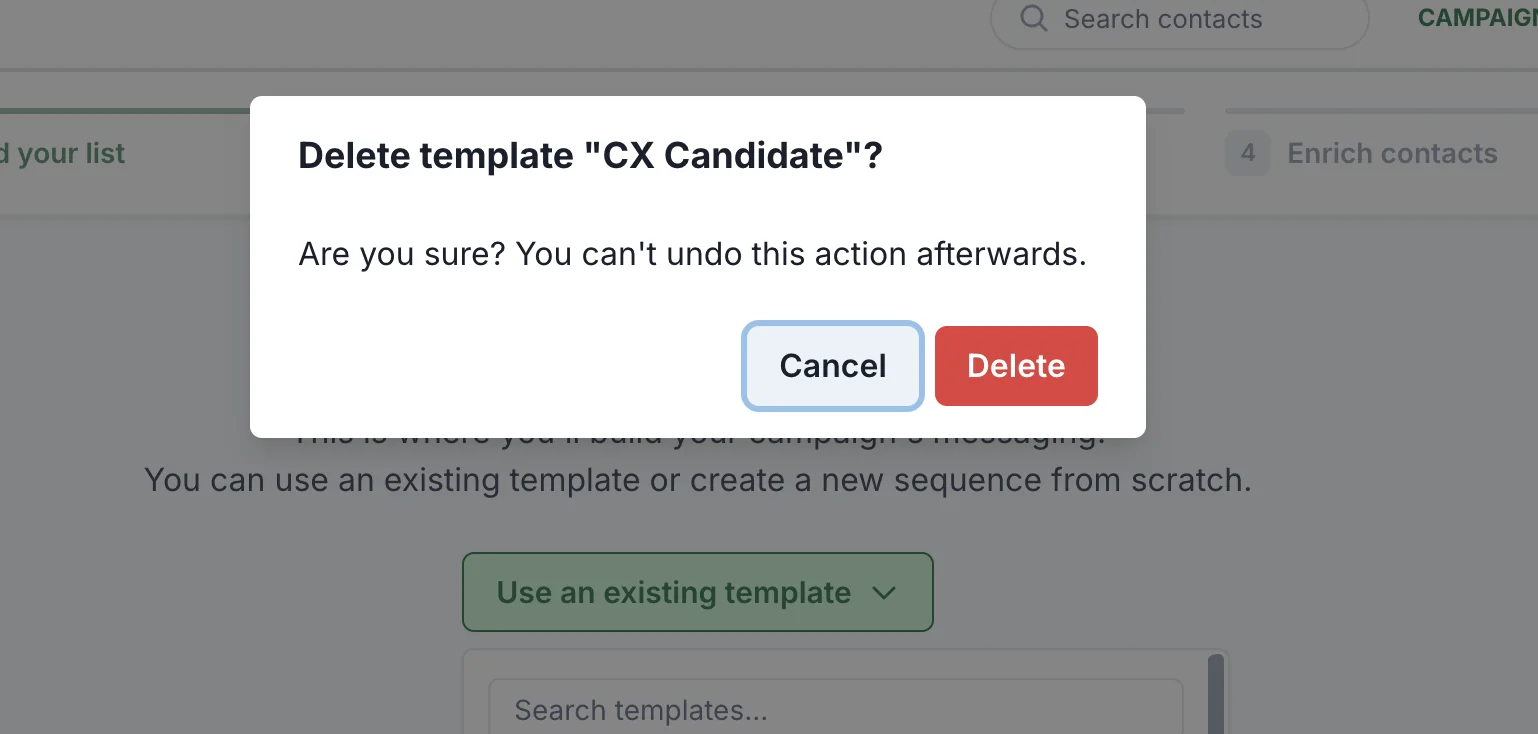
To clean up your template list during campaign creation, select the trash icon on a template in the Choose a template panel and confirm Delete.
Save a new template
Section titled “Save a new template”You can save a sequence as a template in two ways.
From the sequence builder
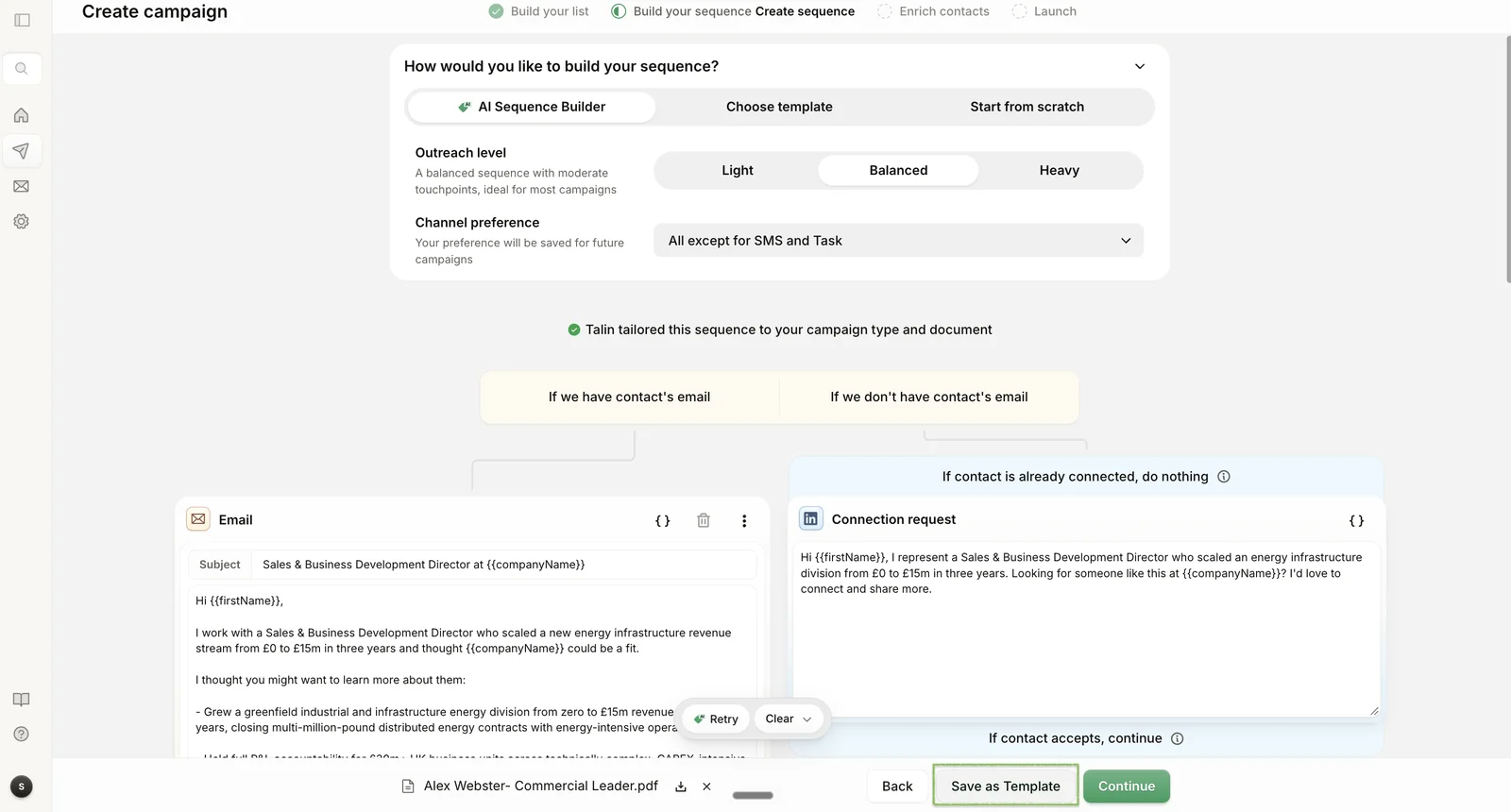
Section titled “From the sequence builder”Save a template while you’re on the Build your sequence step of campaign creation.
-
Build your sequence, or finish editing one based on a template.
-
Select Save as Template at the bottom right of the sequence builder.
-
Give your template a name and select Save.
Your new template appears under Your templates for future campaigns.
From an existing campaign
Section titled “From an existing campaign”If a campaign is already running and performing well, you can save its sequence as a template.
-
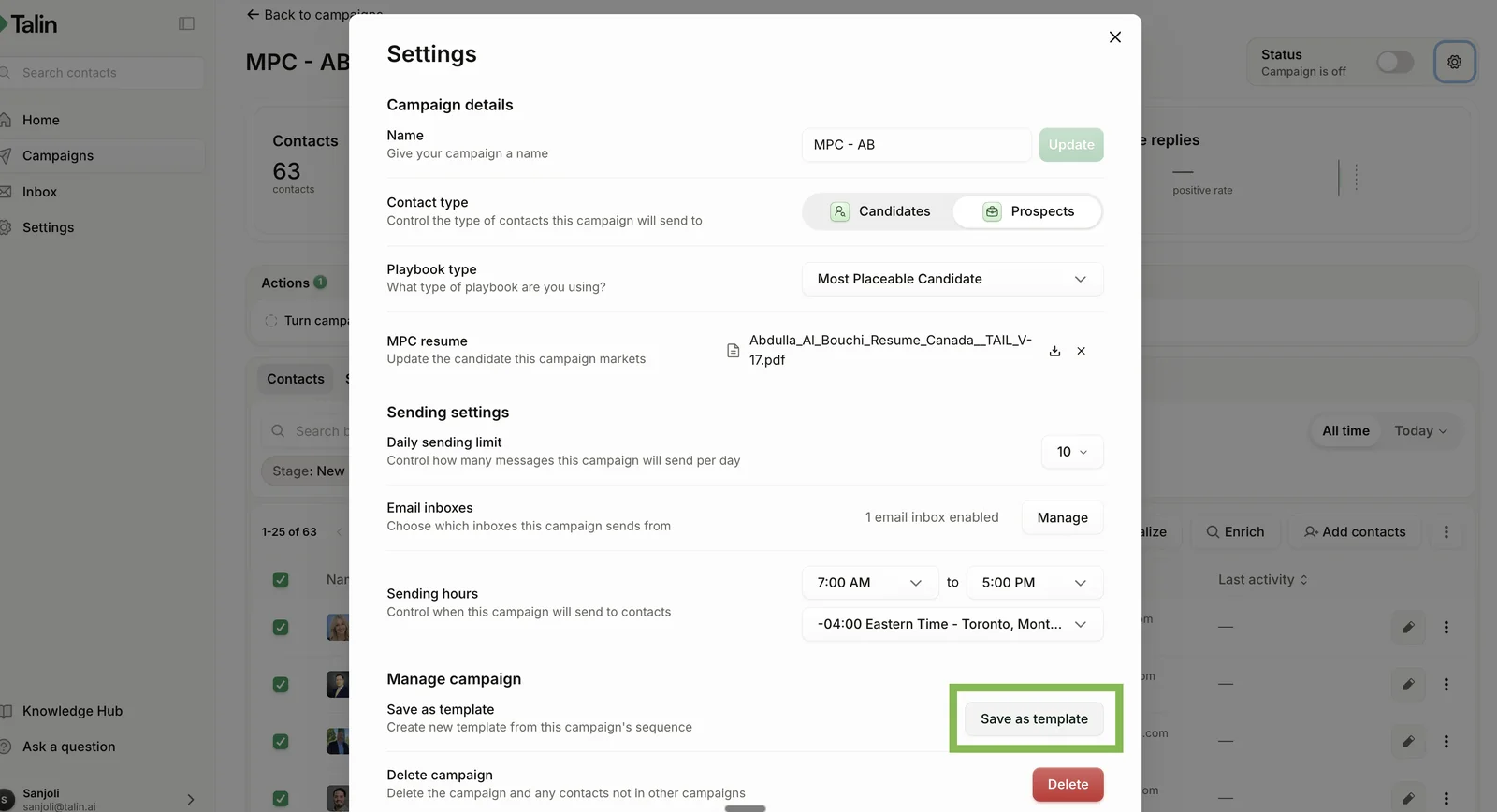
Open the campaign and go to its settings.
-
Scroll to the bottom of the settings.
-
Select Save as template.
-
Give the template a name and select Save.
The template is then available under Your templates the next time you build a campaign.
Still need help?
Our team is here when the docs don't cover it.