 Loxo
Connect Loxo to Talin so every candidate and contact you reach out to is created and updated in Loxo, with no manual data entry.
- Works as
- ATS and CRM
- Connects with
- Your Agency Slug, an API key and your Agency ID, all from your Loxo account
- Syncs
- Candidates and contacts, job stages, and notes for every email, LinkedIn message, SMS and reply
- Job linking
- Yes
Before you start
Section titled “Before you start”You’ll need three details from your Loxo account. You can contact Loxo support if you’re unable to find them.
Agency Slug
Section titled “Agency Slug”The last part of your careers page address.
- In Loxo, select your initials at the top right and go to Careers Page.
- Copy the last part of the address. For example, in
https://app.loxo.co/weblime-consultantsthe slug isweblime-consultants.
API key
Section titled “API key”-
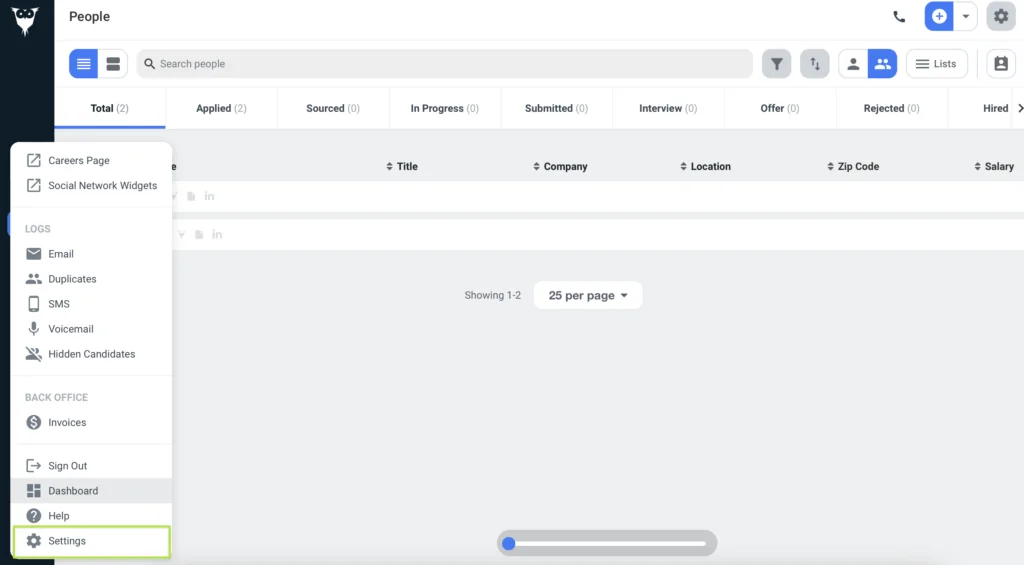
Select your profile icon and go to Settings.
-
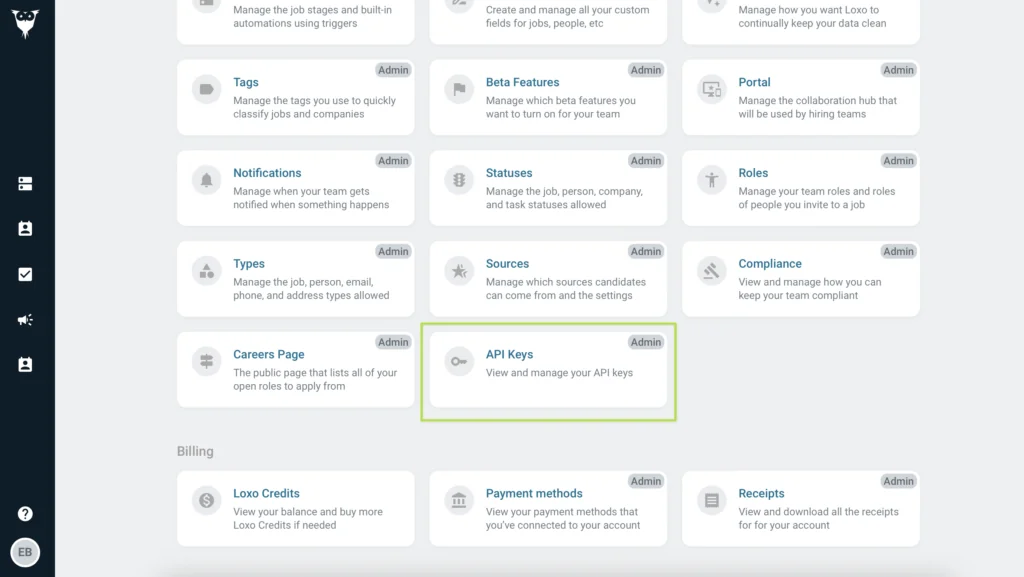
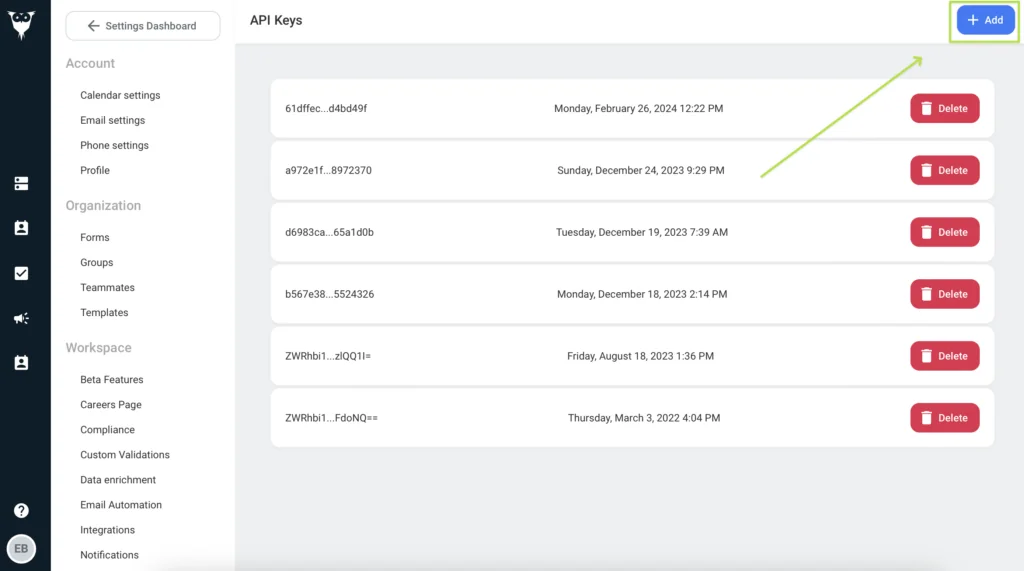
In API Keys, select Add.
-
Copy the new key.
Agency ID
Section titled “Agency ID”The number in the address of any Loxo page. For example, in https://app.loxo.co/app/12345/dashboard the Agency ID is 12345.
Connect Loxo
Section titled “Connect Loxo”- Go to Integrations in your team settings (or Settings if you’re on a single-user account).
- Under ATS, select Loxo.
- Enter your Agency Slug, API key and Agency ID, then select Authorize.
- Check that Loxo shows a green Connected label.
To sync prospects to Loxo too, connect it as your CRM:
- On the same Integrations page, under CRM, choose a record type in Sync prospects with CRM as.
- Select Loxo.
- Check that Loxo shows a green Connected label under CRM.
Campaign mapping
Section titled “Campaign mapping”With Loxo connected as both your ATS and your CRM, select Campaign mapping settings at the top right of Integrations, set candidate campaigns to push to ATS and prospect campaigns to push to CRM, then select Save.
Sync settings
Section titled “Sync settings”Select Settings next to Loxo to choose when contacts are pushed to Loxo and when notes are added. These settings work the same for every integration, and Sync settings explains each one.
We recommend pushing contacts when their email or phone number is enriched, not when they’re uploaded, so Talin can avoid duplicate records.
Link campaigns to Loxo jobs
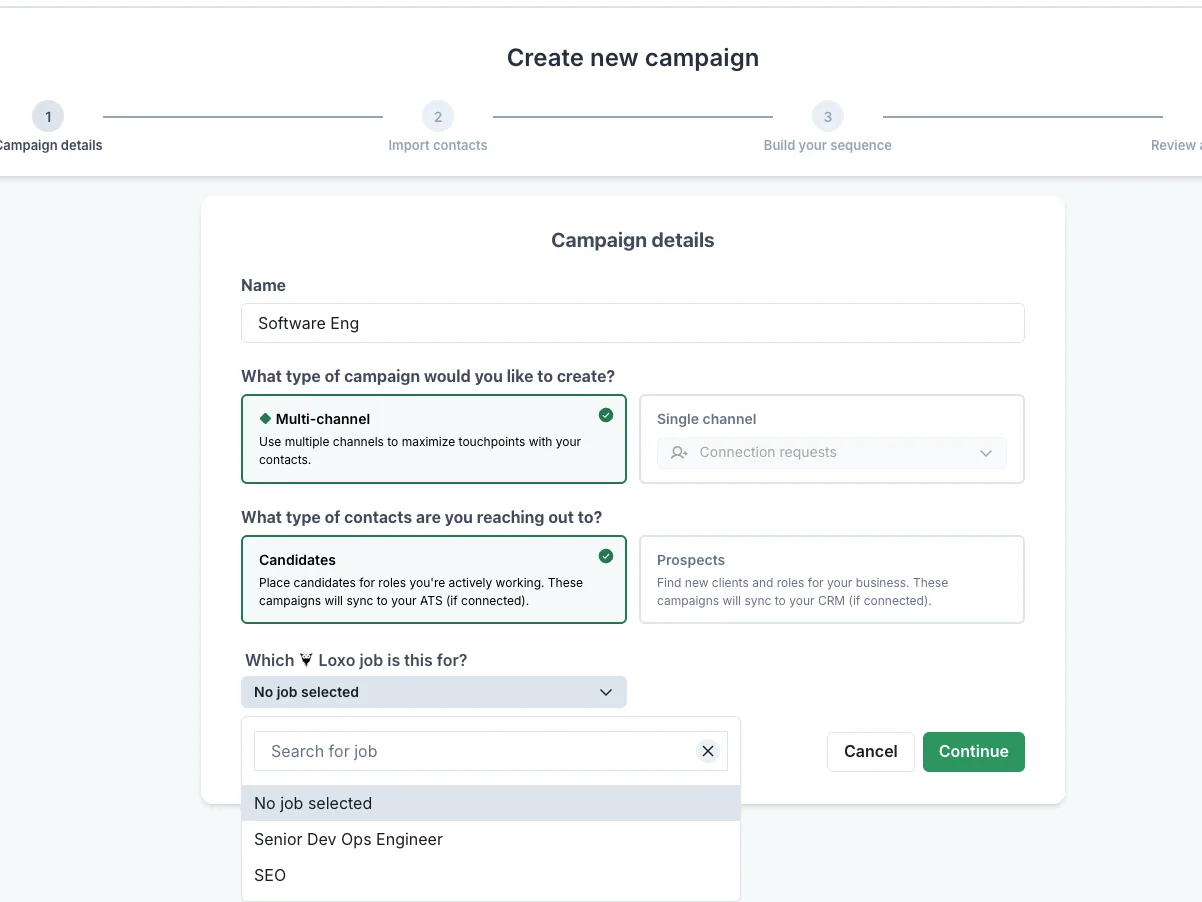
Section titled “Link campaigns to Loxo jobs”When you create a candidate campaign, choose the job in Which Loxo job is this for? and every candidate in the campaign is linked to it.
To link a job later:
-
Open the campaign.
-
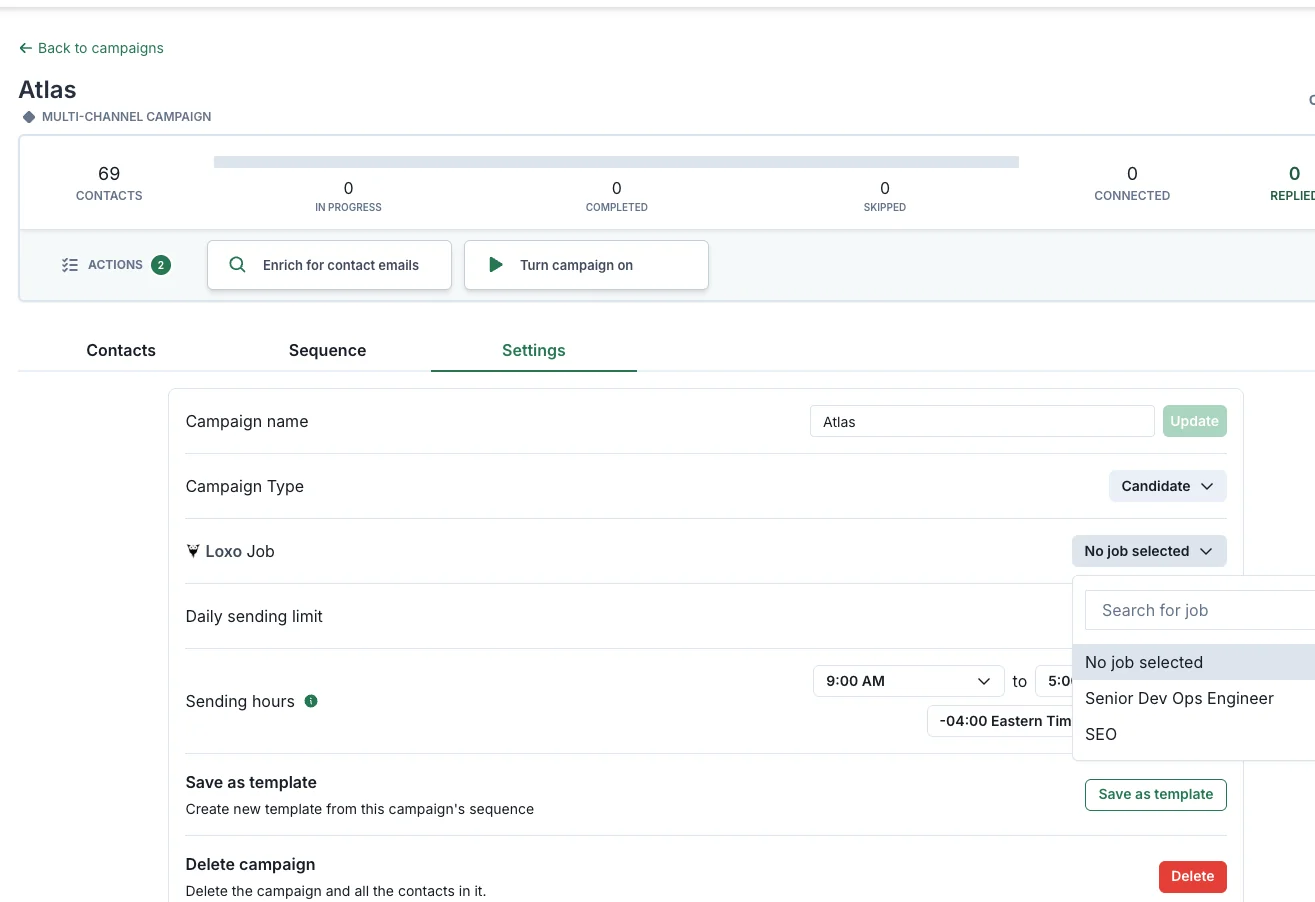
Go to Settings, then ATS Job Association.
-
Choose the job from the Loxo Job dropdown.
-
Select all contacts in the campaign, select Export, then select Sync to ATS.
Open a contact’s record in Loxo
Section titled “Open a contact’s record in Loxo”Once Talin pushes a contact to Loxo, the Loxo icon appears next to their name in your campaign. Select it to open their Loxo record.
Talin’s duplicate check
Section titled “Talin’s duplicate check”Loxo uses its own duplicate check instead of Talin’s default. Before it creates a record, Talin checks Loxo in this order and updates the first match:
- First name, last name and company
- First name and company
If none of these matches, Talin creates a new contact.
Frequently asked questions
Section titled “Frequently asked questions”Do candidates move through job stages in Loxo automatically?
Yes. When a candidate is linked to a job in Talin, they’re added to the matching job and stage in Loxo, so you don’t need to manage stages by hand.
Why didn't a contact update the record I expected in Loxo?
Loxo matches on email first, then on name and company. If the email in Talin is different from the one in Loxo, Talin may match a different record or create a new one. Check the email on both before you sync again.
Still need help?
Our team is here when the docs don't cover it.