 Bullhorn
Connect Bullhorn to Talin so every candidate and contact you reach out to is created and updated in Bullhorn, with no manual data entry.
- Works as
- ATS and CRM
- Connects with
- OAuth credentials from Bullhorn support and a dedicated Bullhorn API user
- Syncs
- Candidates and contacts, and notes for every email, LinkedIn message, SMS and reply, each logged as its own note type
- Job linking
- Yes
Before you start
Section titled “Before you start”Bullhorn needs OAuth credentials before you can connect. This is a one-time setup step.
- Open a support ticket with Bullhorn and ask for your OAuth keys.
- Give Bullhorn the details they ask for:
- Callback URL:
https://api.unified.to/oauth/code - Terms of Service: https://app.talin.ai/terms
- Callback URL:
- Wait for Bullhorn to send your API credentials and the steps to set up your API user.
Talin connects through this dedicated API user, not your personal login.
Connect Bullhorn
Section titled “Connect Bullhorn”-
Log out of your personal Bullhorn account.
-
Go to Integrations in your team settings (or Settings if you’re on a single-user account).
-
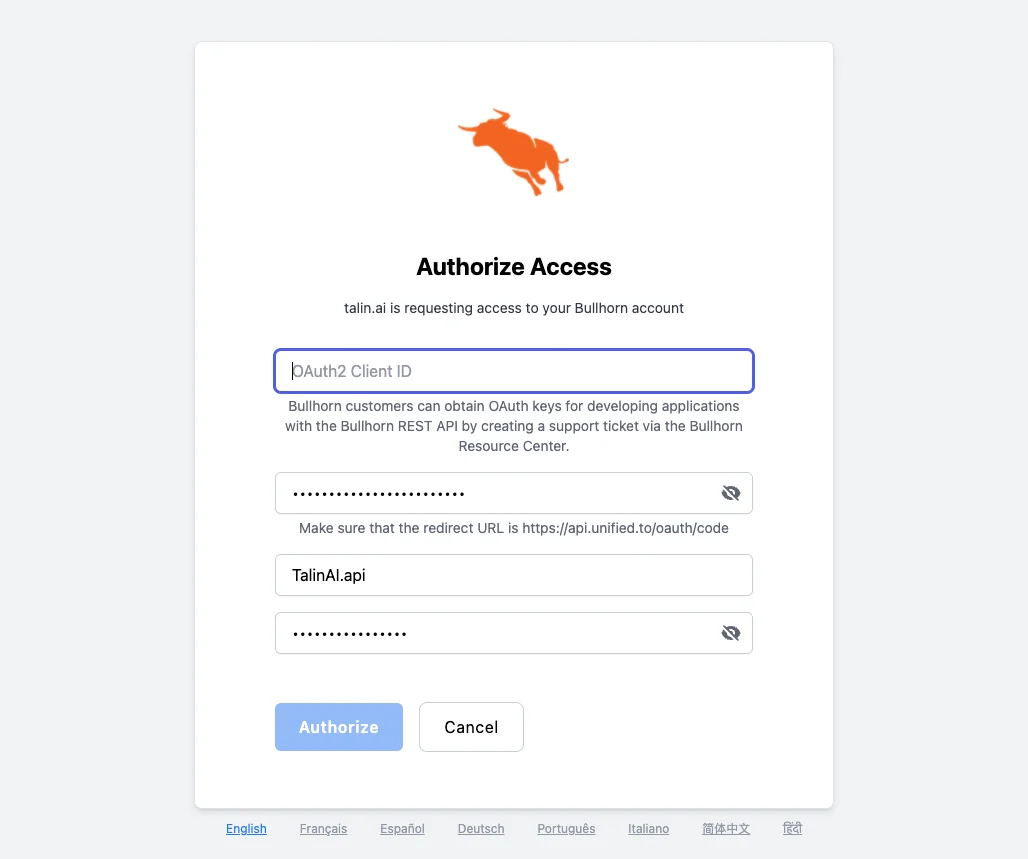
Under ATS, select Bullhorn and enter the API credentials from Bullhorn, including the API user’s username and password.
-
Select Authorize. You’ll be sent back to Talin.
-
Check that Bullhorn shows a green Connected label, then log back in to your personal Bullhorn account.
To sync prospects to Bullhorn too, connect it as your CRM:
- On the same Integrations page, under CRM, choose Leads or Contacts in Sync prospects with CRM as, depending on how your Bullhorn is set up.
- Select Bullhorn and enter your API credentials.
- Check that Bullhorn shows a green Connected label under CRM.
Campaign mapping
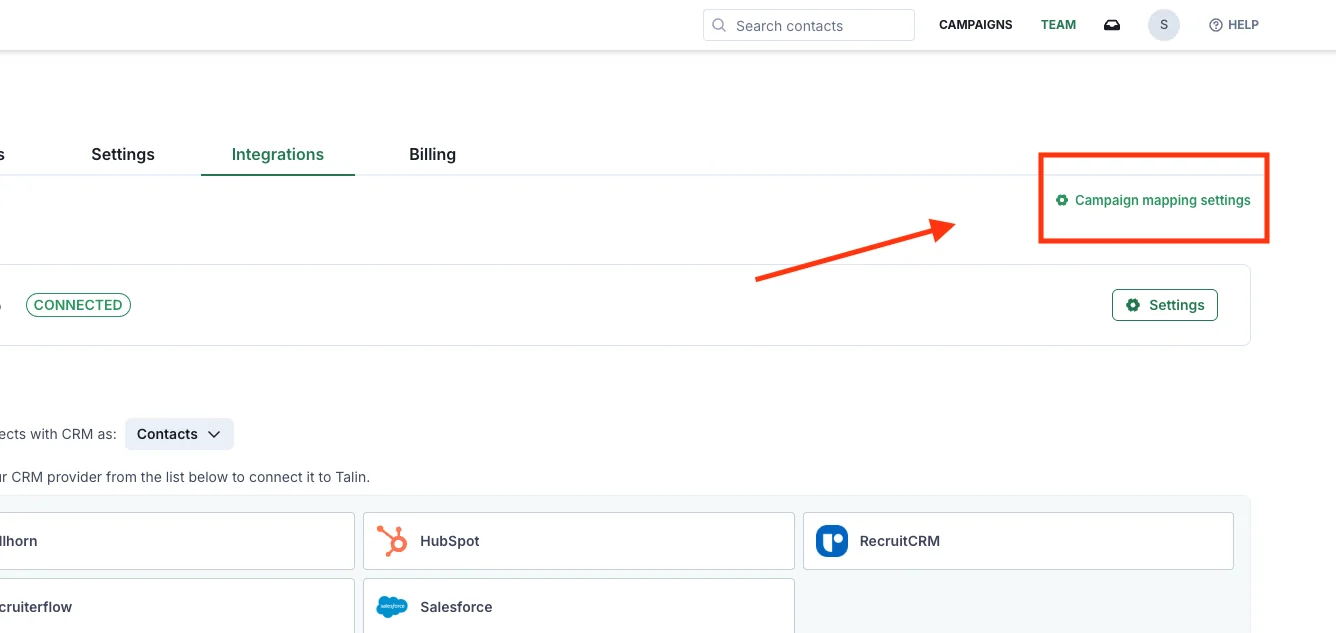
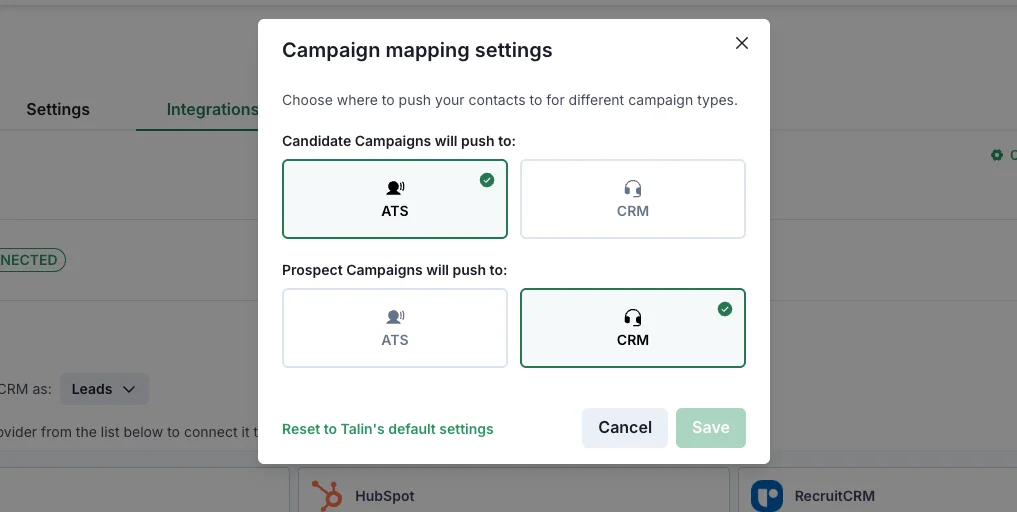
Section titled “Campaign mapping”With Bullhorn connected as both your ATS and your CRM, select Campaign mapping settings at the top right of Integrations, set candidate campaigns to push to ATS and prospect campaigns to push to CRM, then select Save.
Sync settings
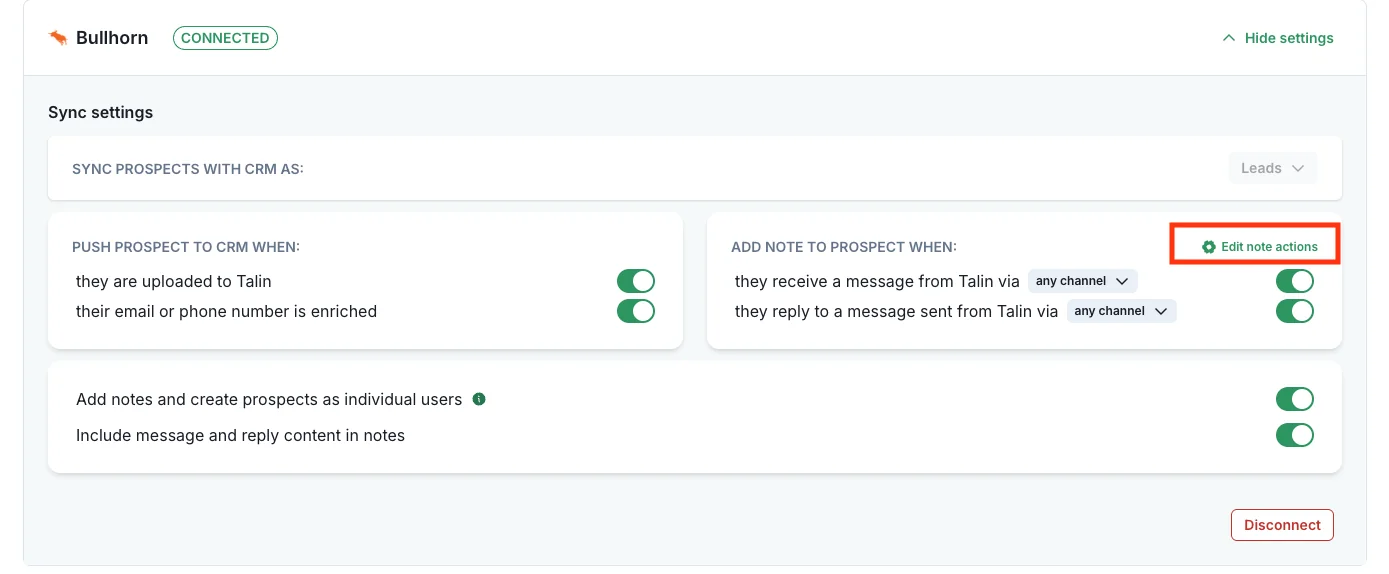
Section titled “Sync settings”Select Settings next to Bullhorn to choose when contacts are pushed to Bullhorn and when notes are added. These settings work the same for every integration, and Sync settings explains each one.
We recommend pushing contacts when their email or phone number is enriched, not when they’re uploaded, so Talin can avoid duplicate records.
Bullhorn also has:
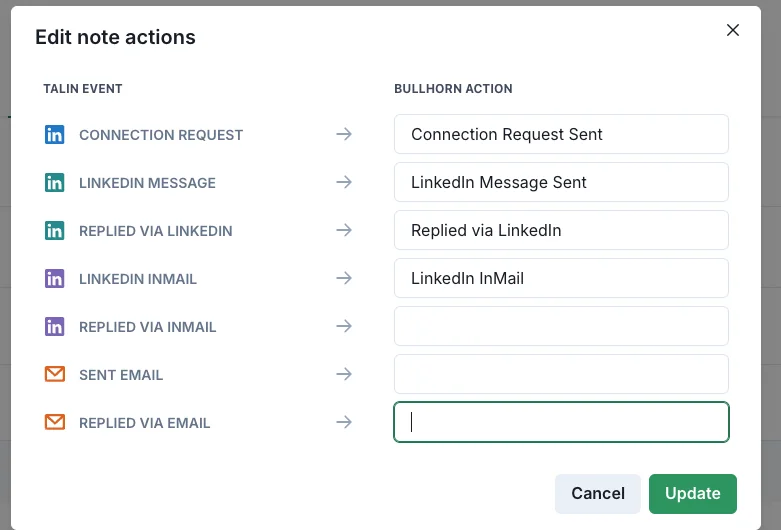
- Edit note actions: which Bullhorn note type each outreach activity is logged as
Map note types to activities
Section titled “Map note types to activities”Select Edit note actions and map each Talin event to a Bullhorn action. A LinkedIn connection request then becomes a LinkedIn connection request note, an email an email note and a reply a reply note.
Link campaigns to Bullhorn jobs
Section titled “Link campaigns to Bullhorn jobs”When you create a candidate campaign, choose the Bullhorn job from the dropdown and every candidate in the campaign is linked to it.
To link a job later:
- Open the campaign.
- Go to Settings, then ATS Job Association.
- Choose the job from the Bullhorn Job dropdown.
- Select all contacts in the campaign, select Export, then select Sync to ATS.
Import contacts from Bullhorn into Talin
Section titled “Import contacts from Bullhorn into Talin”You can bring an existing Bullhorn contact list into a Talin campaign with a CSV file.
- In Bullhorn, go to the Contacts section.
- Filter for the list you want to work with.
- Download it as a CSV file.
- Check the file has separate
firstNameandlastNamecolumns, and alinkedinUrloremailcolumn for each contact. Headers aren’t case sensitive. - In Talin, select New Campaign.
- Select your campaign type and choose CSV as your import method.
- Upload your file and continue building your campaign.
Open a contact’s record in Bullhorn
Section titled “Open a contact’s record in Bullhorn”Once Talin pushes a contact to Bullhorn, the Bullhorn icon appears next to their name in your campaign. Select it to open their Bullhorn record.
Talin’s duplicate check
Section titled “Talin’s duplicate check”Bullhorn uses its own duplicate check instead of Talin’s default. Before it creates a record, Talin checks Bullhorn in this order and updates the first match:
- First name, last name and company
- First name and company
If none of these matches, Talin creates a new contact in Bullhorn.
Frequently asked questions
Section titled “Frequently asked questions”Why do I need to log out of my personal Bullhorn account before connecting?
Talin integrates through a dedicated API user, not your personal login. Log out of your personal account, connect with the API user credentials, and log back in once Bullhorn shows Connected.
Should prospects sync to Bullhorn as Leads or Contacts?
Choose whichever matches how your Bullhorn is set up. You set this on the Integrations page, under CRM, in Sync prospects with CRM as.
Why does every activity show up as a generic note in Bullhorn?
Your note actions probably aren’t mapped yet. Select Settings next to Bullhorn, then Edit note actions, and map each Talin event to a Bullhorn action that exists in your account.
Still need help?
Our team is here when the docs don't cover it.