Talin Inbox
Talin Inbox is where every reply to your campaigns lands, across all channels. Use it to read replies from email, LinkedIn and SMS in one place and answer them without leaving Talin.
How replies work
Section titled “How replies work”The moment a contact or candidate replies, Talin stops the automated outreach to them. From there you continue the conversation yourself, either in Talin Inbox or in the channel the reply came in on.
Open your inbox
Section titled “Open your inbox”- Select Inbox in the left sidebar. The number next to it is how many replies you haven’t read yet.
- Select a conversation to open it.
Each conversation shows the full message history, with an icon for the channel each message was sent on. Next to the conversation you’ll see the contact’s details, such as their company, bio, work history and education, and their Activity.
Reply to a contact
Section titled “Reply to a contact”- Open the conversation.
- Type your reply in the box at the bottom.
- Choose the channel to reply on, such as Email, SMS, LinkedIn Message or InMail.
- To add a file, select Add attachment.
- Select the send arrow.

Filter your replies
Section titled “Filter your replies”Filters help you focus on the replies that matter right now.
- At the top of your inbox, select the filter icon next to Search by contact.
- Choose a filter:
- Campaign: show replies from one or more of your campaigns
- Is unread: show only replies you haven’t read
- To see every reply again, select Clear all filters.
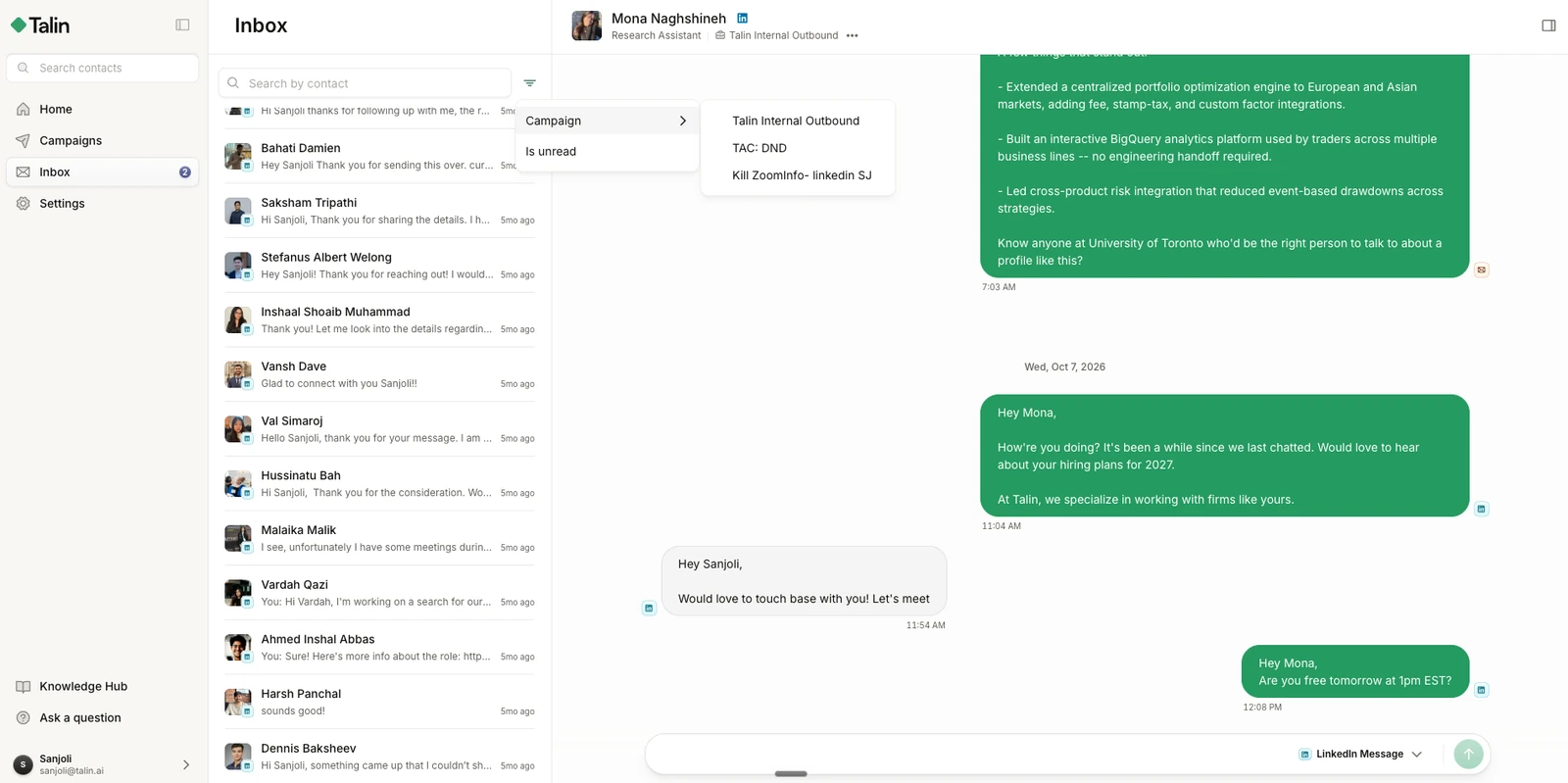
You can also search by contact name to find a conversation.
Whose replies you see
Section titled “Whose replies you see”Talin Inbox is personal to you. It shows replies to the campaigns you own, and you can only answer those.
You can’t see or answer replies from your teammates’ campaigns, or reply on someone else’s behalf. Each teammate answers the replies to their own campaigns in their own inbox.
Still need help?
Our team is here when the docs don't cover it.