Contact import and export
This article shows how to get contacts into Talin, move them between campaigns, export them and tidy up their names. Use it whenever you build a list, reuse contacts in a new campaign or need your data outside Talin.
Import from LinkedIn
Section titled “Import from LinkedIn”The Talin Chrome extension bulk imports contacts straight from LinkedIn into a campaign. You can import from:
- LinkedIn Recruiter: a project talent pool or pipeline
- Sales Navigator: a lead search or saved list
Import from a CSV file
Section titled “Import from a CSV file”Use a CSV import when your contact list lives outside LinkedIn, for example in your ATS, a spreadsheet or another tool. You don’t need the Chrome extension.
- Select New Campaign, or select Add Contacts inside an existing campaign.
- Under What type of contacts are you reaching out to, select Candidates or Prospects.
- Under Where are you adding contacts from, select CSV file.
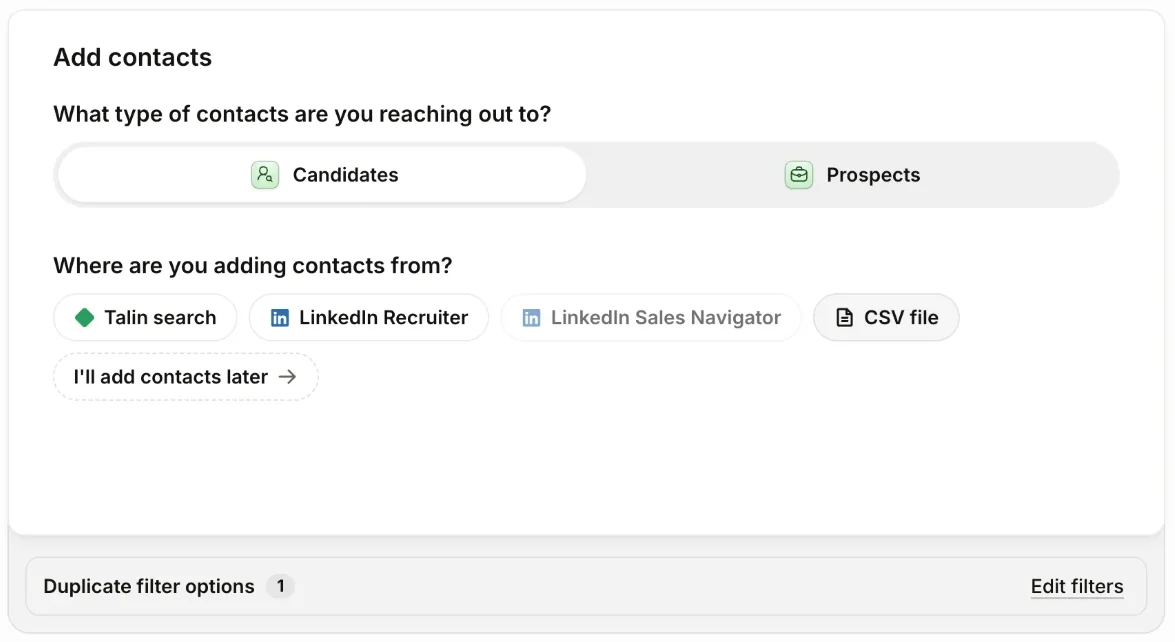
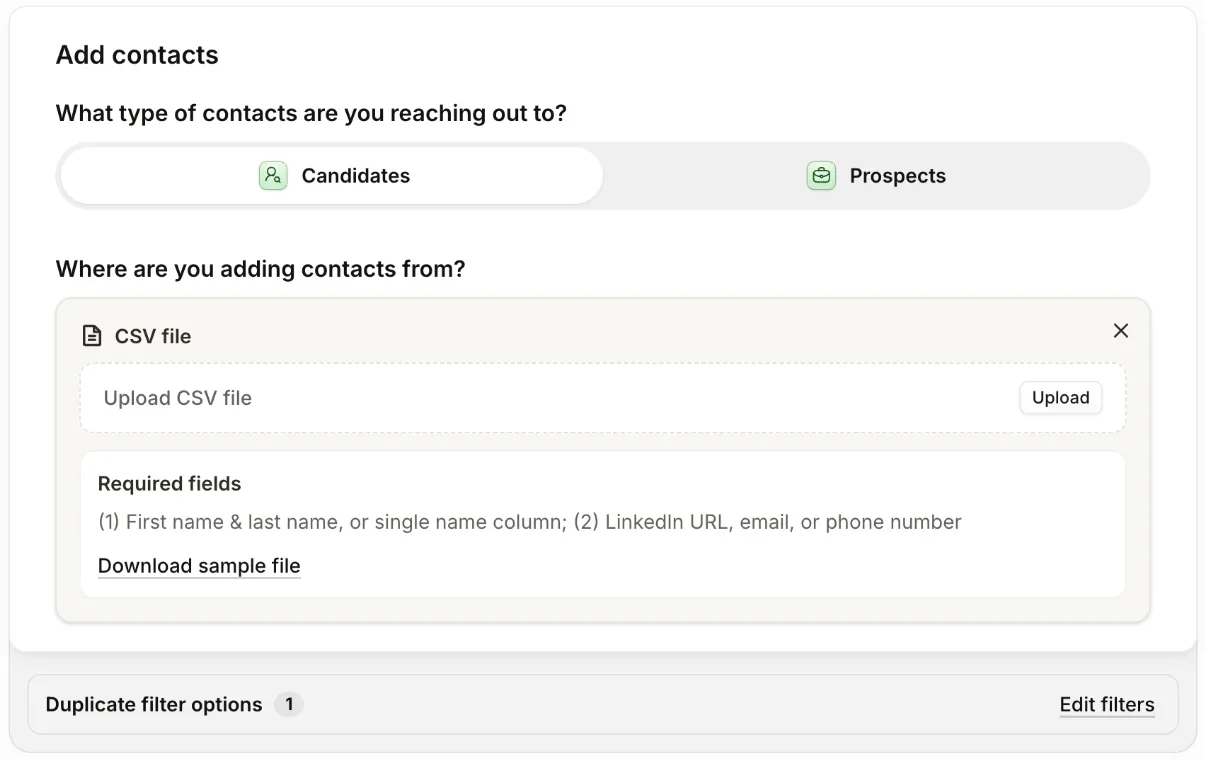
- Select Upload, choose your file, then select Continue.
After the upload, keep building your campaign:
-
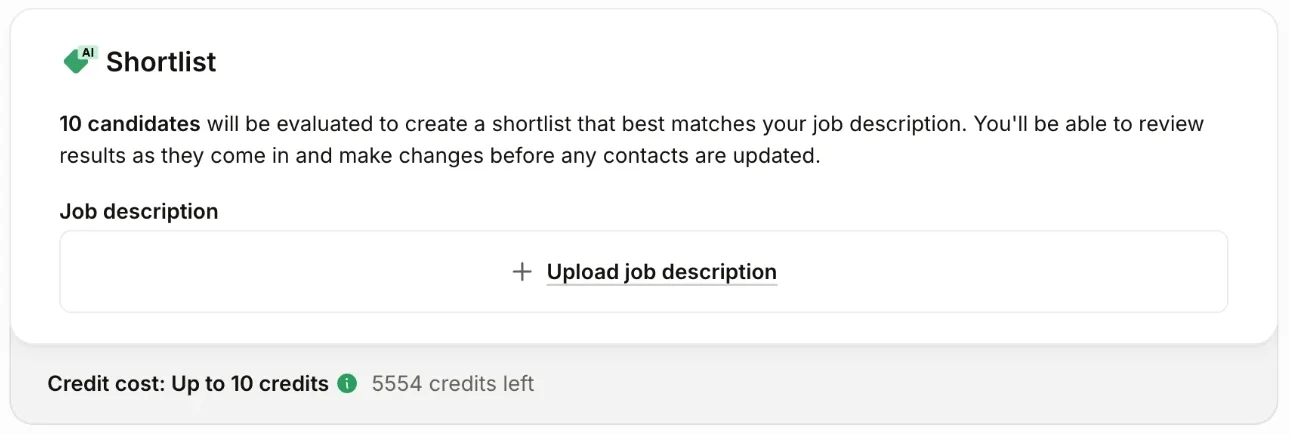
Shortlist your contacts. Upload the job description and select Start shortlisting. The screen shows the credit cost and how many credits you have left before you start.
-
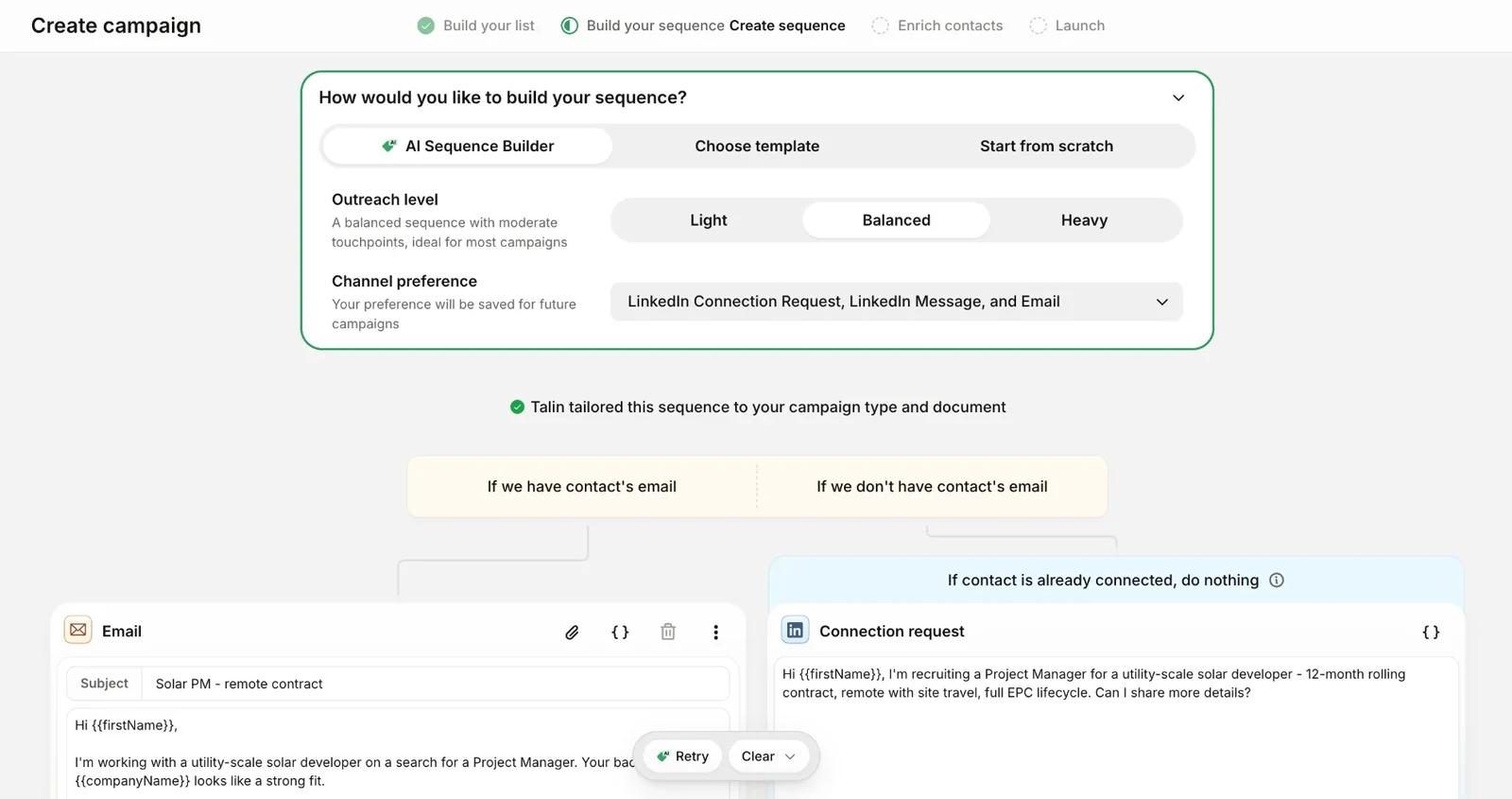
Build your sequence.
- Personalize your first message with AI Personalize.
- Enrich your contacts to find their emails and phone numbers.
- Launch your campaign.
CSV requirements
Section titled “CSV requirements”Your column headers must match Talin’s CSV requirements. Headers aren’t case sensitive. They must include:
- either a
namecolumn, or bothfirstNameandlastNamecolumns - at least one of
linkedinUrl,emailorphoneNumberfor each contact - both
cityandcountry, if you include either one
Download the sample CSV file to see how the headers can be named. You can also select Download sample file in the import screen.
Move contacts between campaigns
Section titled “Move contacts between campaigns”You can add contacts from one campaign straight into another without importing them again.
-
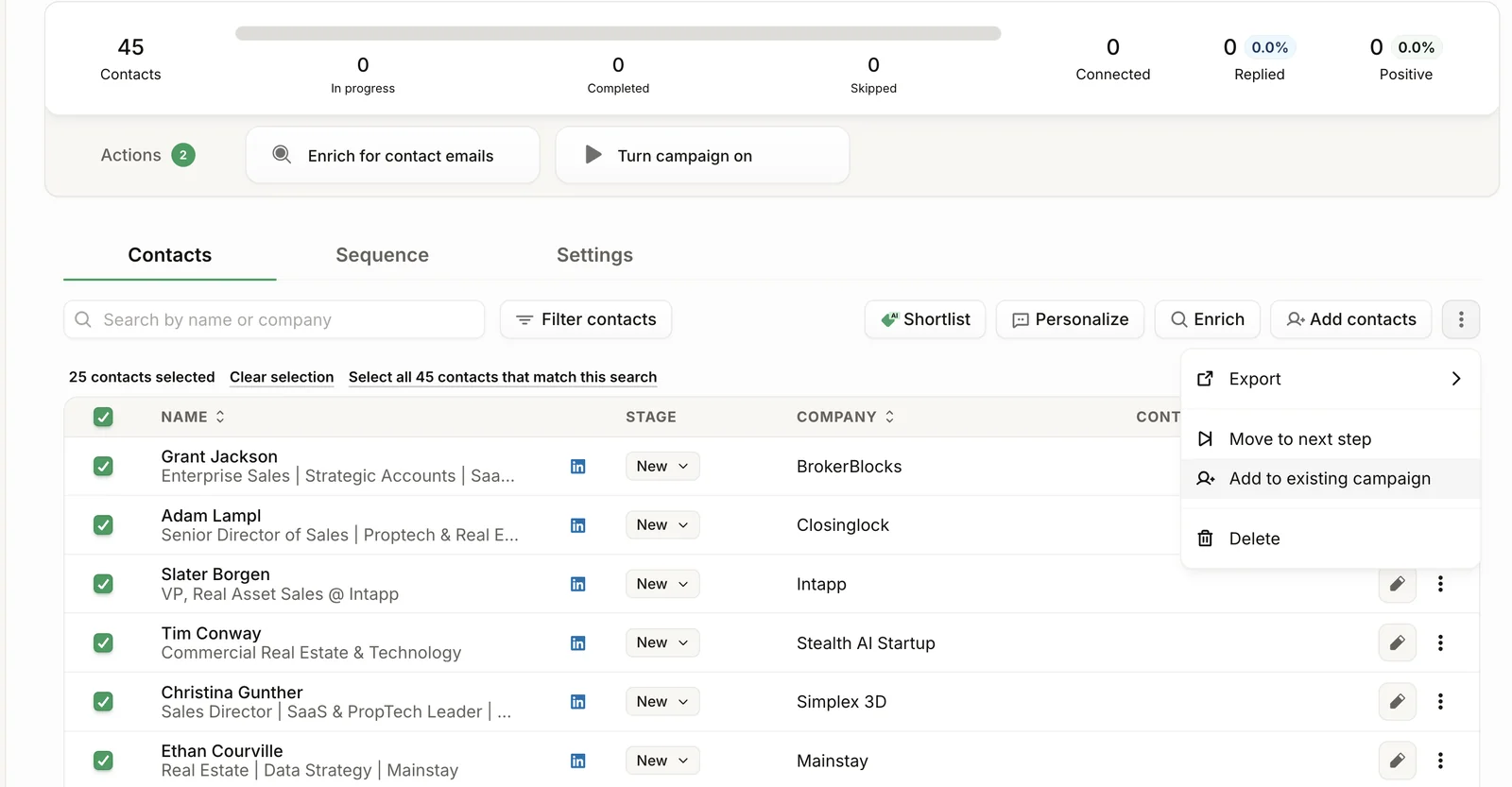
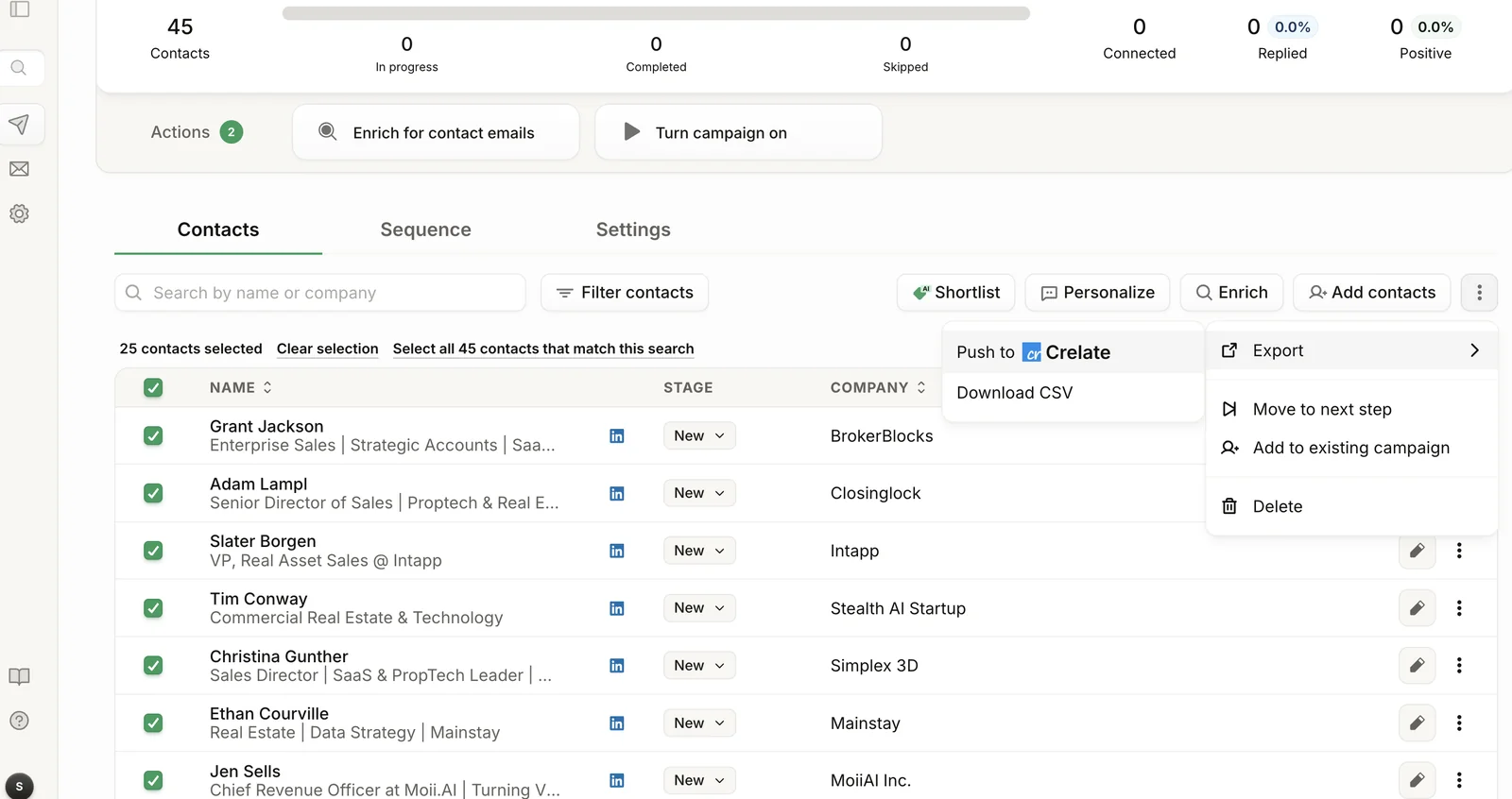
Go to your campaign’s contact list and select the contacts you want to move.
-
Select the three dots on the right.
-
Select Add to existing campaign.
-
Choose the destination campaign and select Add.
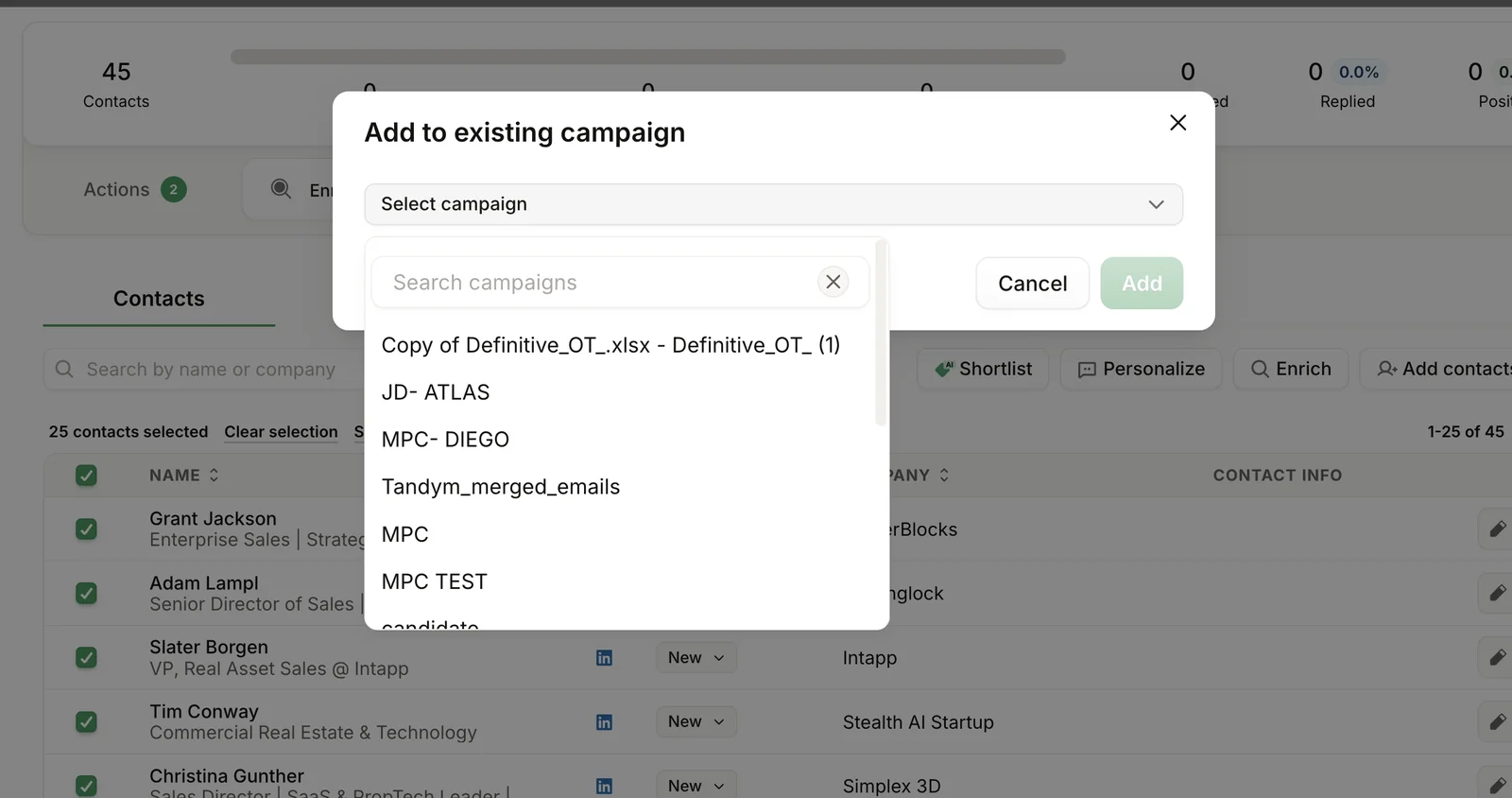
In the new campaign, the contact’s stage updates to New or In Progress as outreach is sent. Their status and outreach history in the original campaign aren’t affected.
Export contacts to CSV
Section titled “Export contacts to CSV”You can download a campaign’s contacts as a CSV file.
-
Go to the campaign you want to export from.
-
Select the three dots next to Add contacts.
-
Select Export, then select Download CSV.
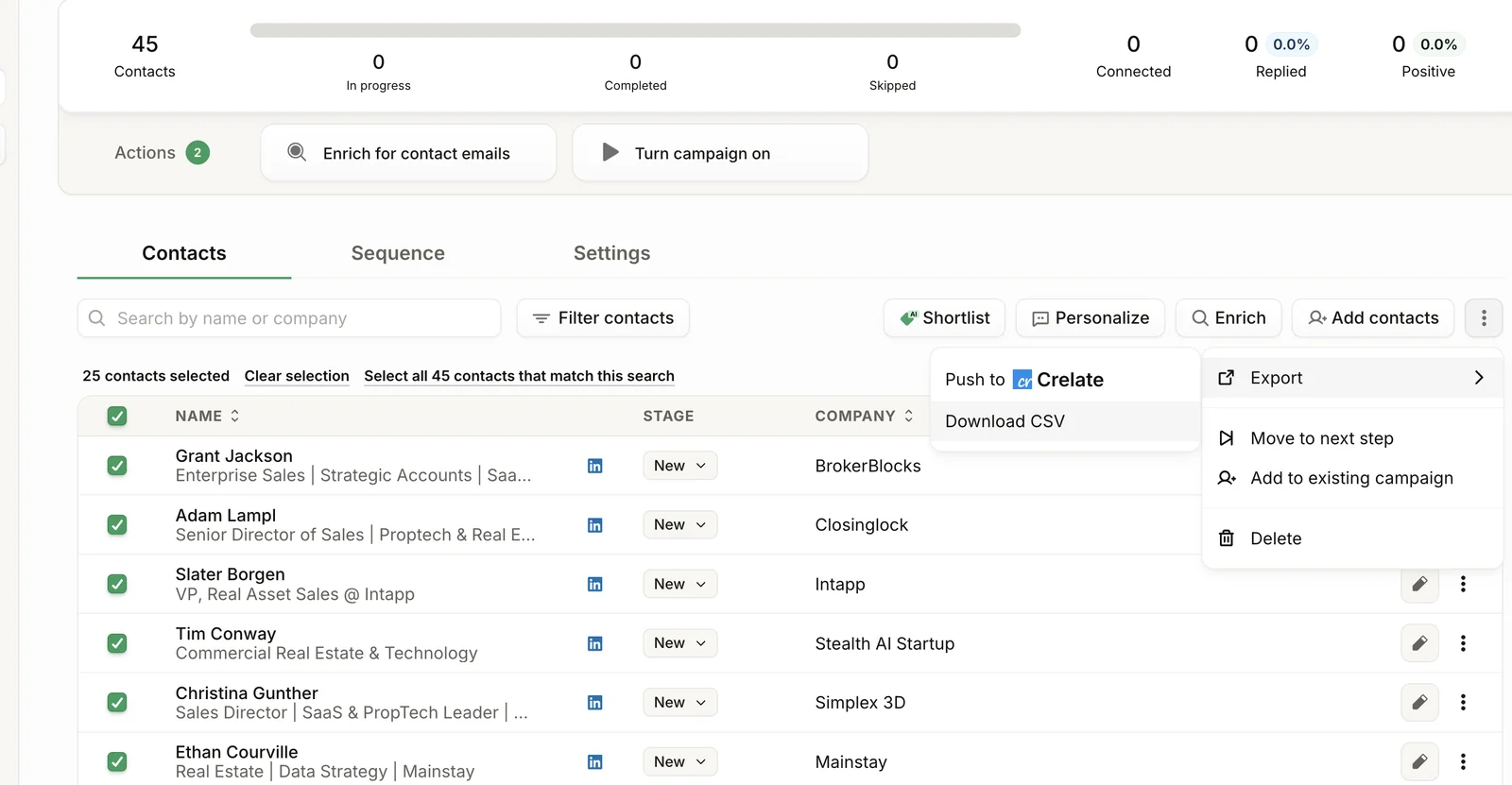
The CSV downloads in a few seconds.
Export from a teammate’s campaign
Section titled “Export from a teammate’s campaign”You can also export contacts from your teammates’ campaigns.
- Go to the Campaigns page.
- Remove the Owner: You filter by selecting the x. This shows campaigns from all team members.
- Find your teammate’s campaign and follow the export steps above.
Edit contact and company names
Section titled “Edit contact and company names”Talin automatically normalizes first names and company names based on the contact’s LinkedIn profile. For example:
- JANE becomes Jane
- Michael James becomes Michael
- Acme Inc. becomes Acme
Edit names manually
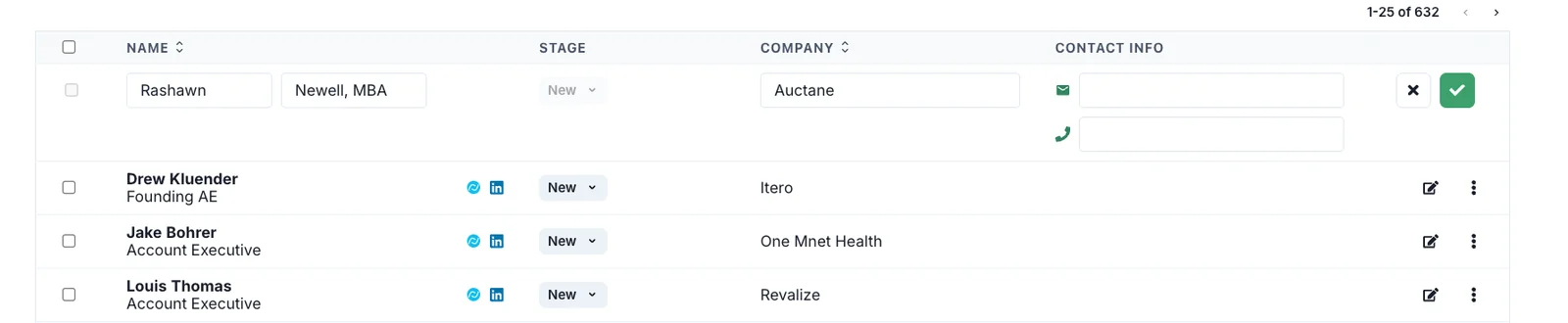
Section titled “Edit names manually”If imported data isn’t structured well for a cold message, you can edit names straight from the contact list.
- Go to your campaign’s contact list.
- Select the edit icon to the right of the contact info column.
- Make your changes.
- Select the green checkmark to save.

Push to your ATS or CRM
Section titled “Push to your ATS or CRM”Contacts and their activity, including LinkedIn messages, replies and stage changes, can be pushed automatically or manually to your connected ATS or CRM.
Still need help?
Our team is here when the docs don't cover it.