Signals
Signals finds a reason worth reaching out to a person or company, such as open roles, fresh funding, a new leader or a recent promotion, and writes it straight into your opener. It runs during shortlisting on both candidate and business development campaigns.
What Signals looks for
Section titled “What Signals looks for”The signal types change with your campaign, because what makes a company worth approaching is different from what makes a candidate open to a move.
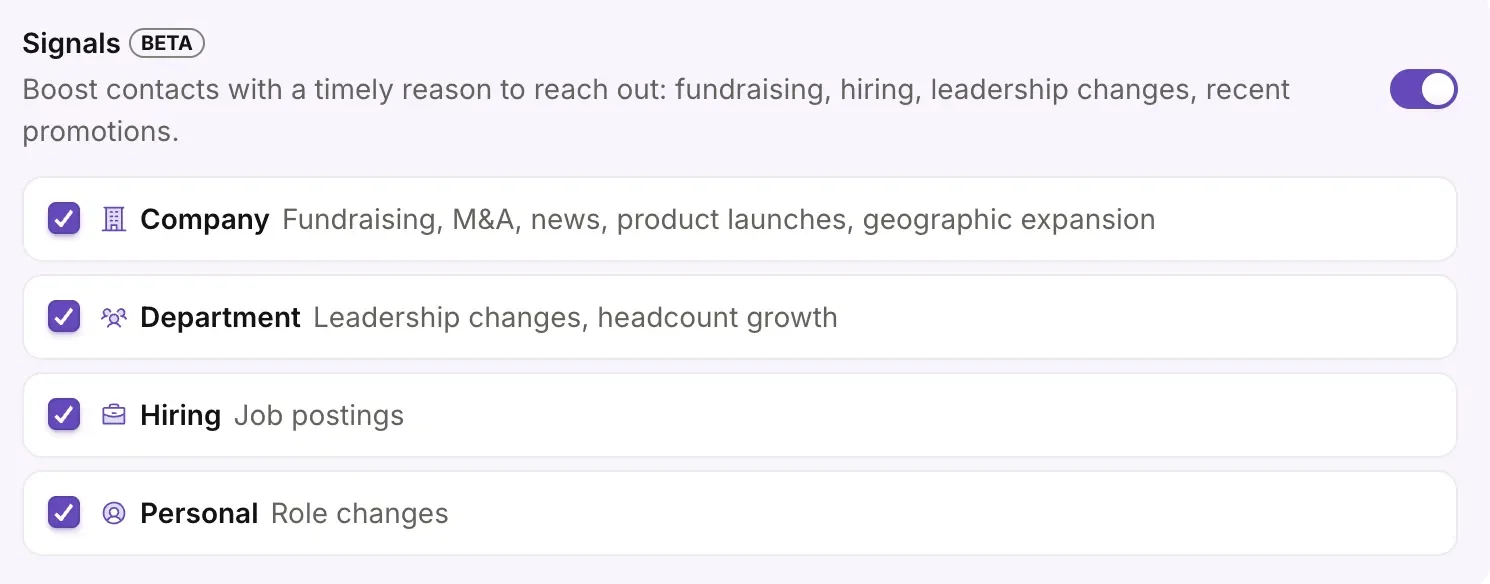
Business development campaigns look for signals that a company needs hiring help:
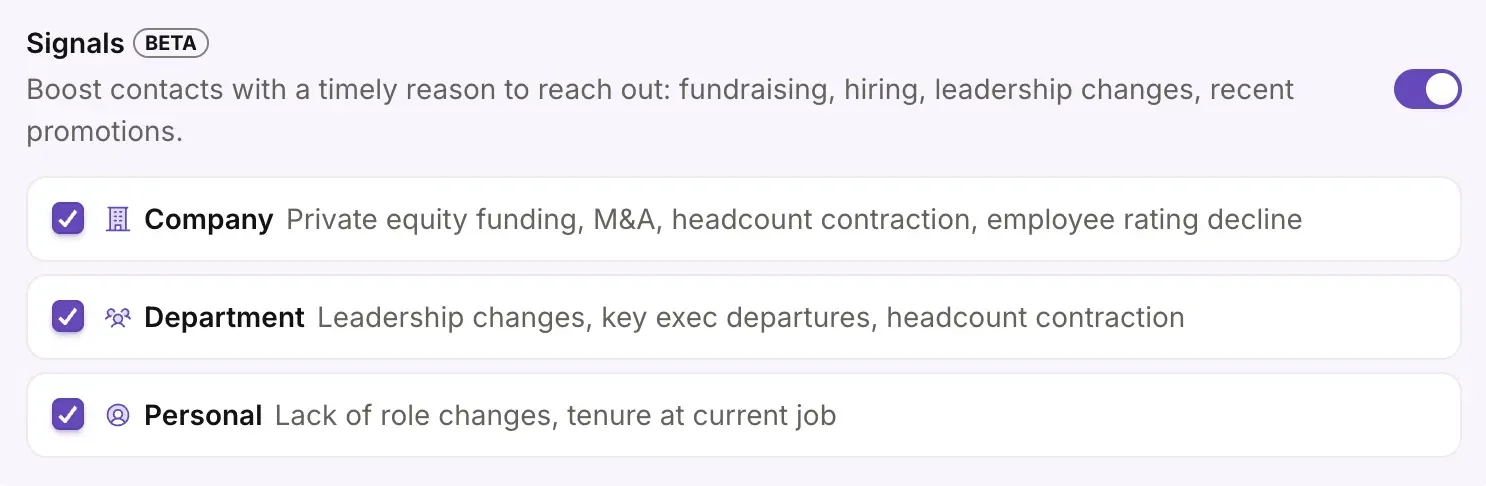
Candidate campaigns look for signals that someone may be open to a move:
Use Signals
Section titled “Use Signals”Signals fits into the normal campaign flow, from import to personalization.
1. Build your search and import contacts
Section titled “1. Build your search and import contacts”Set up your campaign as you normally would: choose your playbook, build your search and import your contacts. Nothing changes at this stage. Signals doesn’t affect how you build your search or who gets imported.
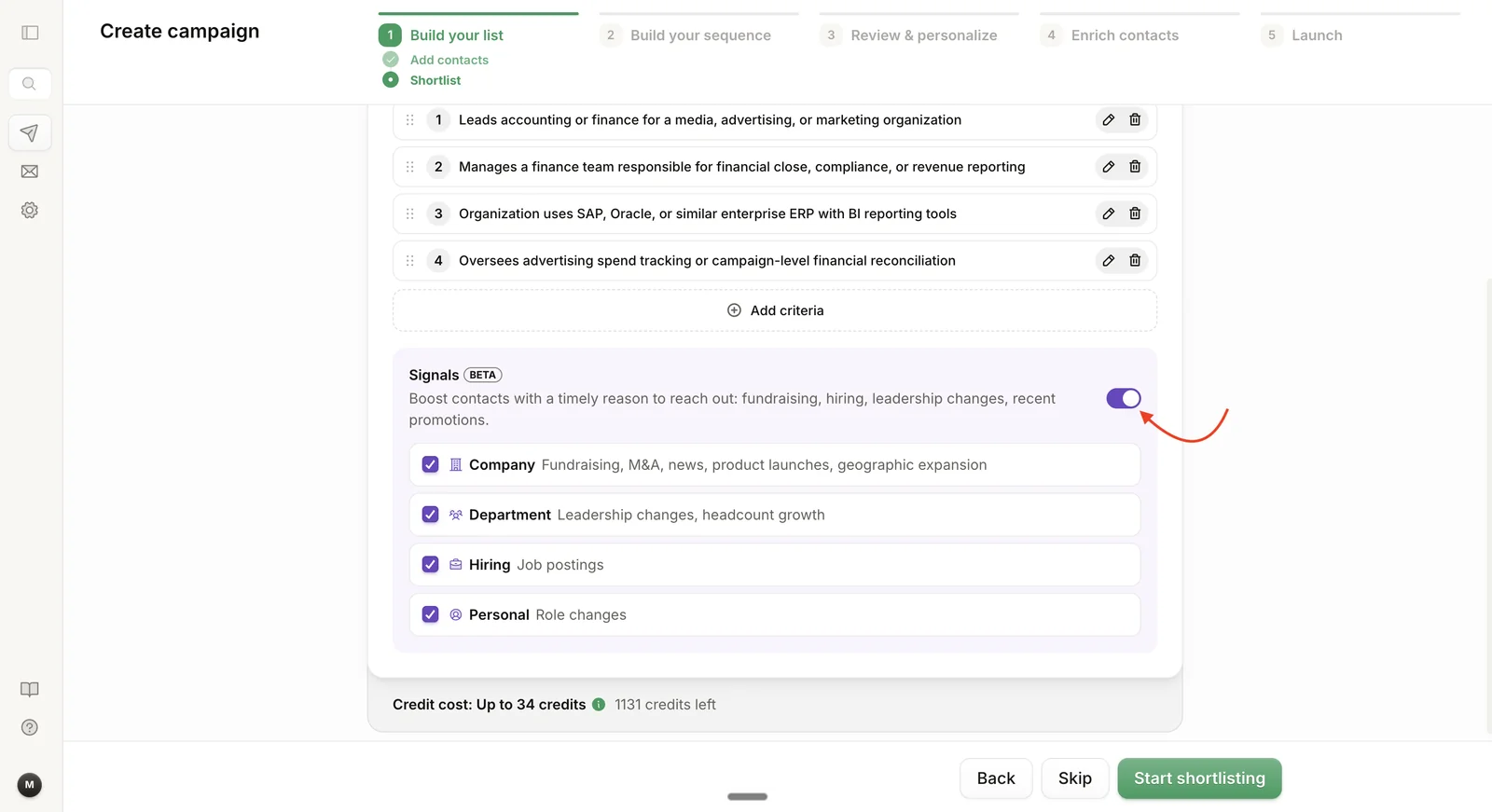
2. Turn on Signals in the shortlisting step
Section titled “2. Turn on Signals in the shortlisting step”Once your import finishes, you’ll land on the shortlisting step. Signals appears directly below your shortlist criteria. Turn it on.
3. Start shortlisting
Section titled “3. Start shortlisting”Select Start shortlisting. Talin scores each contact against your criteria and gathers signals at the same time.
Talin checks company websites, news coverage, job boards, social and other public sources to find signals.
4. Review the signals on your contacts
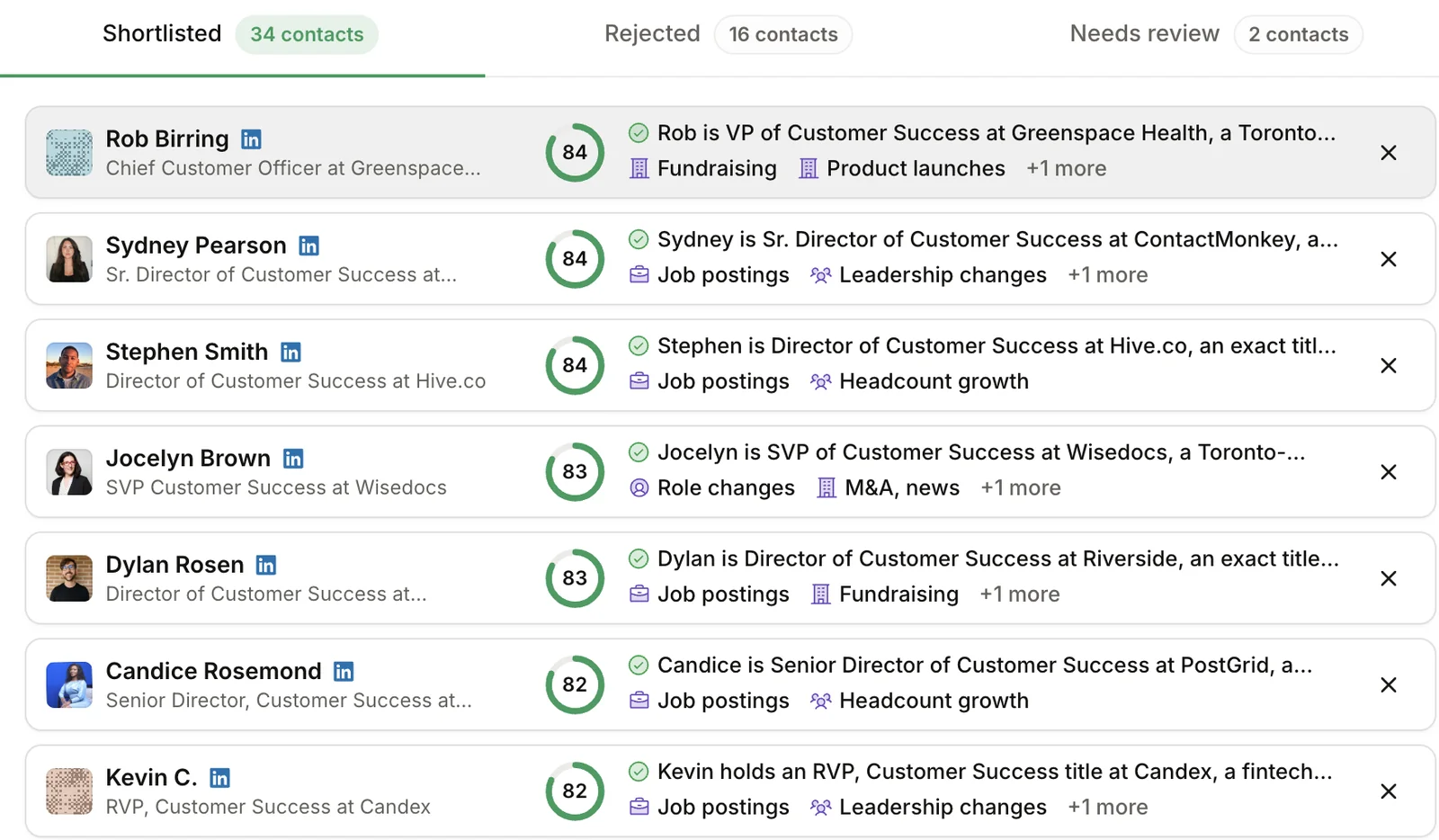
Section titled “4. Review the signals on your contacts”Look for the purple icon below each contact’s shortlist reason. That’s where the signals for that contact appear. Your shortlist reason and score still show as usual, and signals add extra context you can use.
If a contact has no signals, the section stays blank. Talin found nothing recent worth surfacing for them, which is normal.
Check your rejected contacts too. Talin finds signals for rejected contacts, not just shortlisted ones. A contact may not match your criteria while their company is still clearly worth a conversation. To reach out anyway, select Add to shortlist and they’ll be included in your campaign.
5. Save and complete your shortlist
Section titled “5. Save and complete your shortlist”Select Save and complete. Only your shortlisted contacts move forward into the campaign, along with the signals Talin found for them.
6. Use AI Personalize
Section titled “6. Use AI Personalize”This is where Signals delivers the most value.
Continue to your sequence and select Personalize. Talin writes each contact’s opener using the signals it found for them.
Instead of a cold opener, your message leads with the reason you’re reaching out:
- open roles: your message references the specific roles they’re hiring for
- a recent promotion: your message opens by acknowledging the new position
- leadership changes: your message speaks to the gap those changes create
- funding or expansion: your message connects to the growth they’re going through
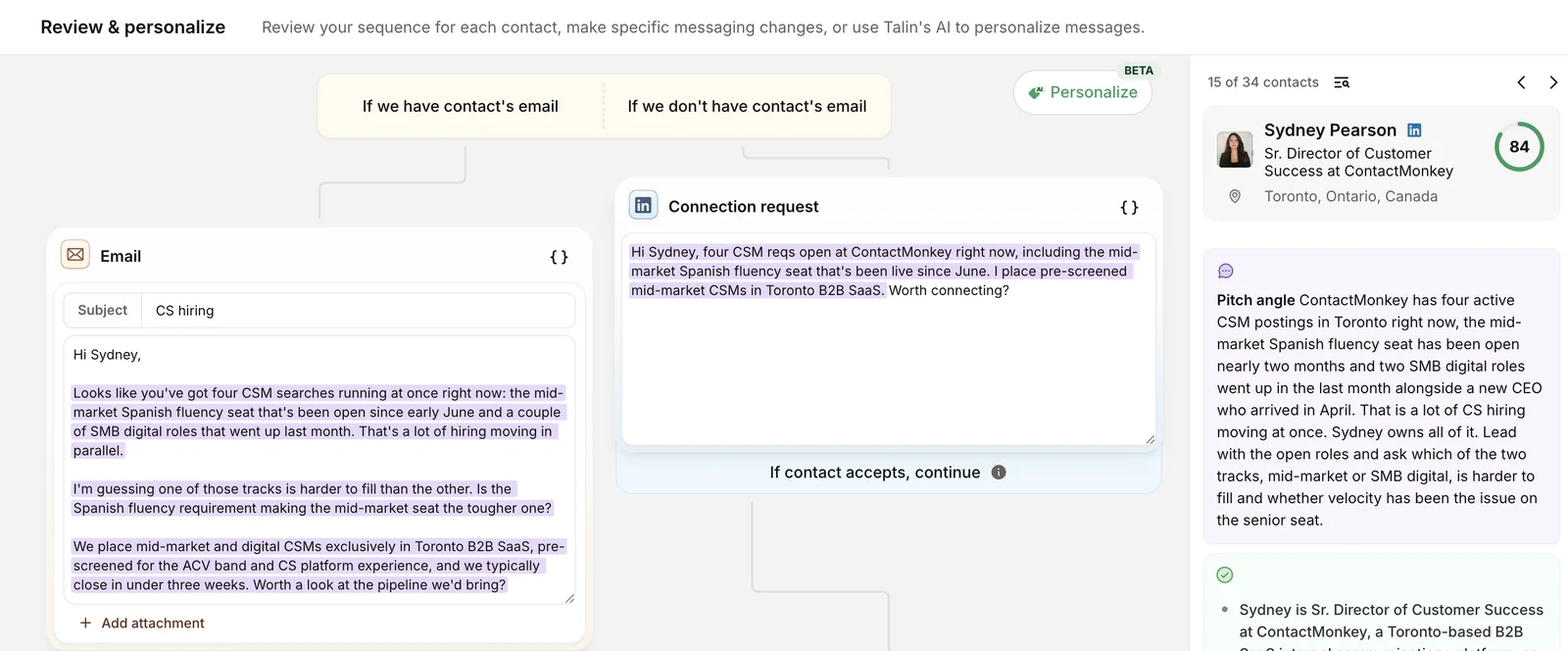
The personalized part is highlighted in purple so you can see exactly what Talin added. Review each contact and keep, edit or discard the personalization, then select Save all and continue.
Still need help?
Our team is here when the docs don't cover it.