Integrations overview
Talin connects to your ATS and CRM to sync contacts automatically and keep your systems up to date. Read this before you connect, then follow the guide for your system.
Supported integrations
Section titled “Supported integrations”Each integration has its own setup guide. Talin supports these systems:
| Integration | ATS | CRM |
|---|---|---|
| Atlas | Yes | Yes |
| Bullhorn | Yes | Yes |
| Crelate | Yes | Yes |
| HubSpot | No | Yes |
| JobAdder | Yes | Yes |
| JobDiva | Yes | Yes |
| Lever | Yes | No |
| Loxo | Yes | Yes |
| Mercury | Yes | Yes |
| Microsoft Dynamics | No | Yes |
| PC Recruiter | Yes | Yes |
| Recruit CRM | Yes | Yes |
| Recruiterflow | Yes | Yes |
| Salesforce | No | Yes |
| Spott | Yes | Yes |
| Stardex | Yes | No |
| Top Echelon (Big Biller) | Yes | Yes |
| TrackerRMS | Yes | Yes |
| Zoho Recruit | Yes | No |
To connect one, go to Integrations in your team settings (or Settings if you’re on a single-user account).
How it works
Section titled “How it works”Once you connect, Talin handles the data flow for you:
- candidates and contacts imported into Talin are pushed to your ATS or CRM in real time
- every email, LinkedIn message, SMS and reply is logged as an activity note against the contact record
- contact data is refreshed automatically as imports run
- an ATS and a CRM can be connected at the same time
When both are connected, candidate campaigns sync to your ATS and prospect campaigns sync to your CRM.
In practice, your ATS gets the LinkedIn activity that almost no other tool maps into it.
What Talin syncs
Section titled “What Talin syncs”Talin syncs two kinds of data: contact details and outreach activity.
Contact details include:
- first and last name
- company name
- LinkedIn URL
- current job title
- email and phone number, if found through Talin enrichment
- location, for contacts that went through AI Shortlist, which is where Talin finds it
- the open job a candidate is linked to in your ATS
Outreach activity includes:
- messages sent and replies received, logged as notes against the contact record
- LinkedIn messages, DMs and connection requests, and SMS messages, mapped automatically into your ATS
- an active campaign tag, added while a contact is in a campaign and removed when it ends (in supported integrations)
- activity mapped to its own type in your ATS (in supported integrations)
With activity type mapping, a LinkedIn connection request is logged as a LinkedIn connection request activity and an email as an email activity, rather than everything appearing as a generic note.
Open a contact’s record from Talin
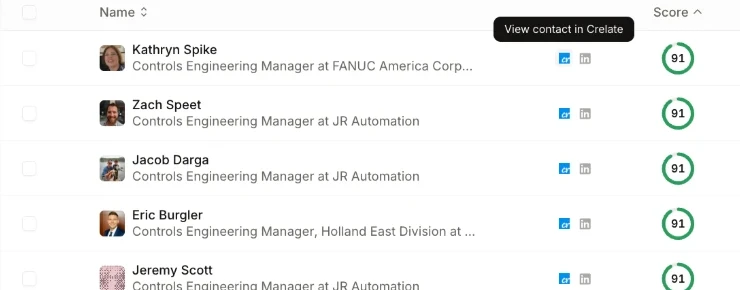
Section titled “Open a contact’s record from Talin”Once Talin pushes a contact to your ATS or CRM, that system’s icon appears next to the contact’s name in your campaign. Hover over it to see a label such as View contact in Crelate, then select it to open the contact’s record directly in your ATS or CRM. This works for every integration except PC Recruiter.
Campaign mapping
Section titled “Campaign mapping”Campaign mapping decides where each type of campaign pushes its contacts: to your ATS or to your CRM. Check it after you connect, because the right mapping depends on what you’ve connected.
- Go to Integrations in your team settings (or Settings if you’re on a single-user account).
- Select Campaign mapping settings at the top right.
- Under Candidate Campaigns will push to, choose ATS or CRM.
- Under Prospect Campaigns will push to, choose ATS or CRM.
- Select Save.
For example, with an ATS and a CRM both connected, candidate campaigns usually push to the ATS and prospect campaigns to the CRM. Some systems take prospects through the ATS connection instead, so both campaign types push to the ATS. Each integration’s guide says how to map it. To start over, select Reset to Talin’s default settings.
When prospects push to a CRM, choose the record type under CRM, in Sync prospects with CRM as, for example Leads.
Sync settings
Section titled “Sync settings”Each integration has its own sync settings. To open them, select Settings next to the integration. The exact list depends on the integration, but most include:
- Push candidate to ATS when: they’re uploaded to Talin, their email or phone number is enriched, or both. What gets pushed depends on which you turn on.
- Add note to candidate when: they receive a message from Talin, they reply, or both, on any channel or one you choose.
- Add notes and create candidates as individual users: records and notes are created under the Talin user who owns the campaign, not as duplicates or orphaned records.
- Include message and reply content in notes: notes include the full text of each message and reply.
- Pull candidate emails that already exist in your ATS into Talin: ATS connections only, for candidate campaigns. It saves credits, but it uses whatever email your ATS has, which may not be current.
In a CRM, the same settings apply to prospects. Review them before your first campaign. You can change them at any time without reconnecting.
Link campaigns to ATS jobs
Section titled “Link campaigns to ATS jobs”Every ATS integration lets you link a candidate campaign to an open job, so every candidate in the campaign is associated with it.
When you create a candidate campaign, Talin pulls in your active jobs. Select the job from the dropdown and Talin links every candidate in the campaign to it.
To link a job after the campaign is created:
- Open the campaign.
- Go to Settings, then ATS Job Association.
- Search for the job and select it.
- Select all contacts in the campaign, select Export, then select Sync to ATS.
Import rules from your ATS or CRM
Section titled “Import rules from your ATS or CRM”Some integrations, such as Crelate, JobAdder and Recruiterflow, add import rules once they’re connected. You’ll find them in Settings, then Rules, under Contact Import Rules:
- Exclude contacts with activity in ATS: don’t import contacts with activity in your ATS within the time you choose
- Exclude contacts with activity in CRM: the same check for your CRM
How Talin avoids duplicate records in your ATS or CRM
Section titled “How Talin avoids duplicate records in your ATS or CRM”Before Talin creates a new contact or adds information to your ATS or CRM, it checks whether that person already exists. This keeps your records clean and stops the same person from showing up twice.
How the check works
Section titled “How the check works”- Talin searches by email. If a contact with the same email exists, that’s a match.
- If there’s no email match, Talin searches by name and company.
- If it finds a possible match, Talin compares LinkedIn URLs to confirm it’s the same person.
Talin only searches by email, and by name and company. It never searches by LinkedIn URL. It only uses the LinkedIn URL to confirm a match.
For example, say your ATS has two contacts named John Smith, and both work at Apple. Name and company alone can’t tell you whether that’s one person or two. Before Talin treats them as the same person, it checks their LinkedIn URLs.
Our recommended setting
Section titled “Our recommended setting”In the integration’s Settings, under Push prospect to CRM when (or Push candidate to ATS when):
- they are uploaded to Talin: off
- their email or phone number is enriched: on
This works because a contact is usually shortlisted by the time they’re enriched. Shortlisting gives Talin their company information, including the company domain, and enrichment adds their email. With both, Talin can find an existing record before it creates a new one.
If contacts are pushed as soon as they’re uploaded, Talin doesn’t have their company details or email yet. It has much less to match on, and that’s when duplicates can happen.
Still need help?
Our team is here when the docs don't cover it.