Campaign settings
Campaign settings control a campaign’s name, contact type, inboxes, sending hours and daily limits. Use this article when you set up a campaign, change one that’s running, or want to understand how Talin paces your outreach.
Open campaign settings
Section titled “Open campaign settings”Every campaign has its own settings, separate from your account settings.
-
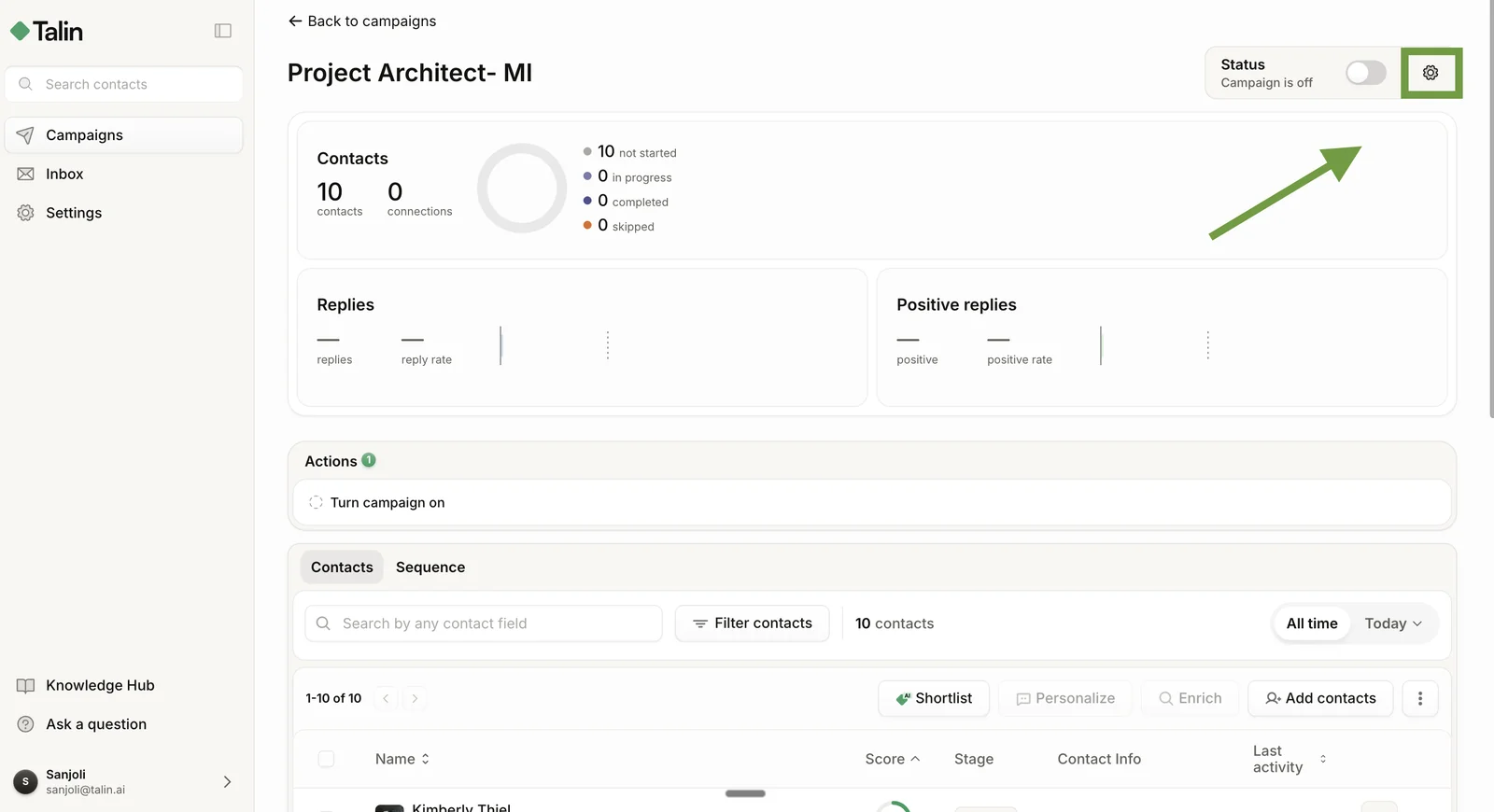
Open the campaign page.
-
Select the gear icon at the top right.
-
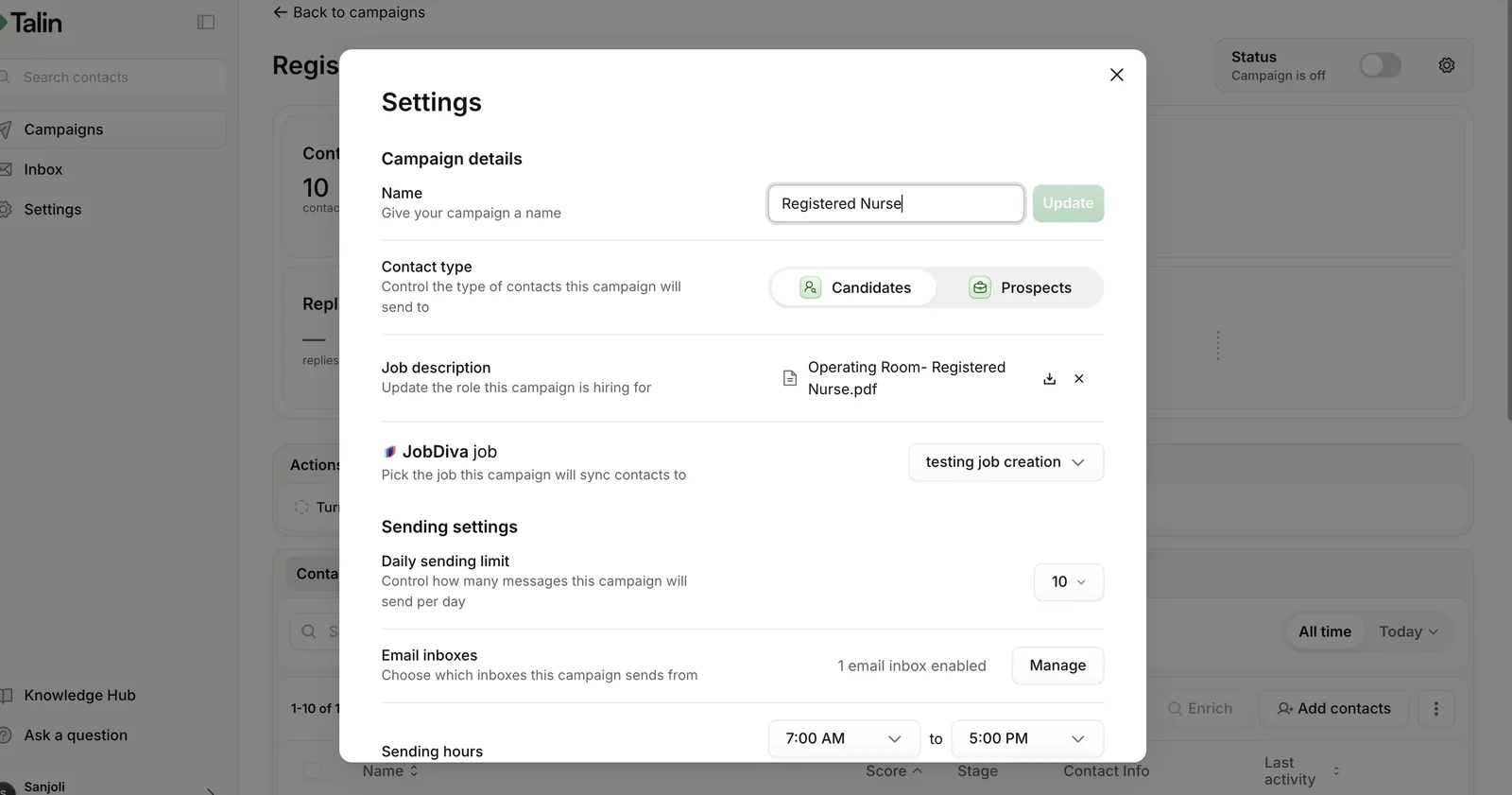
View and edit the campaign settings.
Campaign settings
Section titled “Campaign settings”You can rename a campaign any time. Type a new name in the Name field and select Update. Names are internal, so contacts never see them.
Contact type
Section titled “Contact type”The contact type decides where contacts sync. Choose Candidates or Prospects:
- Candidates: contacts sync to your ATS if one is connected
- Prospects: contacts sync to your CRM if one is connected, and you can pick MPC or Target Market for Talin’s AI optimization
You can change the type after you create the campaign, but only contacts added from then on use the new setting. Existing contacts keep the sync behavior they had when they were added.
Email inboxes
Section titled “Email inboxes”If you have more than one email inbox connected, choose which ones are active for this campaign.
- Select Manage next to Email inboxes.
- Turn individual inboxes on or off.
Talin automatically rotates sending across all enabled inboxes. At least one inbox must be enabled for email outreach to send.
In practice, assigning specific inboxes to each campaign keeps replies organized and helps each sending domain build a consistent reputation in a given niche.
Sending hours
Section titled “Sending hours”Sending hours are the window during which Talin sends messages for this campaign. Each campaign has a sending hours block of at least 4 hours, and it covers all channels in the campaign: email, social and SMS.
To set sending hours:
- Set a start time and an end time at least 4 hours apart.
- Set the timezone to match your contacts’ location, not yours.
Emails are always sent a few minutes apart, never in bulk. Talin spaces messages naturally through the window to protect your sender reputation, and a shorter window would bunch messages together, which hurts deliverability.
You can set default sending hours for all new campaigns in Profile Settings. Campaign settings always override the account default.
Save as template
Section titled “Save as template”Select Save as template to save this campaign’s sequence: the steps, channels and message copy. A template copies the sequence only. It doesn’t copy contacts, settings, sending limits or sending hours.
Saved templates appear under Use existing template when you create a new campaign, and all team members can use them.
Delete a campaign
Section titled “Delete a campaign”Select Delete to permanently remove a campaign and all the contacts in it.
Manage an active campaign
Section titled “Manage an active campaign”You can pause a campaign, add contacts and edit messages while it runs.
Pause and activate
Section titled “Pause and activate”Use the Status toggle at the top of the campaign page to switch the campaign between active and paused.
When a campaign is paused:
- no new outreach is sent
- contacts stay exactly where they are in the sequence
- reactivating picks up exactly where it left off, and no contacts are skipped or reset
Add contacts
Section titled “Add contacts”You can add contacts to a running campaign at any time.
- Import contacts with the Chrome extension or a CSV file.
- Select the campaign to import them into.
- Select Add Contacts.
New contacts enter the sequence at step 1 and start receiving outreach within a few hours, depending on your daily sending limit and how many other campaigns are active.
Edit a live sequence
Section titled “Edit a live sequence”You can edit message copy on a running campaign. Changes apply only to contacts who haven’t reached that step yet, so contacts who already received a message aren’t affected.
- Open the campaign you want to edit.
- Go to the Sequence tab.
- Make your edits.
- Select Save.
Daily sending limits
Section titled “Daily sending limits”Daily sending limits control how many messages Talin sends each day, so your accounts and inboxes stay healthy.
Per-campaign limit
Section titled “Per-campaign limit”The Daily sending limit setting controls how many messages Talin sends per day, per channel, from this campaign. The default is 10.
The limit applies per channel and per connected inbox. If you have 5 email inboxes enabled and set the limit to 50, Talin sends up to 50 per inbox, which is 250 a day in total from that campaign.
New inboxes need time to build sender reputation, and jumping straight to 50 a day risks your emails landing in spam. Talin doesn’t ramp up for you, so start low and raise the limit yourself. We recommend adding 10 a day per inbox each week, up to 50.
Per-channel limits
Section titled “Per-channel limits”These are the platform limits Talin enforces across all your campaigns:
| Channel | Daily limit | Notes |
|---|---|---|
| 50 a day per inbox | Sent a few minutes apart, never in bulk | |
| Social connection requests | 50 a day, 200 a week | The weekly cap resets every 7 days |
| Social DMs | 50 a day | 1st-degree connections only |
| SMS | 50 a day | Needs a phone number on the contact |
Talin manages all limits automatically. Campaigns pause when a limit is hit and resume when it resets.
Still need help?
Our team is here when the docs don't cover it.