Finding LinkedIn URLs
If your CSV has a contact’s email, phone number or company name but no LinkedIn URL, Talin can find the profile for you. Use this when you import a list and want those contacts ready for LinkedIn steps in your campaigns.
Before you start
Section titled “Before you start”Each contact in your CSV needs one of the following:
- first name, last name and company name
- business email address
- personal email address
When one of these is present, Talin finds the matching LinkedIn profile URL and attaches it automatically.
Find missing LinkedIn URLs
Section titled “Find missing LinkedIn URLs”Enrichment runs as part of the standard CSV import flow.
- Upload your CSV through the standard import flow.
- Under Find missing LinkedIn URLs, select Enrich.
- Select Continue.
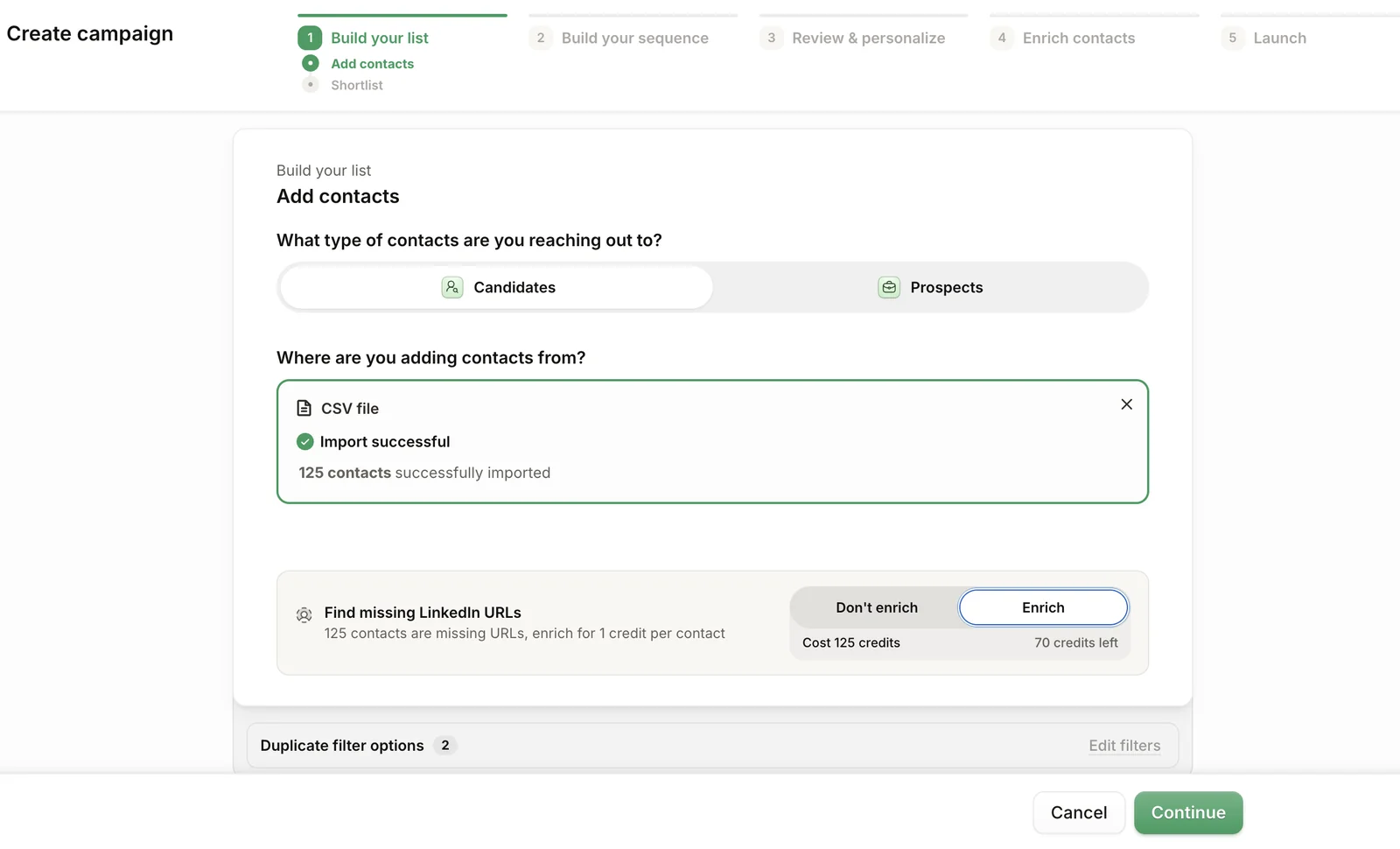
Talin scans each row and finds the LinkedIn URL where it can. Once enrichment is complete, the LinkedIn profile is attached to the contact and ready to use in your campaigns.
Credits
Section titled “Credits”Each LinkedIn URL found uses 1 credit. You’re only charged for matches, so if no profile is found, no credit is used.
Get a better match rate
Section titled “Get a better match rate”The more information you include, the better your match rate. Only one of the fields above is required, but if you have a contact’s full name and company alongside their email, include all of it to improve accuracy.
Still need help?
Our team is here when the docs don't cover it.