Sequences
The sequence builder helps you create automated, multi-step outreach for a campaign. You can build a sequence with the AI Sequence Builder, start from an existing template, or start from scratch.
Use the AI Sequence Builder
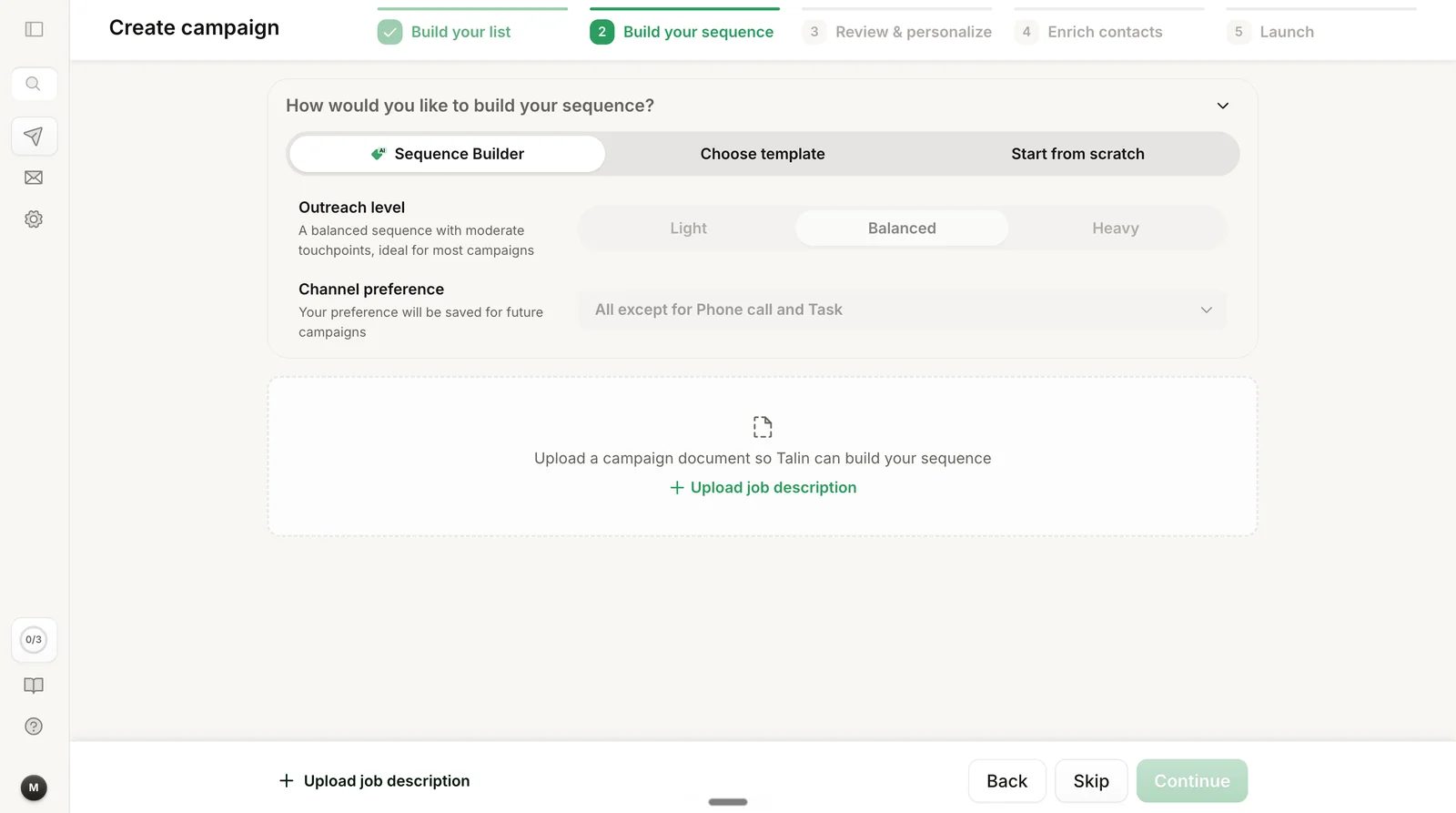
Section titled “Use the AI Sequence Builder”The AI Sequence Builder writes your whole sequence for you, including both the steps and the messages. Select Sequence Builder to get started.
Choose your outreach level
Section titled “Choose your outreach level”Pick how aggressive you want the sequence to be:
- Light: a few carefully timed touchpoints, ideal for warm leads
- Balanced: a moderate number of touchpoints, and the recommended starting point for most campaigns
- Heavy: the most touchpoints, for high-priority outreach
Select your channel preferences
Section titled “Select your channel preferences”Choose which channels to use in your sequence.
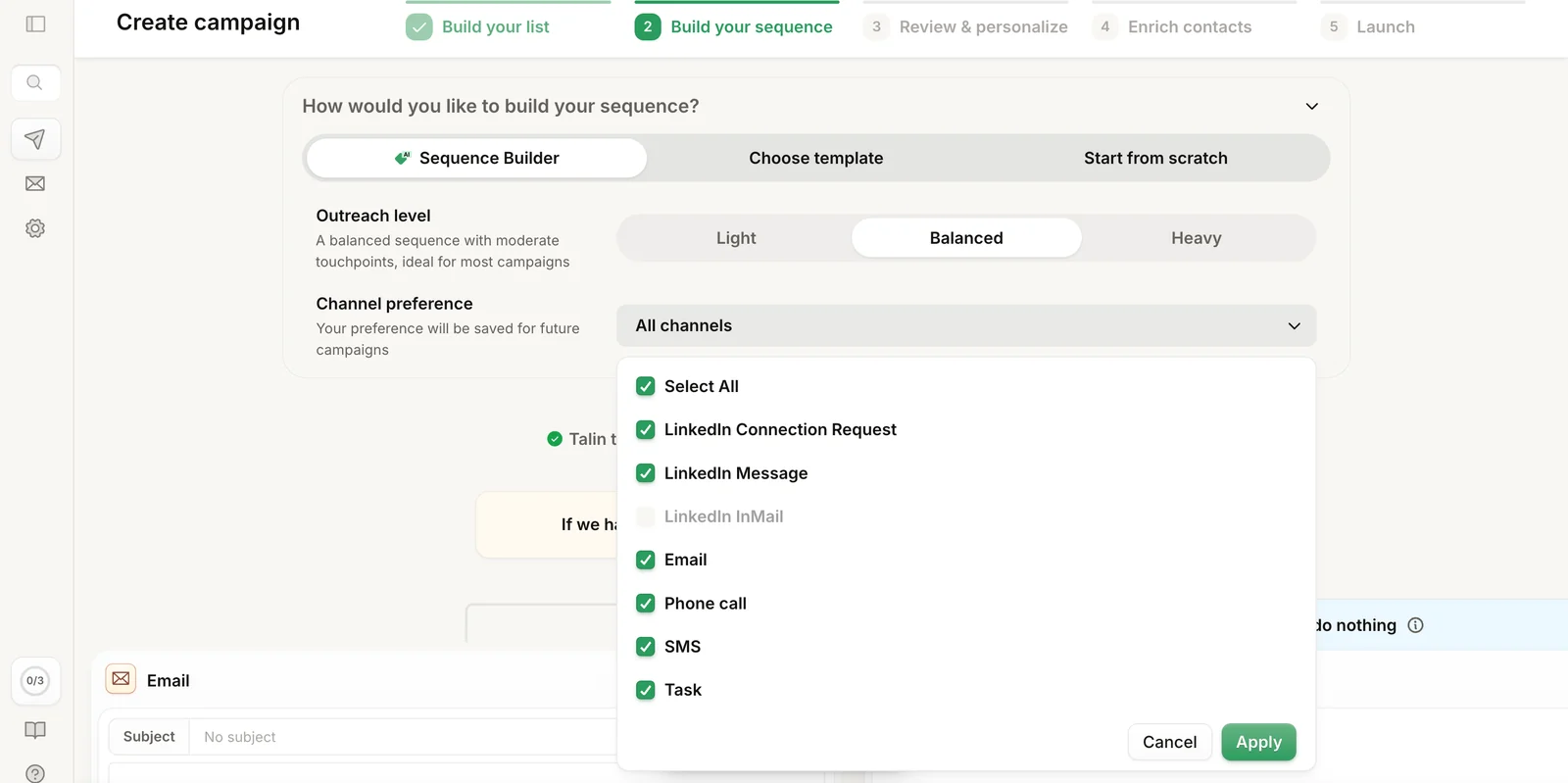
Talin saves your channel preferences and applies them to future campaigns, so you only have to set this once.
How Talin builds your sequence
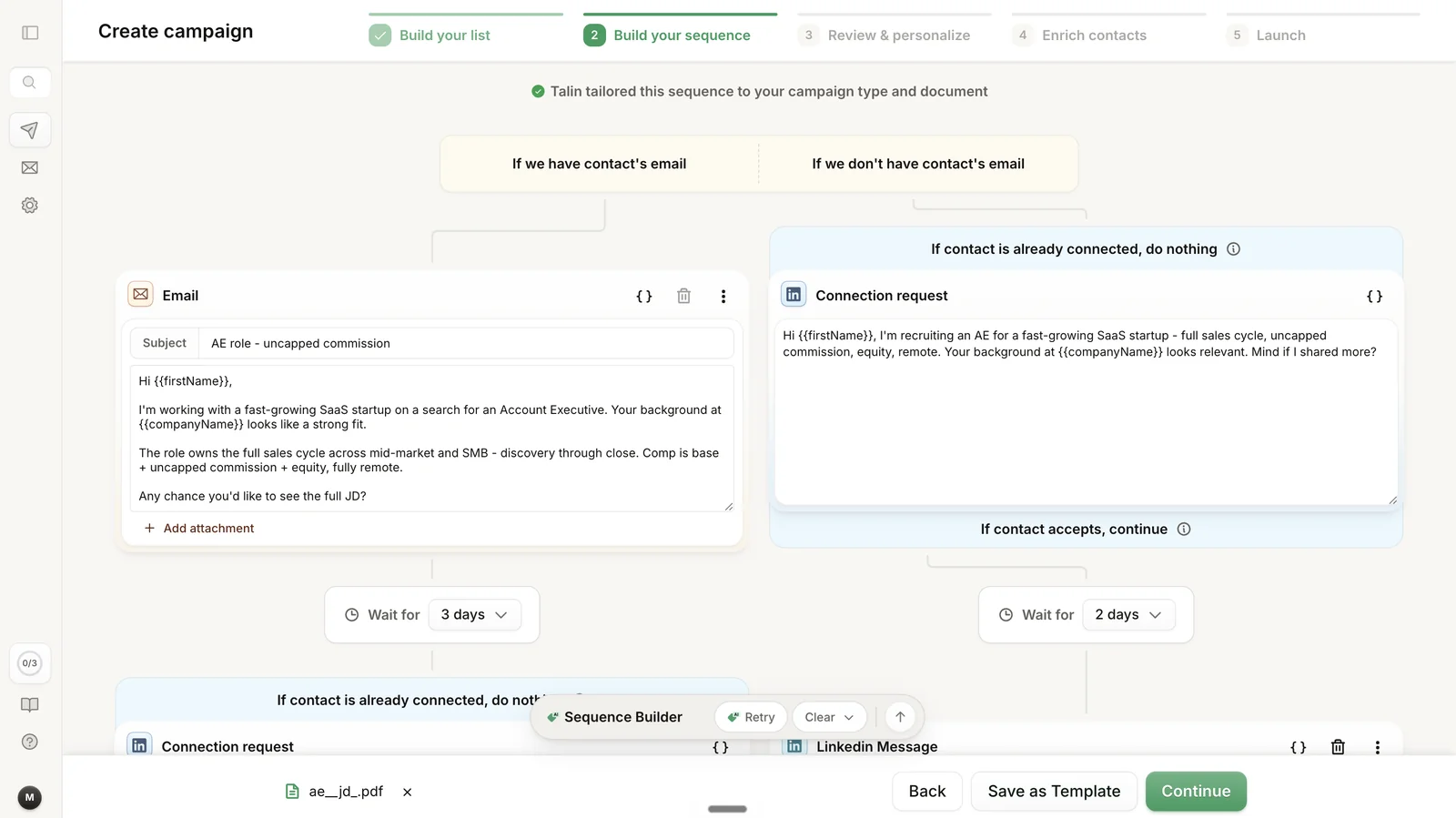
Section titled “How Talin builds your sequence”Once you’ve picked an outreach level and channel preferences, Talin generates the whole sequence, structure and copy, in seconds.
Talin tailors each step to your campaign type and any document you uploaded, such as a job description, a target market profile, or a candidate’s resume for an MPC campaign. Every step is pre-filled with ready-to-send copy.
Your sequence also splits into parallel flows, depending on the contact data available:
- if Talin has a contact’s email, the sequence starts with an Email
- if it doesn’t, Talin sends a LinkedIn Connection Request and continues once it’s accepted
Talin chooses each contact’s flow once, when they enter the sequence. A contact who gets an email address later stays on the LinkedIn flow.
Above a LinkedIn Connection Request step, the line If contact is already connected is set to do nothing. Select it and choose Add new step to send already-connected contacts a LinkedIn Message instead. New steps are added at the end of a branch.
You can edit any message directly in the builder. Click into the field and start typing. Your changes apply to all contacts in the sequence, so remember to select Save.
Choose a template
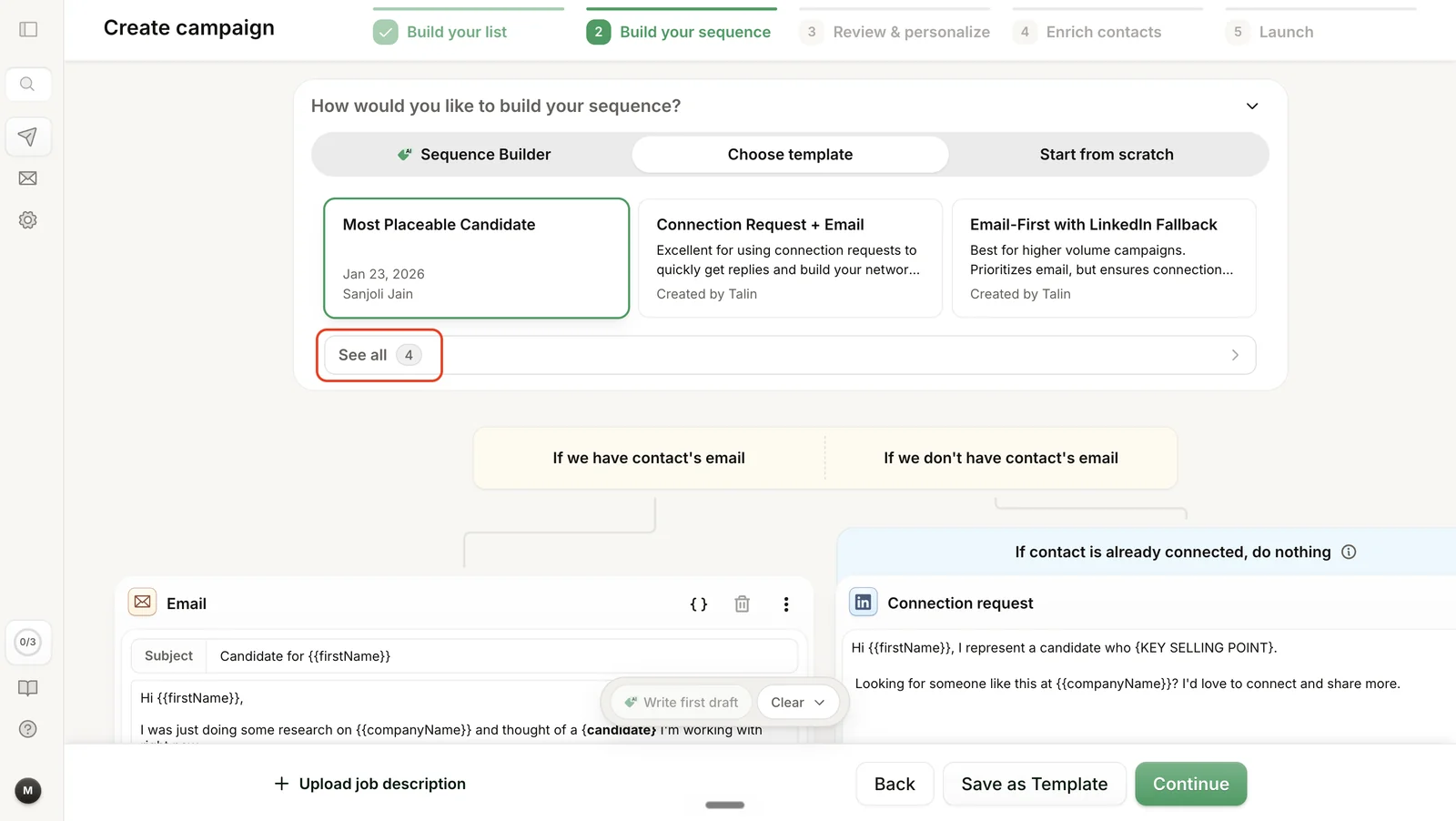
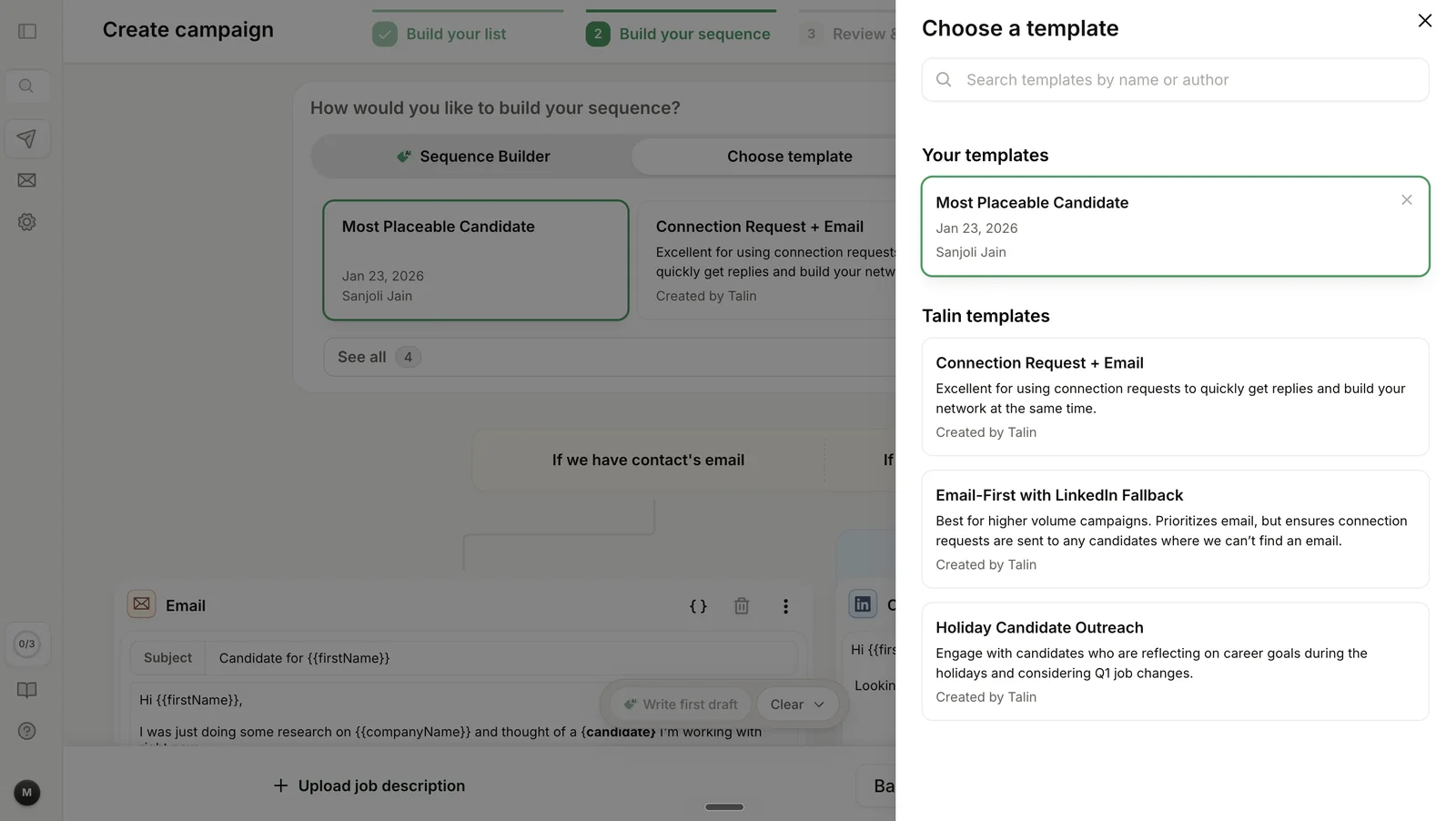
Section titled “Choose a template”Start from a sequence that you, your team or Talin already built.
Select See all to choose from:
- Your templates: templates you or your team members have saved
- Talin templates: pre-built sequence patterns from Talin, such as Connection Request + Email
Start from scratch
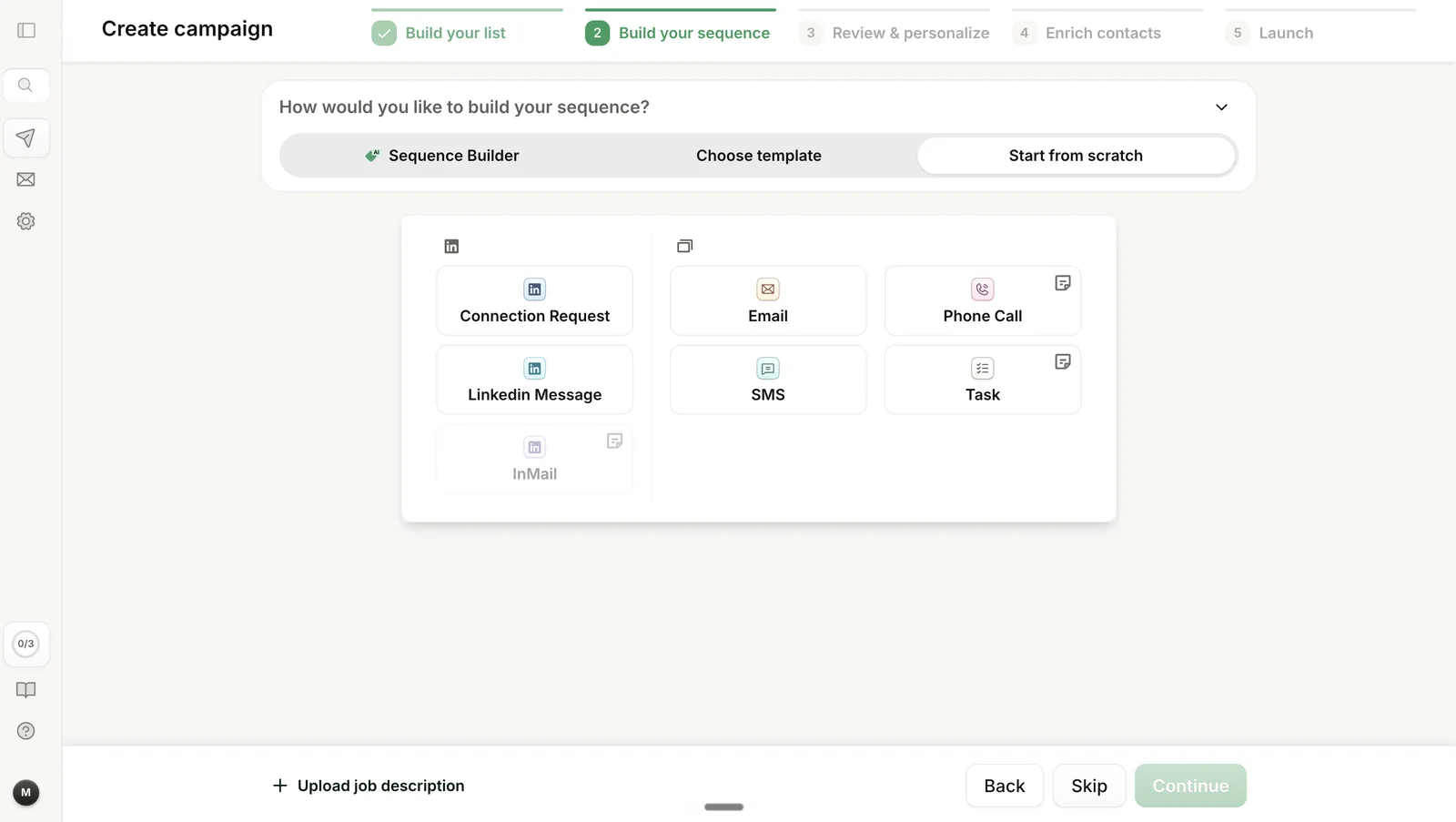
Section titled “Start from scratch”Build every step yourself, then let Talin draft the messages or write them yourself.
- Select Add first step and choose the channel for your first outreach step.
- Add the follow-up steps to build the sequence flow you want.
- Select Write first draft to have Talin draft the messages for every step, or write them yourself.
Edit your sequence
Section titled “Edit your sequence”Once your sequence is built, you can change it with these actions:
- Write first draft: Talin’s AI drafts the messages for every step, tailored to your target market, most placeable candidate or candidate playbook
- manual edits: change anything you like, and your changes apply to all contacts in the sequence
- Retry: generates a completely new draft and discards your current edits
- Clear, next to Write first draft below your sequence: choose clear content to erase all messages but keep your sequence pattern, or clear steps to remove all steps and start your sequence over
Automated reply tracking
Section titled “Automated reply tracking”Talin tracks replies at every stage of your sequence.
When a contact replies, Talin marks them as Replied via channel and immediately pauses all further outreach to that contact.
Still need help?
Our team is here when the docs don't cover it.