AI Personalize
AI Personalize tailors each outreach message to the contact’s profile, so your emails and social messages feel one-to-one even at scale. It works for candidate, MPC (most placeable candidate) and target market campaigns.
AI Personalize is part of the Build your sequence step. It’s free while it’s in Beta and doesn’t use credits.
Personalize your contacts
Section titled “Personalize your contacts”- Shortlist your contacts with AI Shortlist.
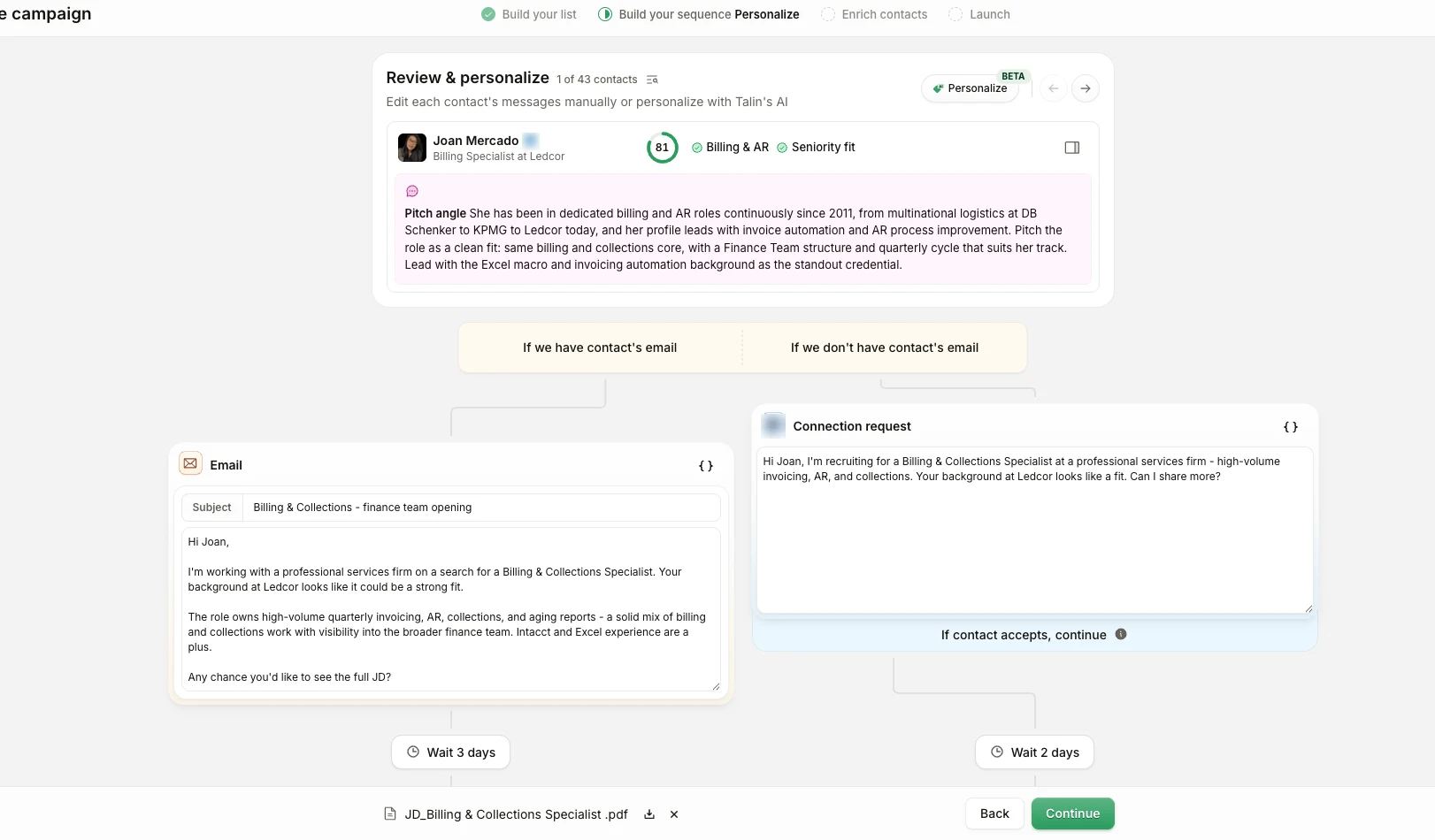
- In the Build your sequence step, write your sequence. Review & personalize sits at the top, with the pitch angle for each contact.
- Select Personalize at the top right.
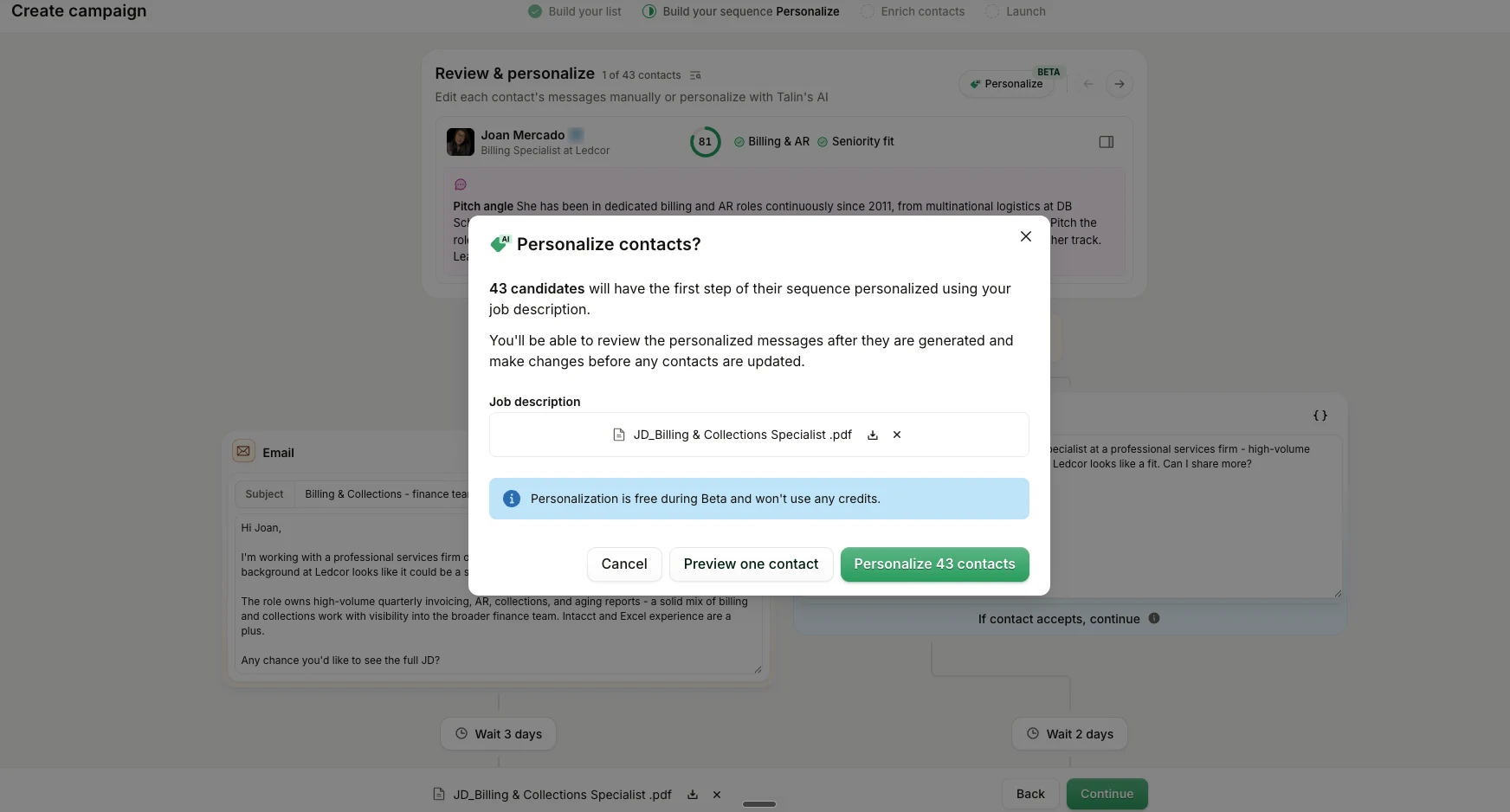
- Choose how to personalize:
- Preview one contact, to see what personalization looks like on a sample contact first
- Personalize all your contacts at once (the button shows how many)
- Wait while Talin personalizes your messages. Depending on how many contacts you have, it can take a few minutes for the results to load.
Review and save
Section titled “Review and save”When personalization is done, the personalized lines in each message are highlighted in pink, so you can see at a glance what Talin added.
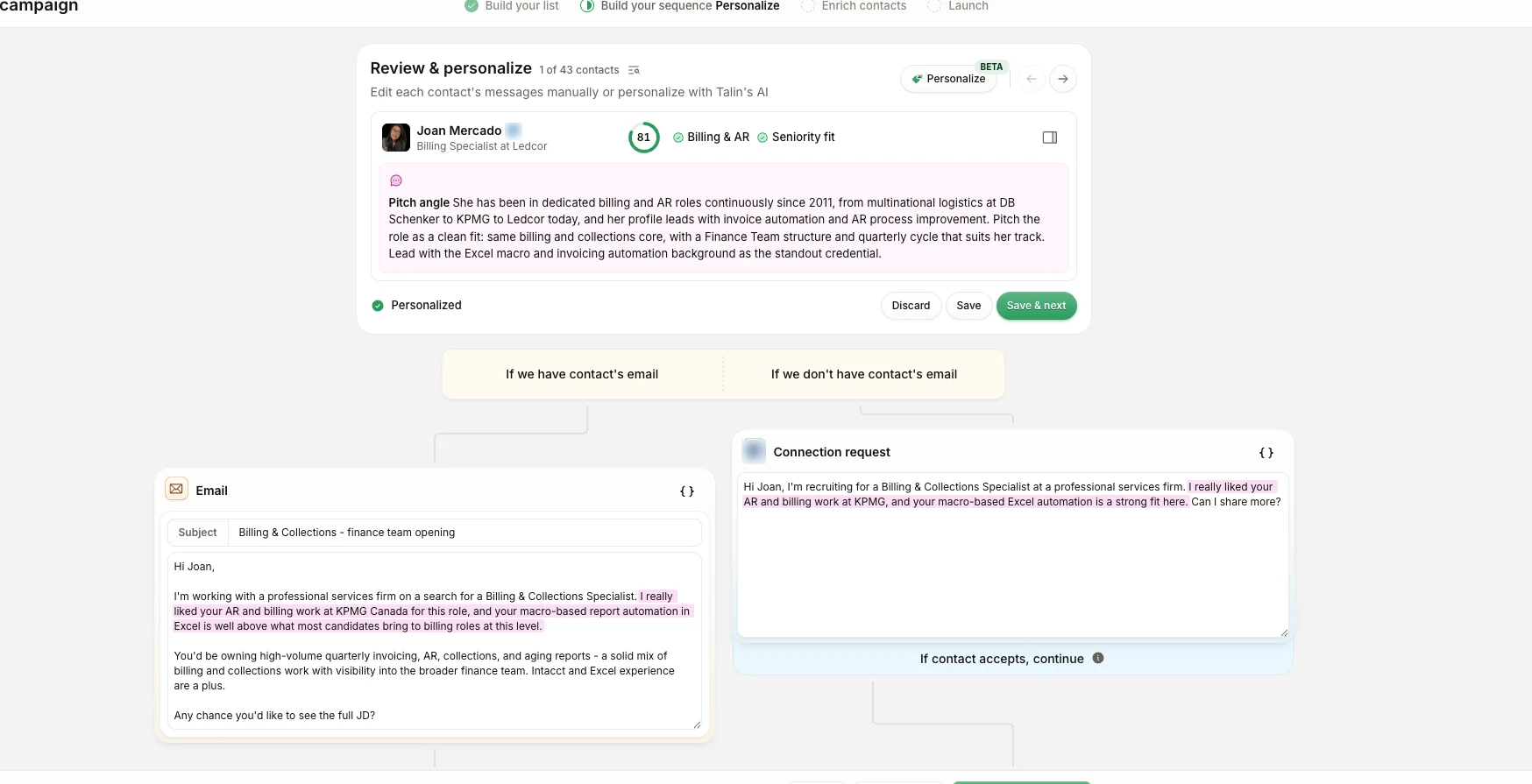
For each contact, you can:
- Save: keep the personalized message for that contact
- Save & next: keep it and move on to the next contact
- Edit: change the message, then save your version
- Discard: drop the personalization for that contact and go back to your sequence copy
If you’re not happy with the results overall, select Discard all to drop the personalization for every contact.
When you’re done, select Save all, then Continue to go to the next step, Enrich contacts.
How it works
Section titled “How it works”Talin uses the message you wrote in step 1 of your sequence as the foundation. It keeps most of your copy and adds a few personalized lines for each contact, based on the pitch angle shown above that contact’s messages.
The AI looks at different things depending on your campaign type.
Candidate campaigns
Section titled “Candidate campaigns”When you reach out to candidates about a role, the AI focuses on:
- the candidate’s work experience and current company
- skills and background that make their profile relevant to the role
- a comparison against the job description attached to the campaign
The result is a personalized opener that connects the candidate’s experience to why you’re reaching out about this role.
MPC campaigns
Section titled “MPC campaigns”When you pitch a candidate to a potential hiring contact, the AI focuses on:
- the contact’s company and role
- how the candidate you’re pitching might fit the contact’s hiring needs or team
- context that makes the outreach feel like a warm, informed introduction rather than a cold pitch
Target market campaigns
Section titled “Target market campaigns”When you reach out to companies in your target market, the AI personalizes using the signals Talin found about each contact’s company during shortlisting.
If Talin finds no signal for a company, that contact isn’t personalized and gets your step 1 message as written.
With Signals
Section titled “With Signals”If you shortlisted with Signals turned on, Talin uses the signals it found, such as open roles or a recent promotion, to write each contact’s opener.
Still need help?
Our team is here when the docs don't cover it.