Search
Talin search builds a list of matching contacts in minutes for candidate and prospect campaigns. Describe who you’re looking for in plain language, or upload a job description or resume, and Talin sets up the search for you.
Before you start
Section titled “Before you start”You’ll need one of these:
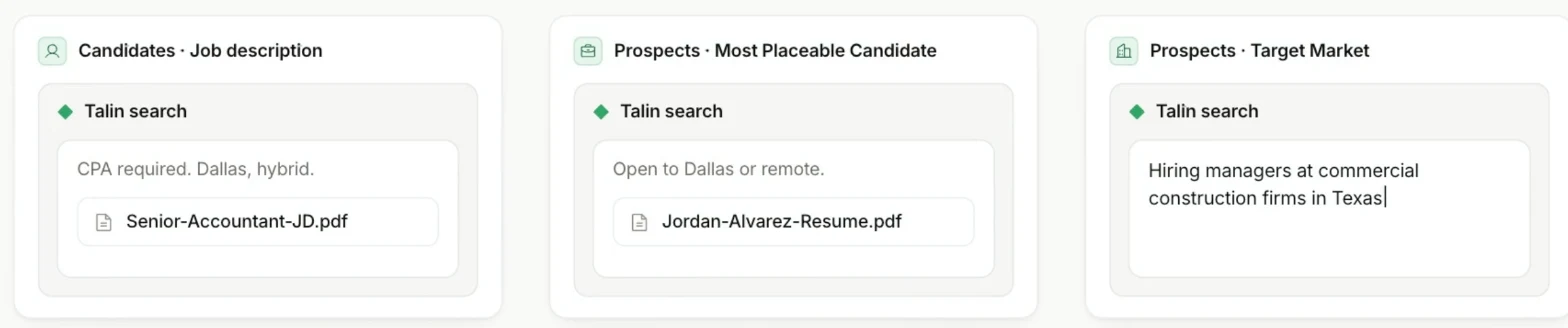
- a job description or a lookalike resume, to source candidates
- a candidate’s resume, to find hiring managers
- a description of your target market
You can upload a PDF or DOCX up to 5MB, or type it out.
Choose your search type
Section titled “Choose your search type”Every search starts with one of three search types:
- Candidates: filling an open role. Upload a job description or a lookalike resume
- Target Market (Prospects): finding potential clients or hiring managers. Type a target market description
- Most Placeable Candidate (Prospects): marketing a most placeable candidate to hiring managers. Upload the candidate’s resume
How to start a new Search
Section titled “How to start a new Search”-
Select New campaign.
-
Choose Candidates or Prospects. For Prospects, select a playbook type: Most Placeable Candidate or Target Market.
-
Under Where are you adding contacts from?, select Talin search.
-
Upload your document or type it out.
Read your results
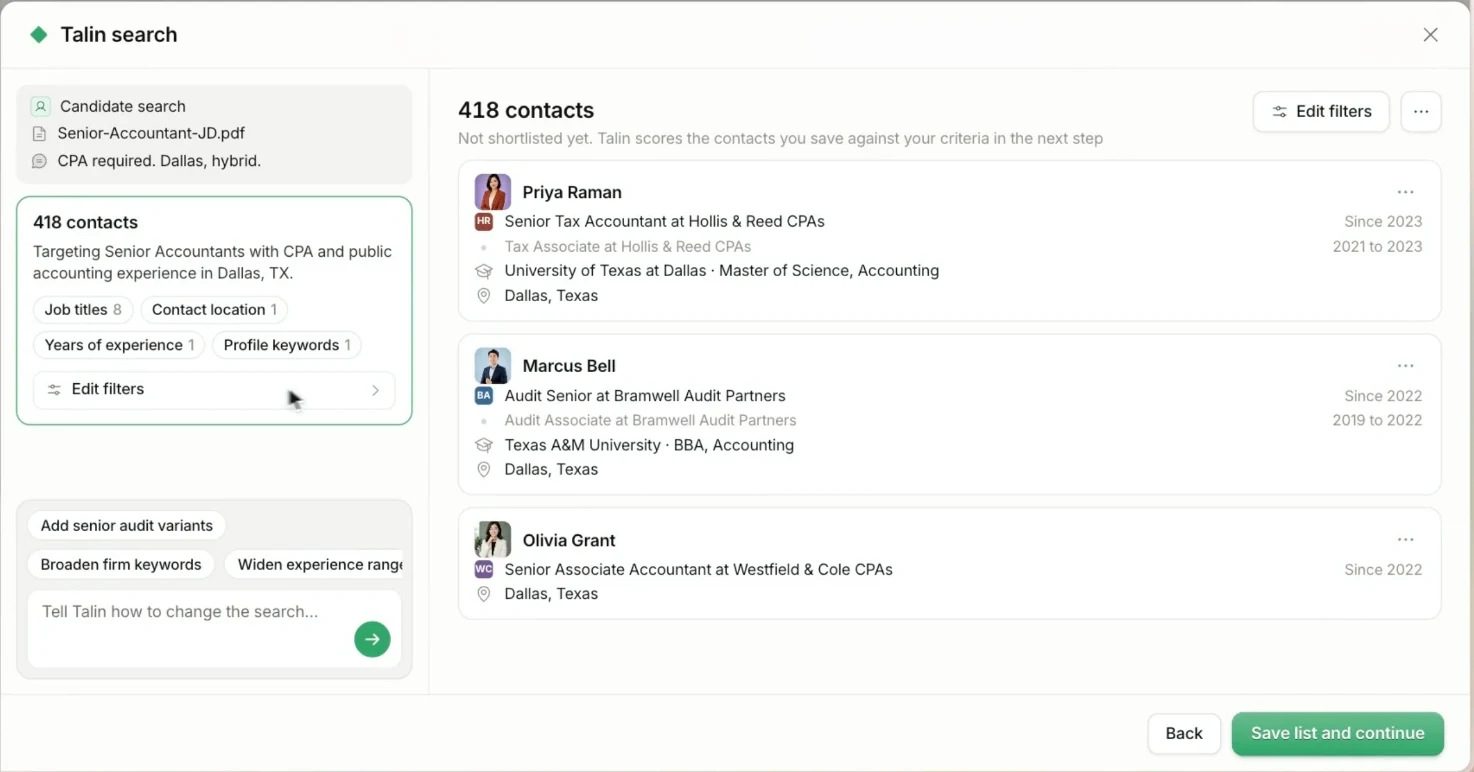
Section titled “Read your results”When the search finishes, Talin lists the matching contacts on the right. Each contact shows their current role, company and location, and candidate results can also show previous roles and education.
On the left is the search chat. Talin summarizes the search and lists the filters it applied, such as Job titles, Contact location, Industries, Company size and Profile keywords.
Refine your search
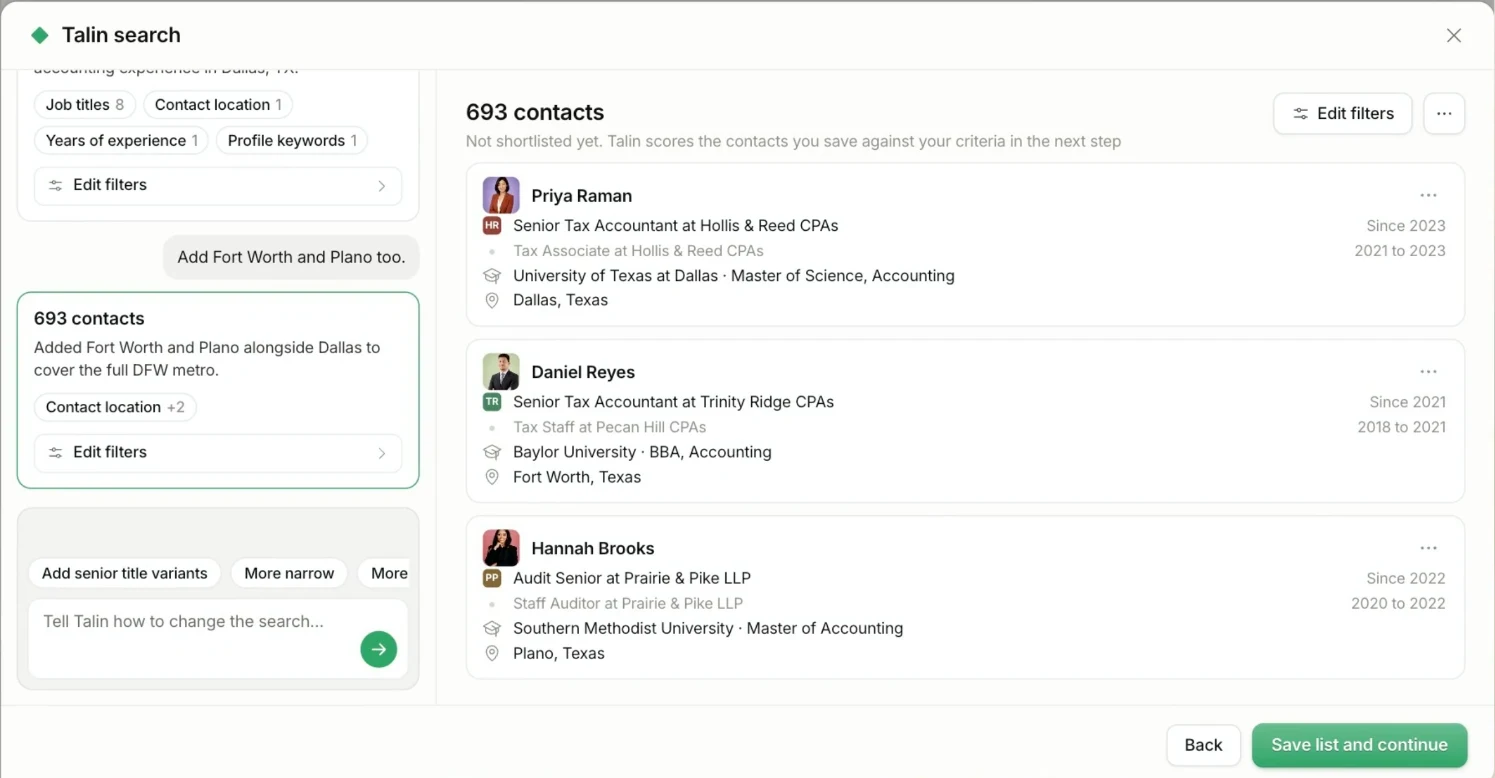
Section titled “Refine your search”Tell Talin what to change and it updates the search. Each change appears as a new card in the chat with the new number of contacts, so you can see exactly what changed. Talin keeps your other filters unless you ask to change them.
- Select a suggestion, such as More narrow, or type what you want to change in the box at the bottom of the chat, such as remove Principal titles.
- Wait for Talin to update the results.
- Read the new card to check what changed and how many contacts match.
- Repeat until the list looks right.
To leave out companies, such as your existing clients, type Exclude in the chat and paste the company names.
Edit filters yourself
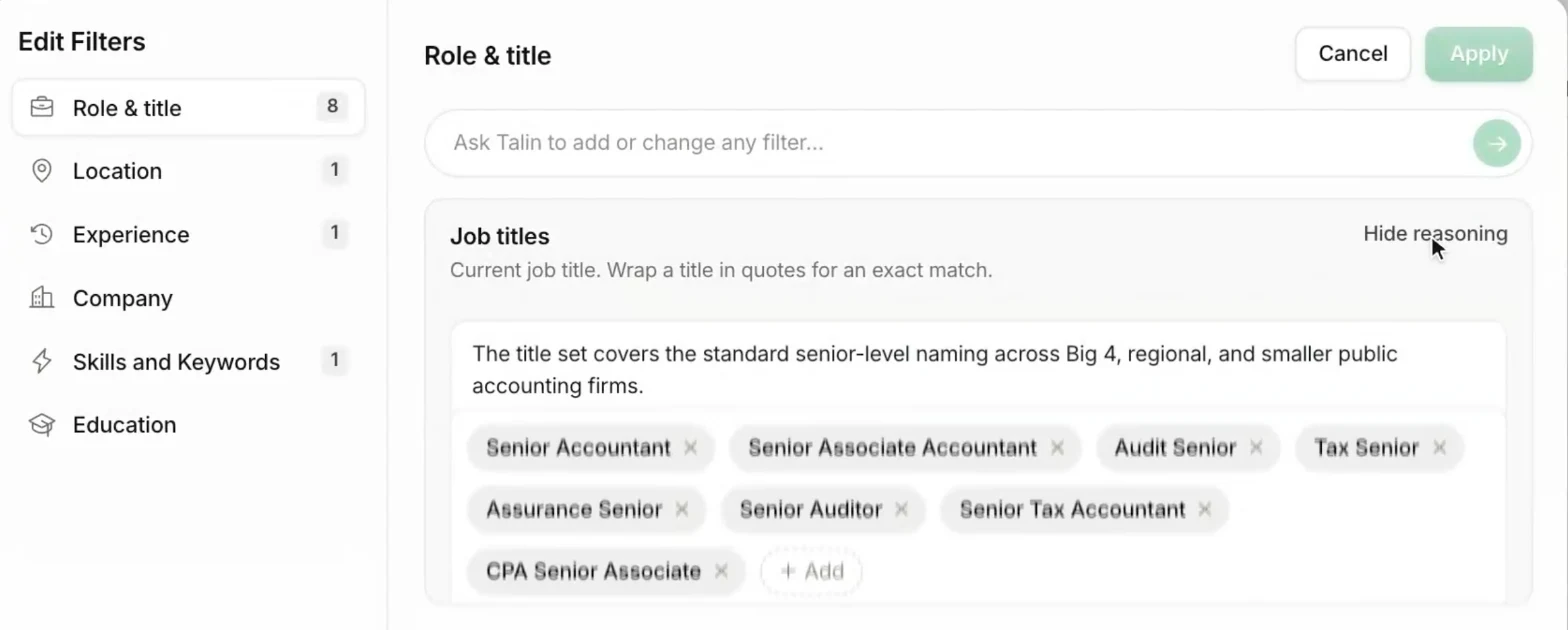
Section titled “Edit filters yourself”Edit filters lets you change any filter by hand.
- Select Edit filters, on the left or above the results.
- Select a tab, such as Role & title, Location or Company.
- Add or remove values, or type a request into the Ask Talin box, such as add Head of People.
- Select Show reasoning on a filter to see why Talin chose it.
- Select Apply to update your results, or select Cancel to close without changes.
Save your list
Section titled “Save your list”When the results look right, select Save list and continue.
Talin imports your contacts and takes you back to Add contacts, where you can see how many were imported. To change the search, select Edit search. When you’re ready, select Continue to move on to AI Shortlist.
If you close Talin search without saving, those contacts aren’t added to the campaign.
AI Search Builder
Section titled “AI Search Builder”If you build lists in LinkedIn Recruiter or Sales Navigator, AI Search Builder in the Talin Chrome extension sets up the search there. Open the extension, select the AI Search Builder tab, pick your search type, add your document or description, and select Build search.
Still need help?
Our team is here when the docs don't cover it.