Team management
Use Team Management to invite and remove teammates, control what each person can access, manage team sharing and keep your licenses in order. You’ll find it under Settings, then Workspace, in the Members section.
How permissions work
Section titled “How permissions work”Every teammate has two settings that work together. Because they’re set separately, you can combine them to fit how your team works.
Each teammate has:
- a role, Admin or Standard, which controls who can change account settings
- a seat type, Full or View, which controls who can run campaigns and receive credits
In practice, role decides who can change things, and seat decides who can send things.
| Role | Seat type | What this person can do |
|---|---|---|
| Admin | Full | Full access. Can change settings, run campaigns, and receives credits each month. |
| Admin | View | Can change settings and manage the team, but can’t run campaigns and doesn’t receive credits. Good for operations or finance owners. |
| Standard | Full | Can run campaigns and receives credits, but can’t change account settings. The most common setup for recruiters and sellers. |
| Standard | View | Read-only access. Can’t change settings, run campaigns or receive credits. Good for stakeholders who just need visibility. |
What admins can do
Section titled “What admins can do”Admins can do these things that Standard users can’t:
- invite and remove teammates
- change roles and seat types
- access billing and update the license count
- manage team sharing rules
- connect and manage integrations
- change account-wide settings, such as sending hours and duplicate filters
Invite a teammate
Section titled “Invite a teammate”You’re prompted to invite teammates the first time you set up your account. Each person gets an email invite right away and must sign up with the same email address the invite was sent to.
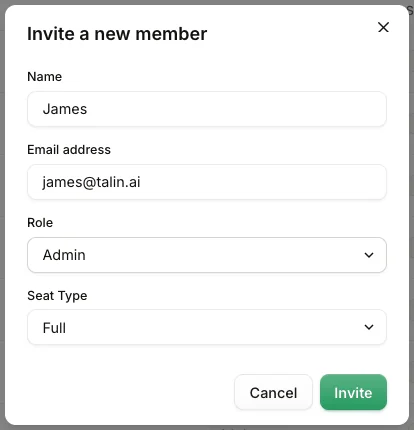
To invite someone after initial setup:
- Select Settings in the left sidebar, then the Workspace tab.
- Select Invite member.
- Enter their name, email, role (Admin or Standard) and seat type (Full or View).
- Select Invite.
Disable or re-enable a teammate
Section titled “Disable or re-enable a teammate”Disabling a teammate removes their access to Talin. It’s useful when someone leaves the team, changes roles or when you’re reassigning a license.
- Select Settings in the left sidebar, then the Workspace tab.
- Under Members, select the three dots next to the person’s name.
- Select Disable to remove access, or Enable to restore it.
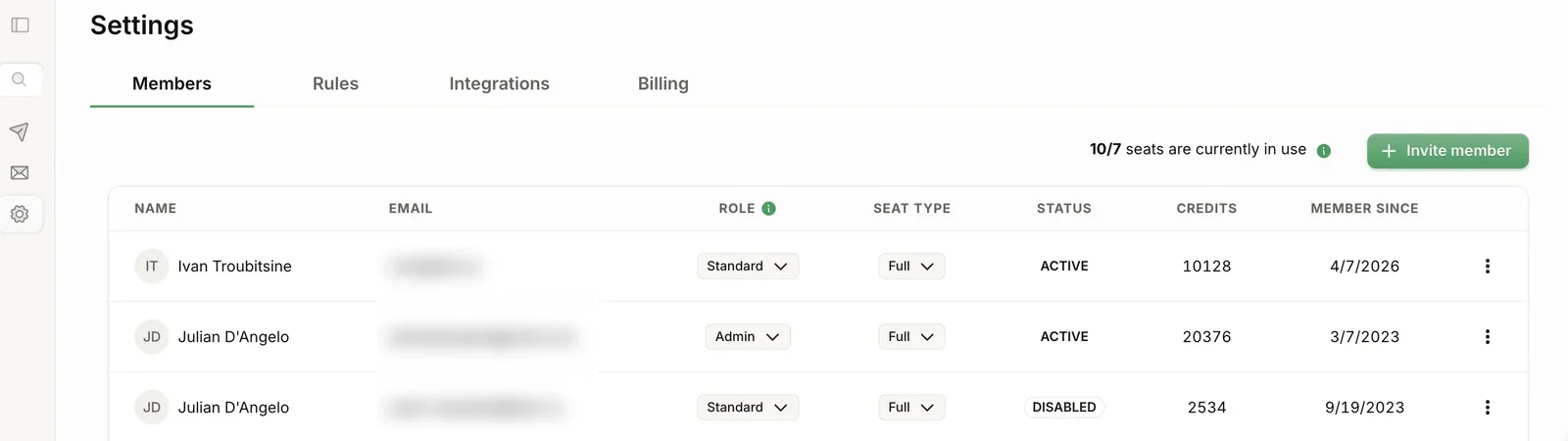
The Status column on the Members list shows each person’s current state.
What happens when someone is disabled
Section titled “What happens when someone is disabled”A disabled teammate:
- can’t log in to Talin
- can’t build or run campaigns
- has their active campaigns paused right away
- keeps their unused credits, which our team can move to a teammate on request
- keeps their account history, so re-enabling them later doesn’t lose any data
To reduce your bill, go to Settings, then Billing and lower your seat count. Changes take effect on your next billing cycle.
Change a seat to View
Section titled “Change a seat to View”A View seat keeps someone’s visibility without letting them run campaigns. Use it instead of disabling a teammate who still needs to see what’s happening.
- Select Settings in the left sidebar, then the Workspace tab.
- Under Members, select the three dots next to their name.
- Select Edit and change their seat type to View.
What people on a View seat can do
Section titled “What people on a View seat can do”Someone on a View seat:
- can log in to Talin and view campaigns
- can’t build or run their own campaigns
- doesn’t receive monthly credits
- loses any unused credits, which can’t be transferred or recovered
To reduce your bill, go to Settings, then Billing and lower your seat count. Changes take effect on your next billing cycle.
Check license usage
Section titled “Check license usage”Your license count shows how many seats are in use out of your total. You’ll see it above the Members list, for example “6/7 seats are currently in use”.
To add or remove licenses, go to Settings, then Billing.
Set team sharing rules
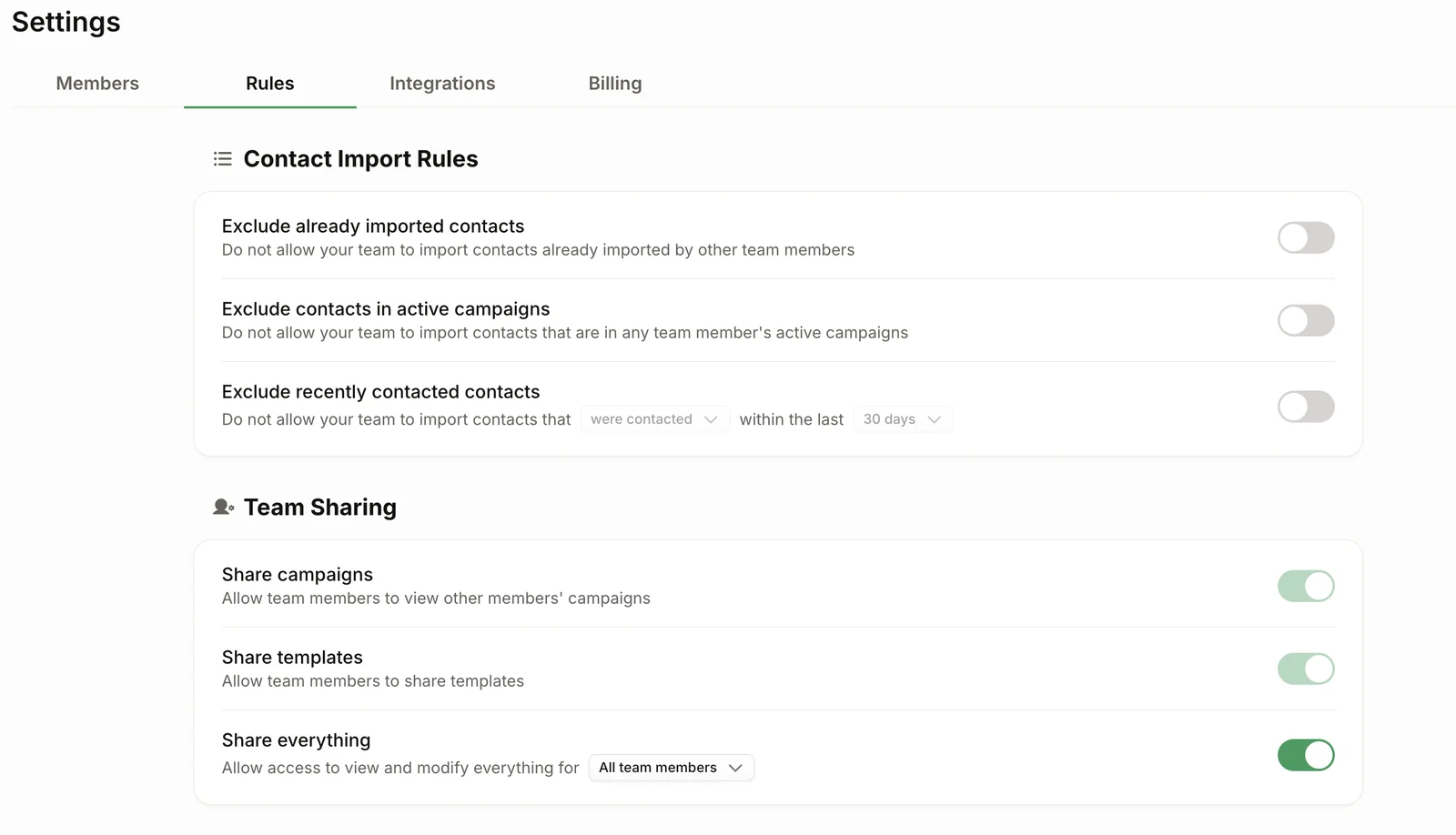
Section titled “Set team sharing rules”Team sharing rules control what your team can see and share. Admins set them in Settings, then Rules.
You can turn on:
- Share campaigns, so teammates can view each other’s campaigns
- Share templates, so teammates can use shared message templates across the team
- Share everything, which opens view and edit access to all campaigns and templates, for Admins only or for all teammates
Still need help?
Our team is here when the docs don't cover it.