Outreach channels
Talin supports multi-channel outreach: email, SMS, LinkedIn connection requests, LinkedIn messages, LinkedIn InMails, phone calls and tasks. Email and SMS are fully automated. Every other channel is a manual step: Talin writes the message and lines up your contacts, and you send it yourself.
Choose your channels
Section titled “Choose your channels”When you build your sequence, choose the channels you want under Channel preference. Your choice is saved for future campaigns.
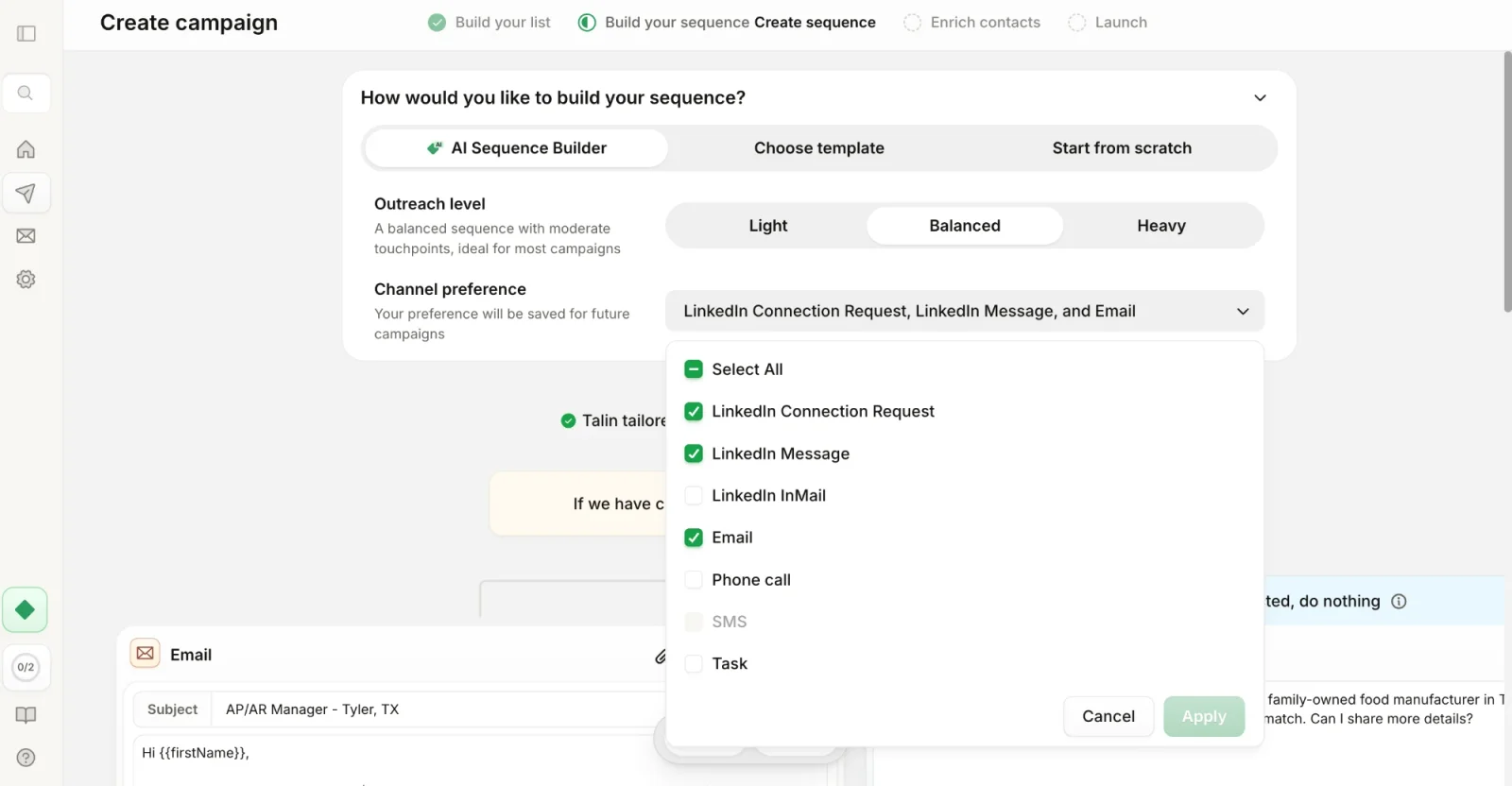
Email is fully automated. Talin sends each email for you.
Each connected inbox has these limits:
- up to 50 emails a day per connected inbox
- a default sending window of 9 AM to 5 PM EST
To send more, connect up to 10 inboxes with Multi Inbox, available on Plus and Max plans, and scale to 500 emails a day.
For better results:
- make sure contacts are enriched with a work or personal email, since emails need one
- skip your email signature in the template if your profile is set up in Talin, because Talin adds it automatically
- avoid links and attachments in the first email for better deliverability
SMS is fully automated. Talin sends each text for you, and you can add SMS to any campaign.
To set up SMS:
- Register for SMS in Talin Settings. Approval takes a few days to a few weeks.
- Once approved, go to Connected Accounts and generate your SMS number.
- Add SMS as a step in any campaign.
Contacts need a phone number to get SMS. Contacts without one are skipped.
All SMS replies appear in your Talin Inbox, and you can respond directly from there. Once a contact replies, their status changes to Replied via SMS.
LinkedIn connection requests
Section titled “LinkedIn connection requests”Connection requests are a manual step. Talin writes each request and lines up your contacts, and you send them on LinkedIn. They can only go to people who aren’t already connected with you.
LinkedIn messages
Section titled “LinkedIn messages”LinkedIn messages are a manual step too, and can only go to 1st-degree connections. Talin writes each message, and you send it on LinkedIn.
Send connection requests and LinkedIn messages
Section titled “Send connection requests and LinkedIn messages”When a campaign reaches one of these steps, it shows up under Actions on the campaign and on your Home page. You can send them from the Talin app, or with the Chrome extension, which is a lot faster. For a video walkthrough, read more on connection requests.
From the Talin app
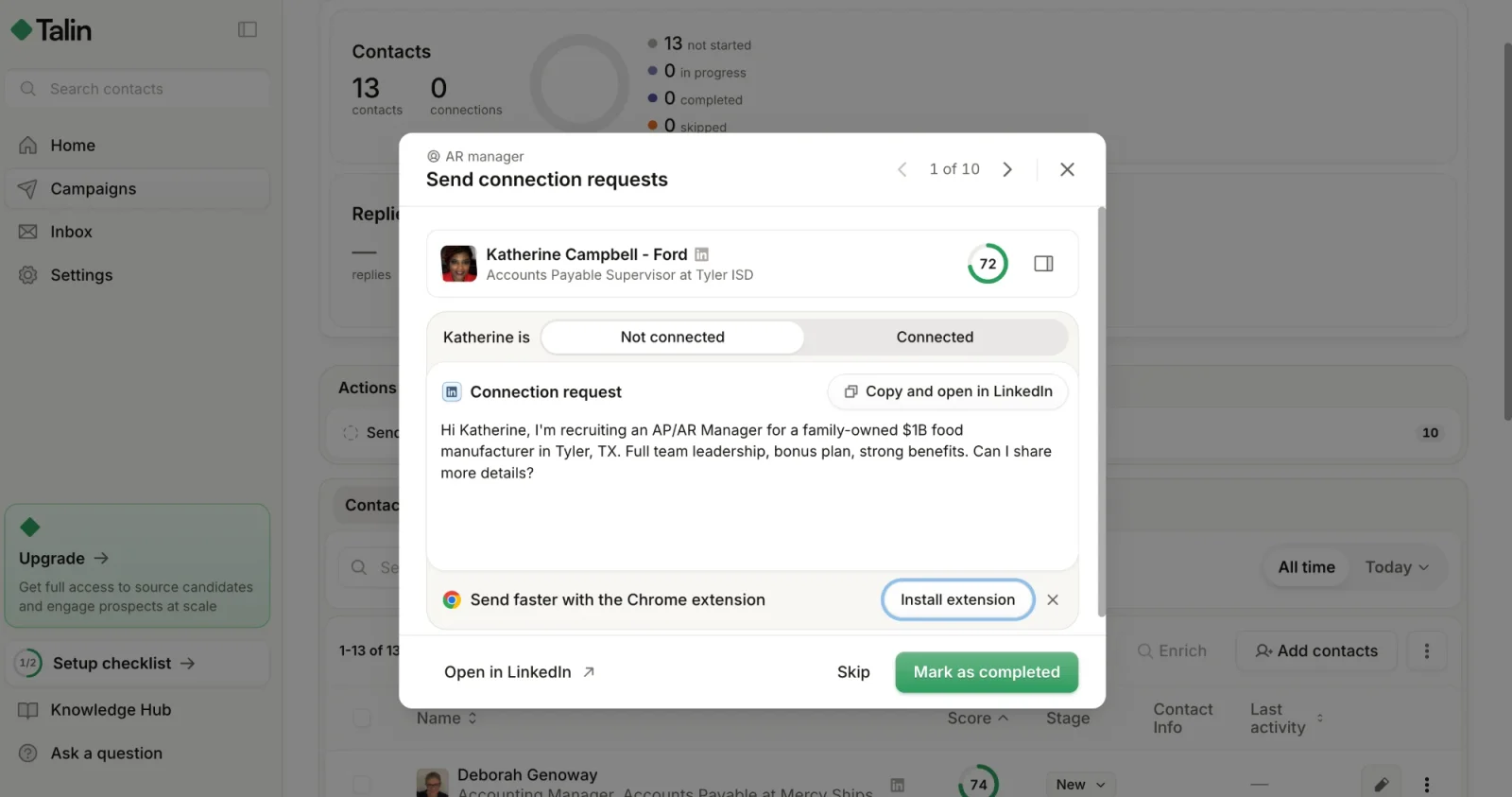
Section titled “From the Talin app”- Open the campaign and select the action under Actions, such as Send connection requests.
- Check that the contact is set to Not connected or Connected.
- Select Copy and open in LinkedIn, then paste the message on their profile and send it.
- Back in Talin, select Mark as completed to move to the next contact, or Skip.
With the Chrome extension
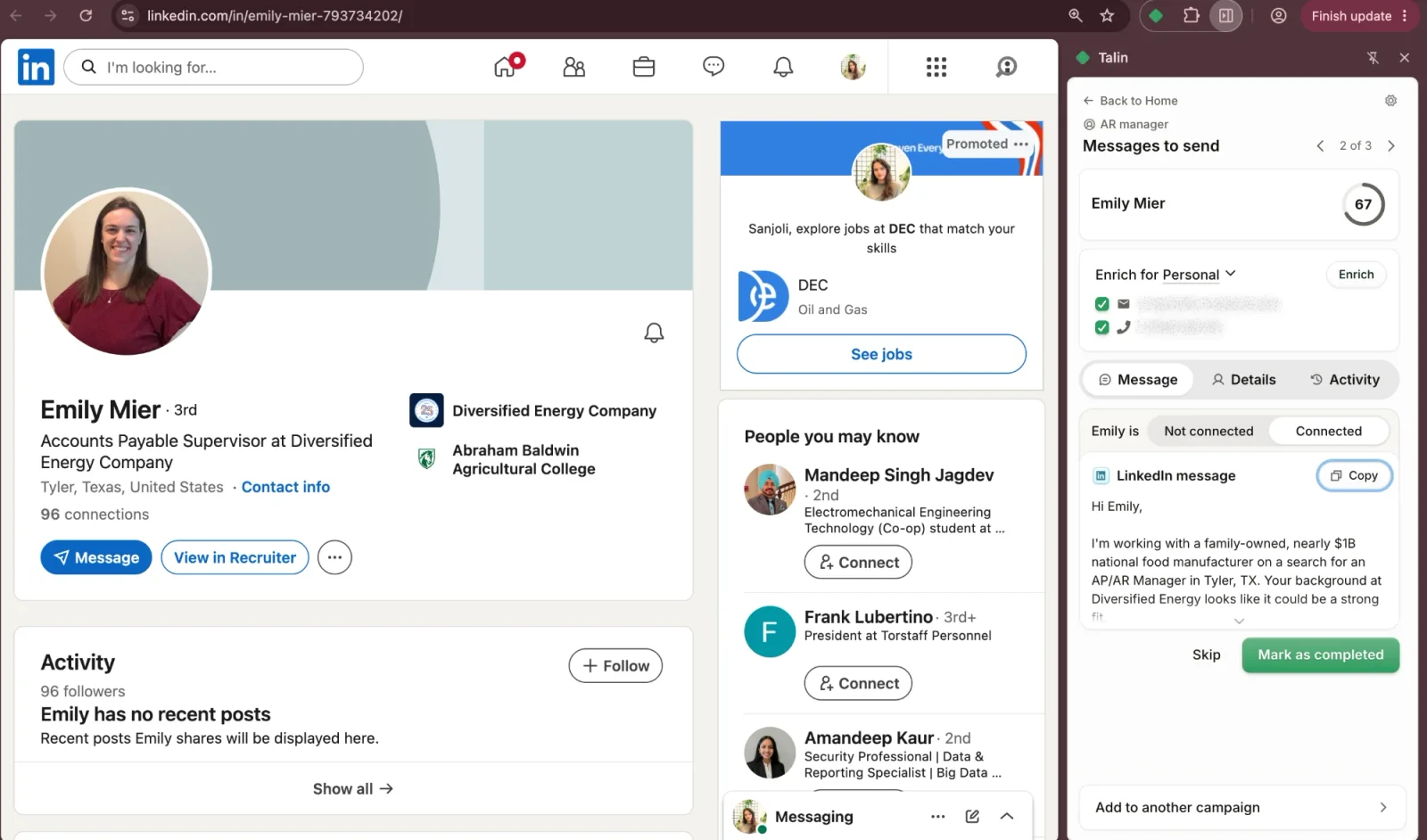
Section titled “With the Chrome extension”The Chrome extension opens next to each contact’s profile, so you can copy and paste side by side. You can install it from the same window with Install extension.
- Open the Talin Chrome extension. It shows the messages to send for your campaign, one contact at a time, and opens each contact’s profile.
- Check that the contact is set to Not connected or Connected.
- Select Copy, then paste the message on their profile and send it.
- Select Mark as completed to move to the next contact, or Skip.
LinkedIn InMails
Section titled “LinkedIn InMails”InMails are a manual step. Talin writes the subject and message, and you send each InMail in LinkedIn Recruiter. Talin no longer opens Recruiter with the message already loaded, so you copy it from Talin instead. You need LinkedIn Recruiter and the Talin Chrome extension.
- Open the campaign and, under Actions, select the InMail action. You can also open the Talin Chrome extension on the contact’s Recruiter profile.
- Select Copy for the subject and paste it into the InMail in Recruiter.
- Select Copy for the message and paste it in.
- Select Send in Recruiter.
- Back in Talin, select Mark as completed to move to the next contact, or Skip.
Talin needs each contact’s Recruiter profile URL to line up an InMail. Contacts without one move to the Needs Recruiter Profile URL stage. Read more on contact stages.
To send many InMails with fewer clicks, save the contacts waiting at the InMail step to a Recruiter project and send from the project in Recruiter. Then select those contacts in Talin and select Move to Next Step.
Replies to InMails are tracked automatically through LinkedIn reply tracking.
Phone calls
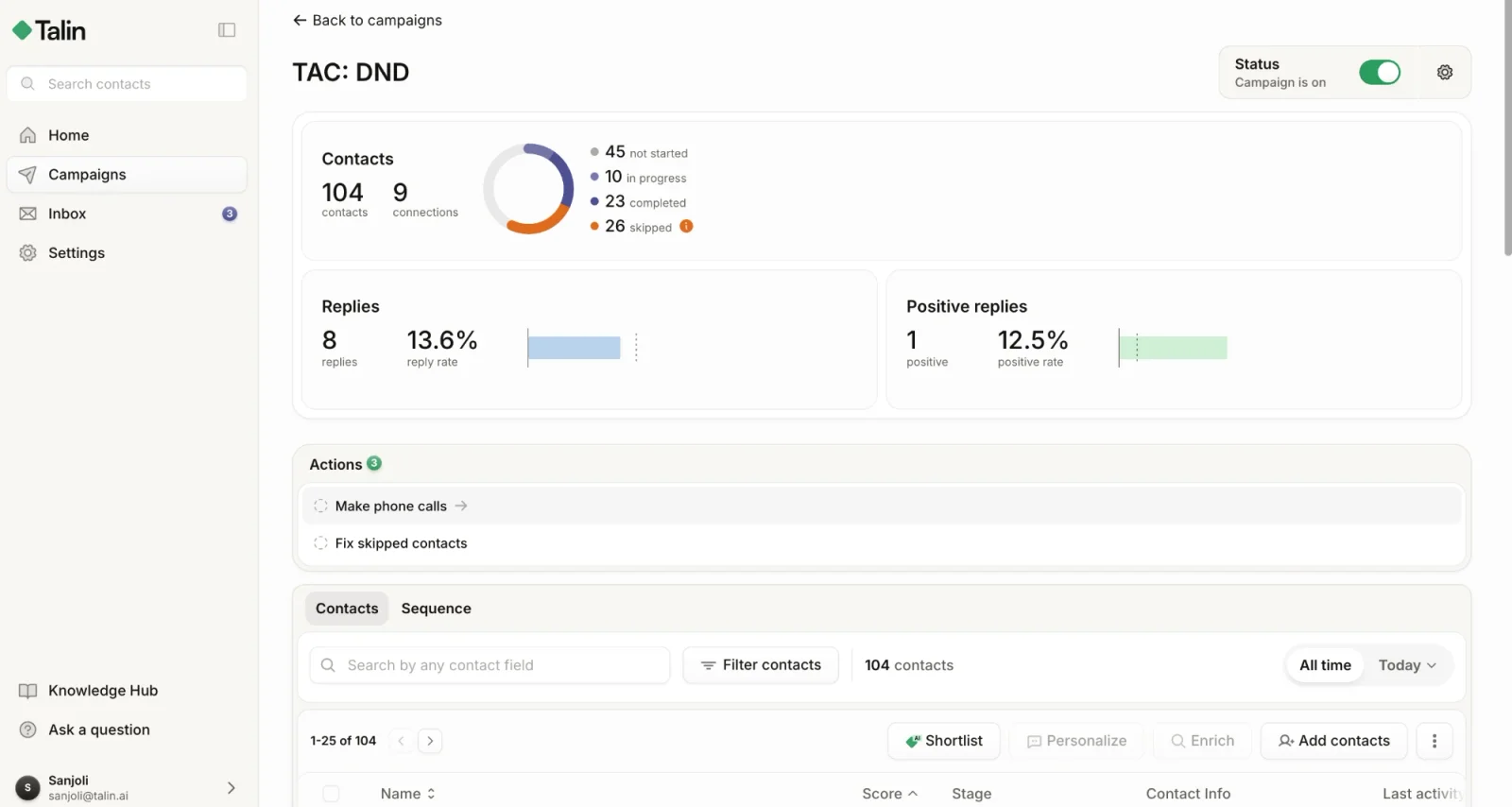
Section titled “Phone calls”Phone calls are a manual step. A phone call step gives you a list of contacts to call when they reach that step. Talin doesn’t have a built-in dialer, so you make the calls from your phone or your ATS, then mark how each call went.
Contacts without a phone number are skipped automatically. After contacts move to a phone call step, Make phone calls can take a few minutes to appear under Actions.
To make your calls:
-
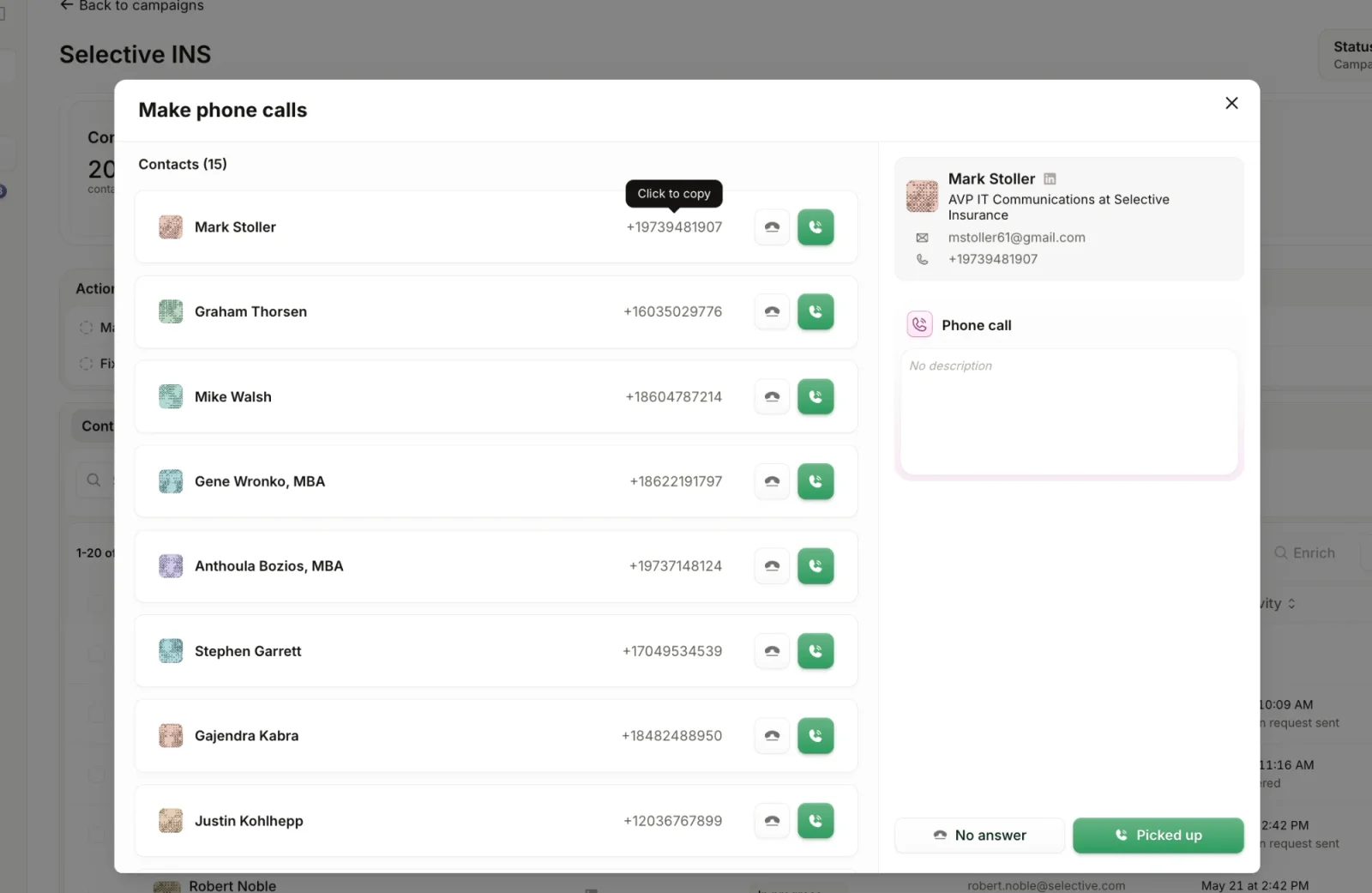
Open the campaign and, under Actions, select Make phone calls. You’ll also find it under Actions on your Home page.
-
Select a contact to see their details and any instructions you added to the phone call step.
-
Select the phone number to copy it, then dial it from your phone or your ATS.
-
Mark how the call went: select Picked up or No answer.
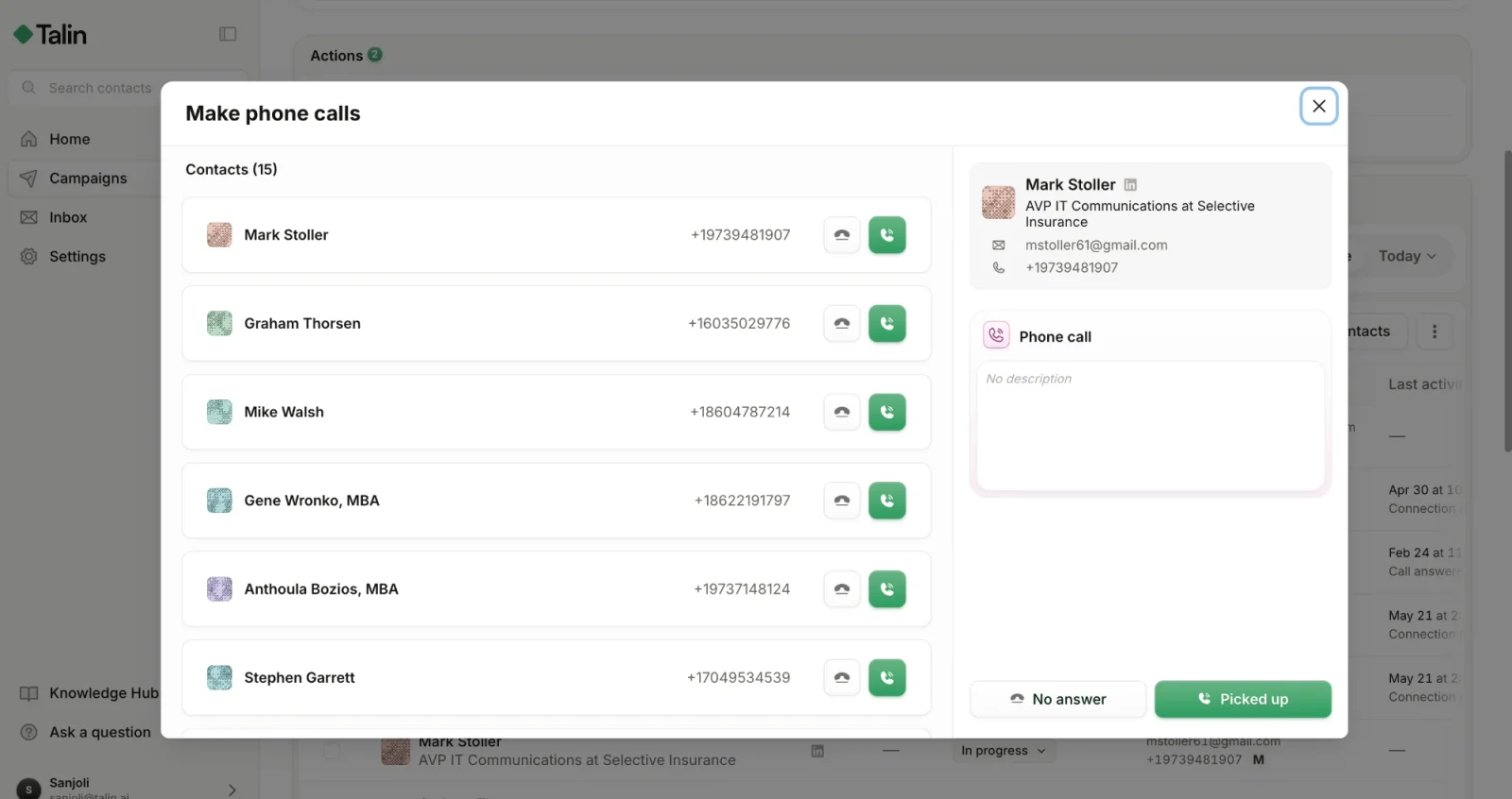
What happens next depends on the outcome:
- Picked up: the campaign stops for that contact, so you can carry on the conversation yourself
- No answer: the contact moves to the next step in your sequence
Best practices:
- add a phone call step after 2 or 3 automated touchpoints, for your highest-value contacts
- use the step’s instructions for talking points, so they’re in front of you on every call
A task is a manual step, and it can be anything you want to do yourself, such as reviewing a candidate’s portfolio or sending a personalized audio message. When a contact reaches a task, Talin pauses automation for them and prompts you to take action.
Recommended multi-channel approach
Section titled “Recommended multi-channel approach”This order keeps your outreach warm, balanced and credit-efficient:
- Send a connection request, then a LinkedIn message if it’s accepted.
- Send an email if the request isn’t accepted.
Sending hours and pace
Section titled “Sending hours and pace”Sending hours control when a campaign sends outreach. Each campaign has a sending hours block of at least 4 hours, and it covers all channels in the campaign.
Emails are always sent a few minutes apart, never in bulk. This protects your deliverability and helps you avoid spam filters.
Still need help?
Our team is here when the docs don't cover it.