Import rules and duplicates
Duplicate filters make sure a contact isn’t reached more than once, whether by you or across your team. Filters apply when you import, so duplicates are excluded automatically before they enter a campaign.
Time ranges
Section titled “Time ranges”Individual filters and team rules offer the same time ranges for recently contacted contacts:
- 15 days
- 30 days
- 60 days
- 90 days
- 120 days
- 6 months
- 1 year
Individual filters
Section titled “Individual filters”Individual duplicate filters apply to your own imports. You can turn on:
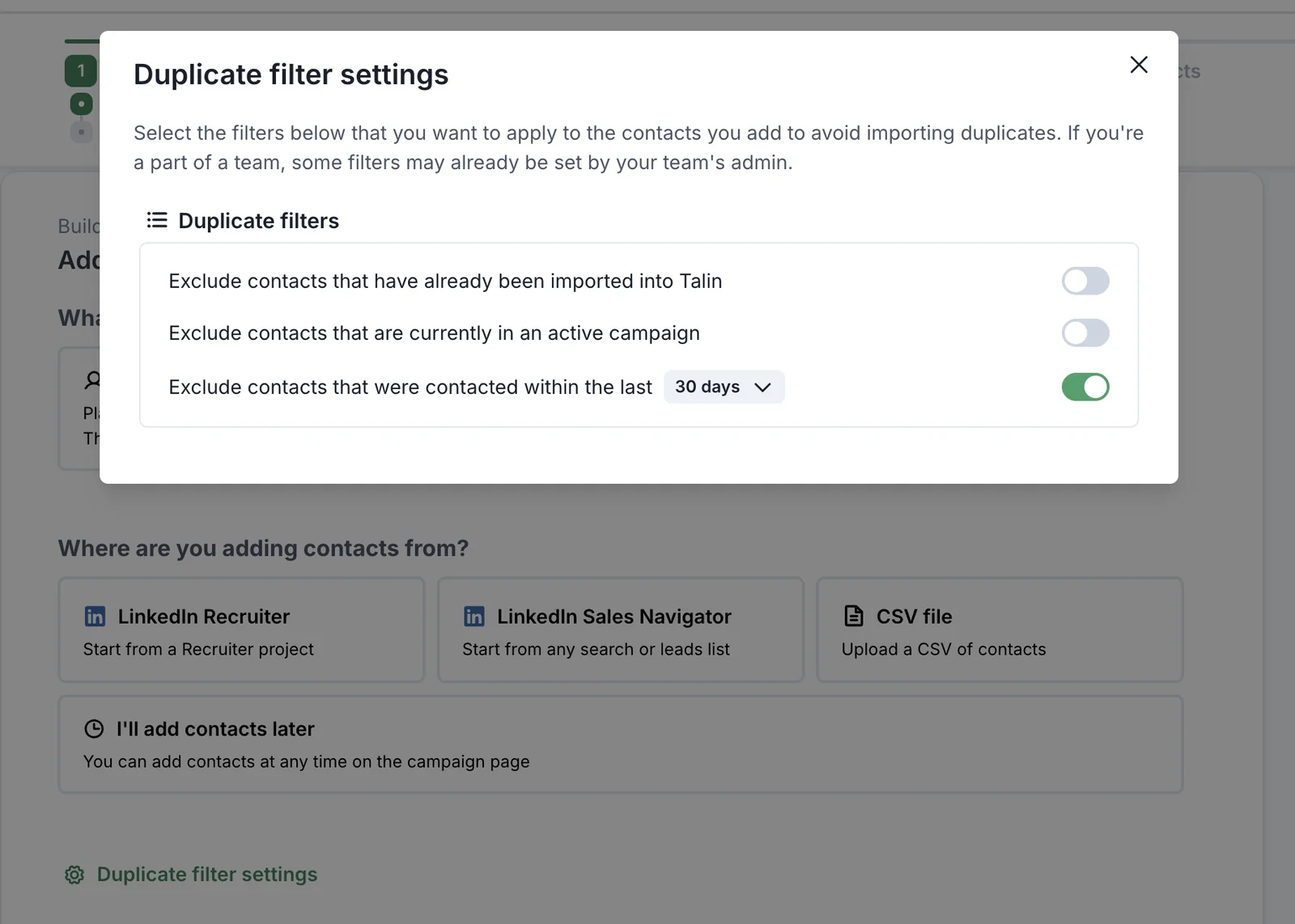
- Exclude contacts that have already been imported into Talin: stops you importing contacts already added to Talin
- Exclude contacts that are currently in an active campaign: stops you importing contacts who are in one of your active campaigns
- Exclude contacts that were contacted within the last [time range]: stops you importing contacts who were contacted within the time range you choose
You can set these filters in two places: during campaign creation and in the Chrome extension.
During campaign creation
Section titled “During campaign creation”-
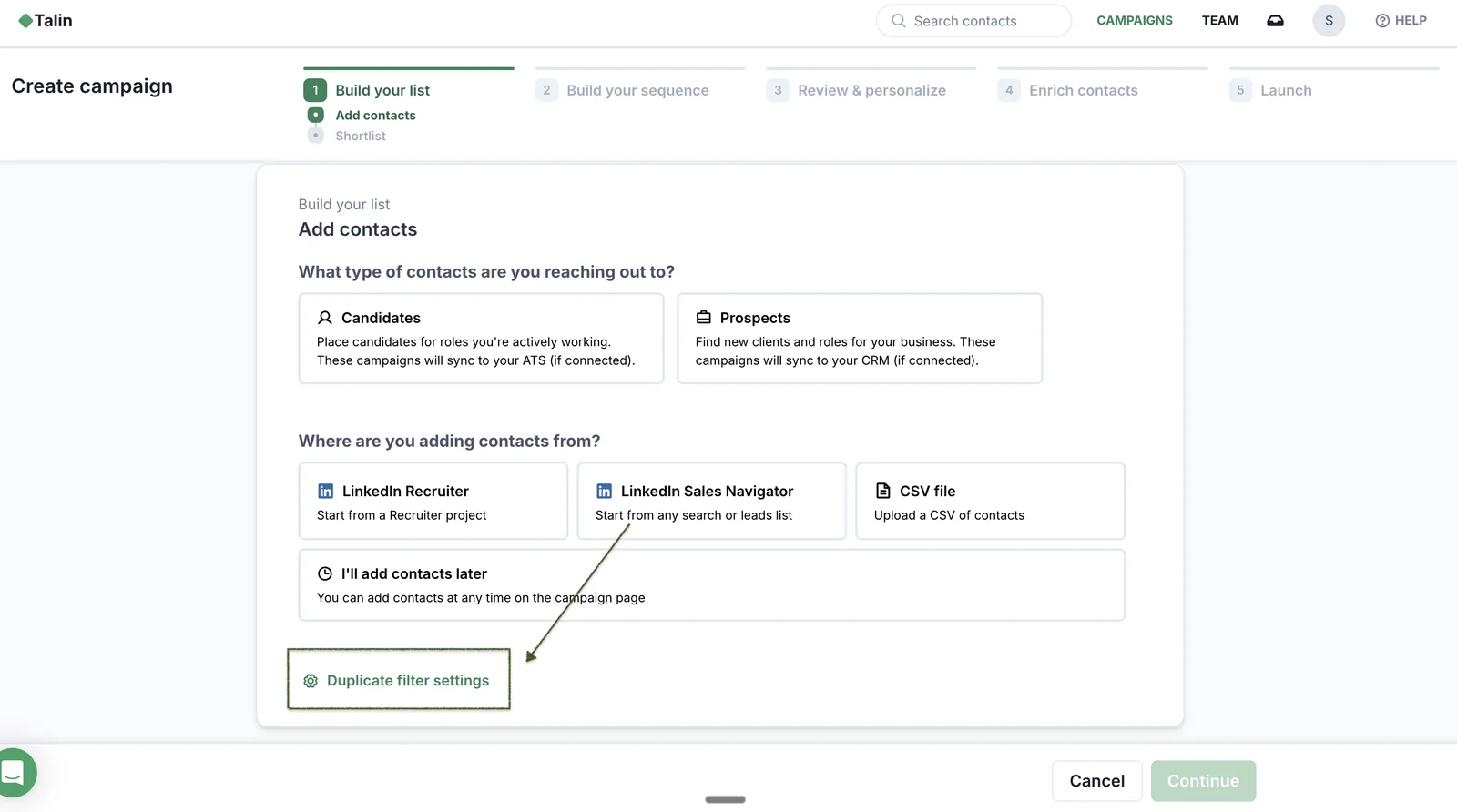
On step 1 of campaign creation, select Duplicate filter settings at the bottom left.
-
Review and set your filters before you import.
In the Chrome extension
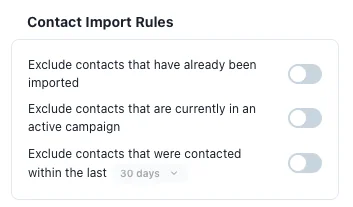
Section titled “In the Chrome extension”- Select the gear icon at the top right of the Talin Chrome extension.
- Review your duplicate filter settings before you import from social.
Team import rules
Section titled “Team import rules”Team import rules are set by an admin and apply to everyone on the team. When a rule is on, teammates can’t import contacts that match it, however they import.
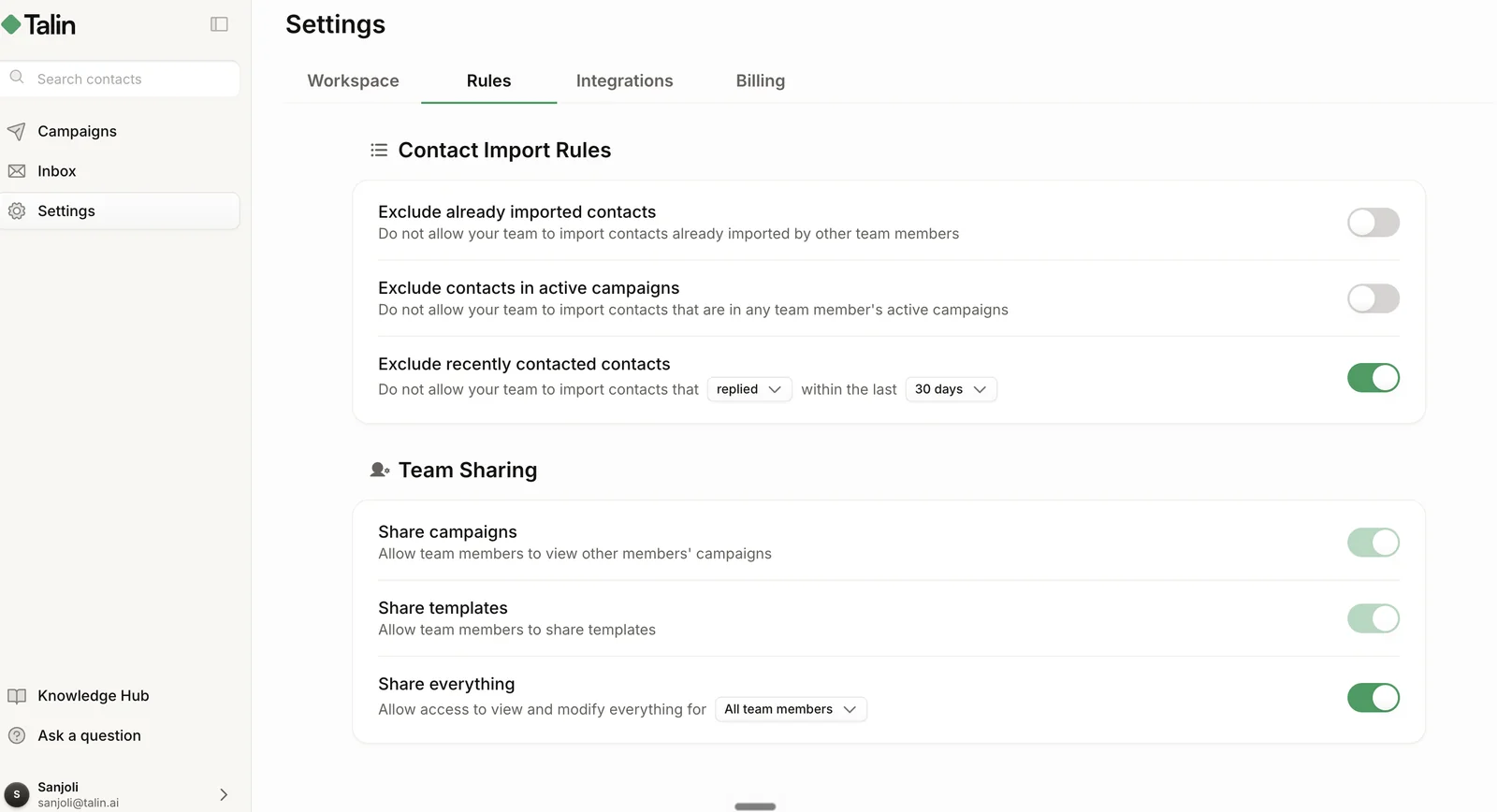
Admins manage team rules in Settings, then Rules, then Contact Import Rules. There are three rules, from strictest to least strict:
- Exclude already imported contacts: teammates can’t import any contact already imported by another team member
- Exclude contacts in active campaigns: teammates can’t import contacts who are in any team member’s active campaign
- Exclude recently contacted contacts: teammates can’t import contacts that were contacted, or that replied, within the last [time range]
For Exclude recently contacted contacts, choose were contacted or replied in the dropdown, then pick the time range.
In practice, Exclude recently contacted contacts suits teams that want a cooling-off period before contacting someone again.
Still need help?
Our team is here when the docs don't cover it.